

Why NiceSVG simplifies vector workflows
Use this section to make the Open, Edit, and Save SVG Files with NiceSVG decision easier to compare in real life, not just on paper. Start with the reader's actual constraint, then separate must-have requirements from details that are merely nice to have. A practical choice should survive normal use, maintenance, timing, and budget. If a recommendation only works in an ideal situation, call that out plainly and give the reader a fallback path.
The simplest way to use this section is to write down the must-have criteria first, then compare each option against those criteria before weighing nice-to-have features.
Open your SVG file in NiceSVG
Getting your design into the editor is the first step to refining it. NiceSVG is built to handle standard SVG files directly from your computer, making the import process straightforward whether you are working on a brand logo or a complex illustration.
Drag and drop your file
The easiest way to start is by dragging your SVG file directly from your desktop folder and dropping it into the main workspace. The editor will instantly parse the vector paths and render them on the canvas. This method works for most standard vector files without needing to navigate through complex menus.
If you prefer using buttons, look for the "Open" or "Upload" option in the top toolbar. Clicking this will open your system's file browser, allowing you to locate and select your SVG file. Once selected, the file loads immediately into the editing environment.
Supported formats and compatibility
NiceSVG supports standard SVG (Scalable Vector Graphics) files. This includes files created in common design software like Adobe Illustrator, Inkscape, or Figma. Because SVGs are vector-based, they scale infinitely without losing quality, which is why they are ideal for editing in a web-based tool.
If you have an SVG file downloaded from a repository like SVG Repo or Freepik, it should open without issue. However, if you encounter errors, ensure the file extension is strictly .svg. Some sites may provide files in other vector formats like .eps or .ai, which will not open directly in NiceSVG and require conversion first.
Quick tip for large files
While NiceSVG handles most files well, extremely large SVGs with thousands of nodes might take a moment to render. If your file seems unresponsive after dropping it, wait a few seconds. The editor is calculating the vector paths, and the canvas will appear once the data is fully loaded.
Edit paths, colors, and shapes
Editing vector graphics in NiceSVG is about precision. You are working with mathematical coordinates, not pixels, which means your changes remain sharp at any size. The interface is designed to let you manipulate these underlying structures without guessing.
Adjusting Vector Paths
Paths are the backbone of any SVG. In NiceSVG, you select a path to reveal its anchor points and handles. Dragging a point moves the line; dragging a handle curves it. This direct manipulation lets you reshape icons, logos, or custom illustrations with surgical accuracy.
Use the node tool to add or remove points where the path needs more detail or simplification. If a curve looks jagged, smooth the handles to create a fluid line. Think of it like shaping clay: you pull and push until the form matches your vision.
Changing Fill and Stroke
Color is the fastest way to personalize an SVG. NiceSVG separates fill (the inside) from stroke (the outline). Select an object and use the color picker to update these values.
For complex designs, you can edit individual layers. This is useful if you have a multi-colored icon and only want to change the background layer. The layer panel lets you toggle visibility and lock elements to prevent accidental edits.
Fine-Tuning Layer Properties
Beyond color and shape, layer properties control how elements behave. You can adjust opacity for transparency effects or change the blending mode to create composite images. These controls are essential for creating depth and visual hierarchy in your designs.
Save optimized SVG code
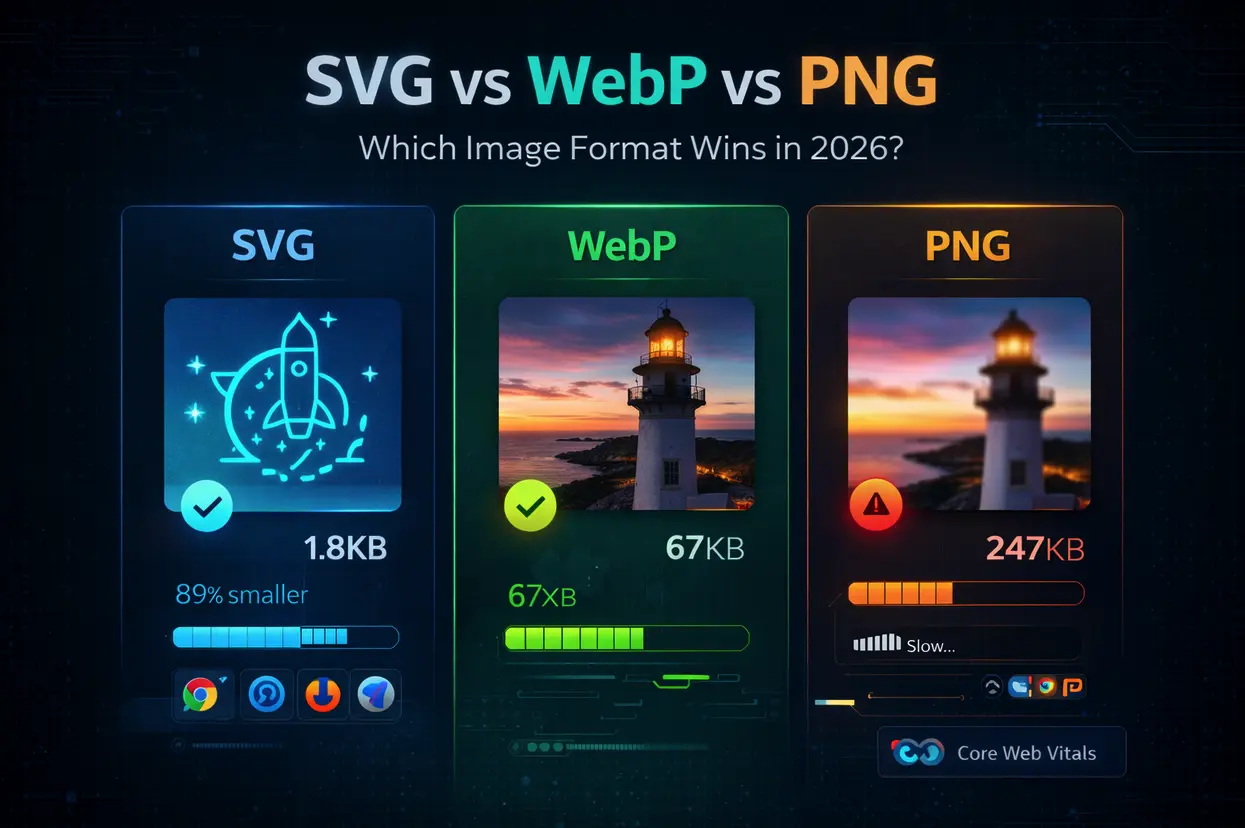
Exporting your design is the final step in making it web-ready. NiceSVG handles the heavy lifting of code optimization, ensuring your file is clean, minified, and efficient. This process removes unnecessary metadata, simplifies paths, and reduces the overall file size without compromising visual quality.
Open the export menu and choose your preferred output. For web development, select "SVG Code" to copy the raw markup directly into your editor. If you need a standalone file for design software or archiving, choose "Download SVG" to save a .svg file to your device.

Adjust the optimization slider based on your needs. The default setting removes redundant attributes and whitespace. For maximum performance, enable "Minify Code" to compress the output further. This is ideal for production environments where load speed is critical, though it makes the code harder for humans to read.
Once optimized, review the preview to ensure no visual artifacts appear. Click "Copy" to paste the code into your HTML or CSS files, or click "Download" to save the file. Always verify the file size in your project directory to confirm the optimization was successful.
Optimized SVGs load faster and render more sharply than unminified versions. By stripping out hidden layers and redundant data, you ensure your graphics perform well on both desktop and mobile devices. This simple export routine is the best way to guarantee your vector assets are ready for immediate use.
Common SVG editing mistakes
Even with a capable tool like NiceSVG, small oversights can break your graphics or bloat your files. Avoid these frequent pitfalls to keep your SVGs clean, fast, and reliable.
Broken viewBox attributes
The viewBox attribute defines the coordinate system of your SVG. If you resize the graphic without updating this value, the image may appear cropped or distorted on different screens. Always verify the viewBox after scaling elements to ensure consistent rendering.
Bloated file sizes
Unoptimized SVGs can contain unnecessary metadata, hidden layers, or redundant path data. This bloat slows down page load times and increases bandwidth usage. Use NiceSVG’s built-in optimization tools to strip out unused attributes and simplify paths before saving.
Broken external links
SVGs often reference external resources like fonts, images, or stylesheets. If these links are relative or point to local paths, they will break when the SVG is used in a different context. Use absolute URLs or embed resources directly within the SVG to ensure portability.
Incorrect color profiles
Using sRGB color profiles is standard for web graphics. If your SVG uses CMYK or other color spaces, colors may appear washed out or incorrect in browsers. Convert your color profile to sRGB during export to maintain visual consistency.
Verify your SVG before publishing
Before you upload an SVG to your website or design tool, treat it like a final quality check. A valid file ensures your graphics render correctly across all browsers and devices without slowing down your page.
Use this checklist to validate your SVG code and visual output:
- Validate XML structure: Ensure the file is well-formed XML. Use an online validator or an XML linter to catch syntax errors that might break the image.
- Check file size: Open the SVG in a text editor and look for bloated code. Remove unnecessary comments, metadata, or hidden layers to keep the file lightweight.
- Test in multiple browsers: View the SVG in Chrome, Firefox, Safari, and Edge. Different renderers handle gradients, filters, and opacity slightly differently.
- Verify accessibility attributes: Add
role="img",aria-label, andtitletags to ensure screen readers can interpret the graphic for visually impaired users.
A clean, validated SVG is like a well-tuned engine—it runs efficiently and reliably every time. Skipping this step can lead to broken images or accessibility issues that hurt your user experience.
Frequently asked questions about NiceSVG
Here are the most common questions about editing, optimizing, and using NiceSVG for your design workflow.
No comments yet. Be the first to share your thoughts!