

Figma and Illustrator workflows
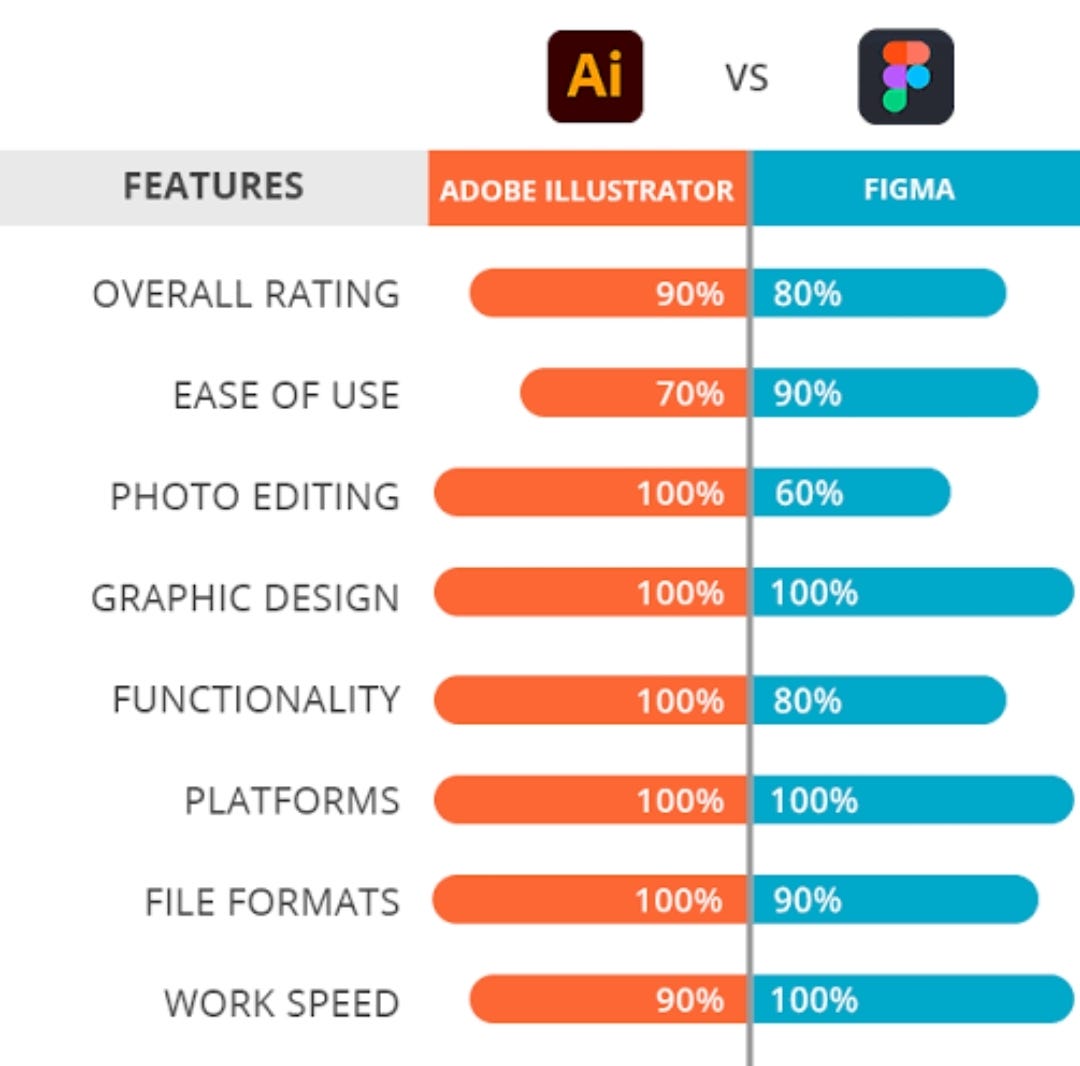
Adobe Illustrator was the standard for vector editing for decades. Most designers learned the craft there. Now, Figma is a common choice for web workflows because it's accessible and built for teams to work together in one file.
Illustrator remains a powerhouse, packed with features honed over decades. But Figma’s rise isn’t just about being a cheaper or web-based alternative. It’s about a different approach to design – one that prioritizes real-time collaboration and a streamlined interface. The question isn’t necessarily which program is "better" overall, but which one is better suited for your specific needs and workflow, particularly when dealing with SVGs.
We’re seeing more and more designers adopt Figma for its ease of use and collaborative features, even for projects that eventually need the power of Illustrator for final polish. Understanding the strengths and weaknesses of each application is key to making the right choice.
Opening large files
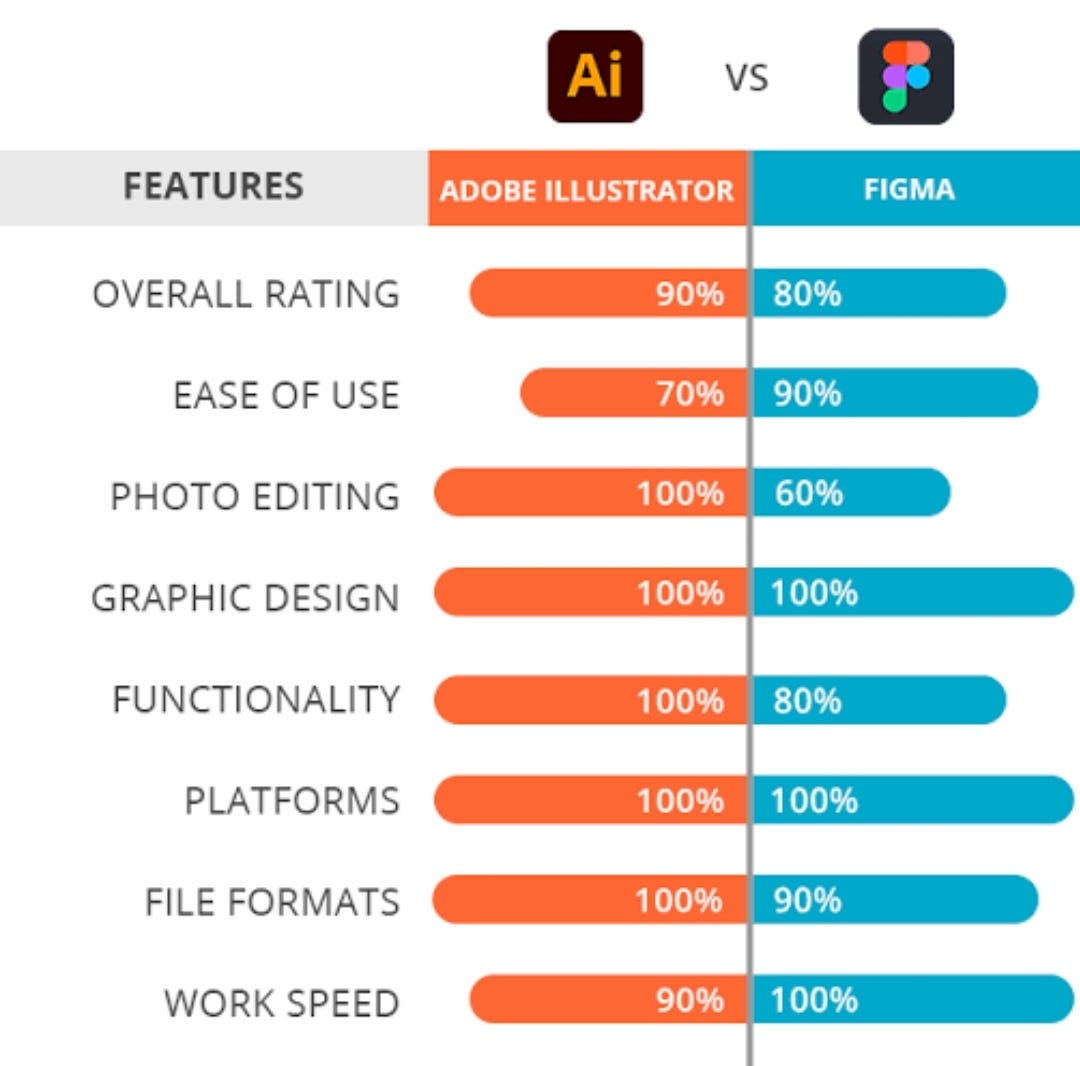
Opening SVG files is where the differences between Figma and Illustrator start to become apparent. Illustrator, being a desktop application, generally feels snappier when opening simpler SVGs. It has years of optimization under its belt. However, when dealing with complex SVGs – those with a high number of paths, intricate gradients, or embedded effects – Figma can often handle them surprisingly well, and sometimes even faster.
Illustrator often slows down with large SVGs, particularly legacy files. Figma handles these better. When a file has thousands of shapes, Figma's rendering stays smoother, though the gap isn't huge.
File size limitations are also worth considering. While both applications can handle reasonably large SVGs, extremely complex files can push the limits of either program. Figma's performance can degrade with an excessive number of vector points, and Illustrator’s memory usage can spike. Testing with your specific types of SVGs is the best way to determine which application performs better for you. I’ve consistently found Figma to be less prone to crashing with problematic SVGs, though.
Vector Editing: Paths and Shapes
When it comes to directly manipulating vector paths and shapes, Illustrator still holds an edge in terms of sheer control and precision. Its Pen tool is legendary, offering a level of finesse that’s hard to match. The ability to precisely adjust anchor points, Bézier handles, and path segments is incredibly powerful. Figma’s Pen tool is competent, but it lacks some of the advanced features found in Illustrator.
Boolean operations – union, subtract, intersect, exclude – are also more robust in Illustrator. While Figma offers these operations, they can sometimes be less predictable, especially with complex shapes. Illustrator's Pathfinder panel provides a very clear and reliable way to combine and modify shapes. You have a lot more control over the resulting paths.
However, Figma’s vector editing tools are more than adequate for most tasks. The auto-tracing feature is quite good, and the ability to easily switch between vector and boolean operations is a plus. The difference really comes down to how much fine-grained control you need. For quick edits and prototyping, Figma is often faster and more efficient. For detailed illustration and complex path manipulation, Illustrator remains the go-to choice.
- Illustrator: Precise Pen tool and Pathfinder panel for complex path editing.
- Figma: Competent Pen tool, auto-tracing feature, simpler boolean operations.
SVG Path Editing Feature Comparison: Figma vs. Adobe Illustrator (2026)
| Feature | Figma | Illustrator |
|---|---|---|
| Direct Selection Tool | Good - Precise selection of points and segments. | Excellent - Industry standard, highly refined control. |
| Pen Tool | Good - Offers boolean operations within the pen tool. | Excellent - Extensive control over Bézier curves, more advanced options. |
| Path Simplification | Fair - Basic simplification available, can sometimes be imprecise. | Good - More robust simplification with greater control over detail reduction. |
| Corner Radius Control | Excellent - Simple, intuitive corner rounding controls. | Good - Precise control, but can be less direct than Figma’s approach. |
| Path Offset | Good - Functionality available through plugins. | Excellent - Built-in feature with comprehensive options. |
| Boolean Operations | Good - Solid boolean operations, generally reliable. | Excellent - Powerful and versatile boolean operations, complex shapes well supported. |
| Shape Builder Tool Equivalent | Absent - Requires workarounds using boolean operations and masking. | Excellent - Dedicated tool for combining and modifying shapes efficiently. |
| Live Corners | Absent - No direct equivalent. | Excellent - Dynamic corner modification without altering path structure. |
| Gradient Control | Good - Offers gradient options, but less granular control than Illustrator. | Excellent - Extensive gradient options, including mesh gradients and advanced blending modes. |
Qualitative comparison based on the article research brief. Confirm current product details in the official docs before making implementation choices.
Color and Gradients: Control and Flexibility
Both Figma and Illustrator offer comprehensive color palettes and gradient tools. Illustrator’s color panel is incredibly feature-rich, allowing for precise color selection, color harmonies, and color management. It supports a wider range of color profiles, including CMYK for print projects. Figma’s color options are more streamlined, focusing on ease of use and accessibility.
Applying colors to specific paths or shapes is straightforward in both applications. However, Illustrator’s Live Color feature makes it easier to edit colors globally and maintain consistency across your design. You can change a color once, and it will update everywhere it’s used. Figma's color styles achieve a similar result, but the implementation is a bit different.
Gradients are well-supported in both programs, with options for linear, radial, and angular gradients. Illustrator offers more advanced gradient controls, such as gradient meshes and the ability to add multiple color stops. Figma’s gradient tools are simpler, but still effective for creating visually appealing effects.
Effects and Filters: Beyond Basic Vectors
Illustrator has more effects than Figma, including distortions and stylization tools. You can customize every parameter, but these effects slow down the app when you're working on large SVGs.
Figma’s effects library is more limited, but it includes the essential tools for adding visual polish to your designs. Drop shadows, blurs, and layer blending modes are all available. While the customization options aren’t as extensive as in Illustrator, they’re often sufficient for web and UI design purposes.
Performance is a key consideration when using effects. Illustrator can become sluggish when applying multiple complex effects to a single SVG. Figma tends to handle effects more efficiently, but it’s still important to use them judiciously. I’ve found that simpler effects generally perform better in both applications.
Text Handling: Typography and Outlines
Both Figma and Illustrator handle text within SVGs reasonably well, but Illustrator has a slight advantage in terms of typographic control. It offers a wider range of font options, advanced kerning and tracking features, and more precise control over text layout. Figma's text tools are more basic, but they’re sufficient for most web and UI design tasks.
Converting text to outlines is essential when you need to ensure that your design looks consistent across different platforms. Both applications make this process straightforward. However, Illustrator's outline options are more granular, allowing you to control the level of detail and accuracy.
Complex text layouts can be challenging in both programs. Illustrator’s paragraph styles and text wrap features provide more control over multi-line text. Figma’s text handling is improving, but it still lacks some of the advanced features found in Illustrator. It's a common area where designers still prefer Illustrator for complex typography.
Collaboration and code
This is where Figma truly shines. Its real-time collaboration features are a game-changer for teams. Multiple designers can work on the same SVG file simultaneously, seeing each other’s changes in real-time. This drastically speeds up the design process and reduces the risk of version control issues. Illustrator’s collaboration features are limited to sharing files and co-editing through Adobe Creative Cloud.
Illustrator offers more advanced export options, particularly for web development. You can slice your SVG into smaller pieces, optimize it for different screen sizes, and export it in various formats. Figma’s export options are more limited, focusing primarily on SVG and PNG. However, Figma’s ability to generate code snippets for developers is a valuable feature.
SVG optimization is crucial for reducing file size and improving performance. Both applications offer options for removing unnecessary data and compressing the SVG code. Figma’s one-click SVG export is convenient, but it doesn’t offer as much control over the optimization process as Illustrator. It's worth exploring third-party SVG optimization tools, regardless of which application you use.
- Figma: Real-time collaboration, code snippet generation, one-click SVG export.
- Figma: Real-time collaboration and CSS code generation.
Featured Products

Bluetooth connectivity for wireless freedom · Pro Pen 3 with customizable settings · Compact size for portability and desk space efficiency
This graphics tablet offers precise control and an intuitive drawing experience, making it an ideal companion for editing SVG files in both Figma and Adobe Illustrator.

11-inch screen size for ample drawing space · X3 Pro Stylus for enhanced pressure sensitivity · Integrated Mini Key-dial for customizable shortcuts
This graphics tablet offers precise control and an intuitive drawing experience, making it an ideal companion for editing SVG files in both Figma and Adobe Illustrator.

Dual Dials for efficient control and navigation · Battery-free stylus for uninterrupted workflow · Wide compatibility with multiple operating systems
This graphics tablet offers precise control and an intuitive drawing experience, making it an ideal companion for editing SVG files in both Figma and Adobe Illustrator.

13.3-inch HD display for direct drawing on screen · Works seamlessly with Mac, PC, and Chromebook · Suitable for drawing, photo/video editing, and education
This graphics tablet offers precise control and an intuitive drawing experience, making it an ideal companion for editing SVG files in both Figma and Adobe Illustrator.
As an Amazon Associate I earn from qualifying purchases. Prices may vary.
No comments yet. Be the first to share your thoughts!