

Why use NiceSVG for vectors
SVG files are often 10x smaller than PNGs for the same visual quality.
NiceSVG serves as the central hub for managing your SVG workflows, offering a streamlined environment for opening, editing, and saving vector graphics. Unlike raster images that pixelate when scaled, SVGs use mathematical equations to define shapes, allowing you to resize designs from a business card to a billboard without losing any sharpness or clarity. This makes them the ideal format for logos, icons, and intricate illustrations that need to remain crisp across all devices.

Using NiceSVG simplifies the entire lifecycle of a vector file. You can import raw SVG code, tweak paths and colors with precision, and export clean files ready for web or print. By keeping your workflow within one dedicated tool, you avoid the compatibility issues and file bloat that often come with switching between multiple heavy-duty design applications. Whether you are refining a simple icon or preparing a complex graphic for embroidery, NiceSVG ensures your vectors stay lightweight and scalable.
Open SVG files in your browser
You do not need specialized software to preview an SVG file. Your web browser renders vector graphics natively, making it the fastest way to check your design before editing or saving.
Find the .svg file on your computer using your operating system’s file explorer. Ensure the file extension is actually .svg and not .svgz or another compressed format.
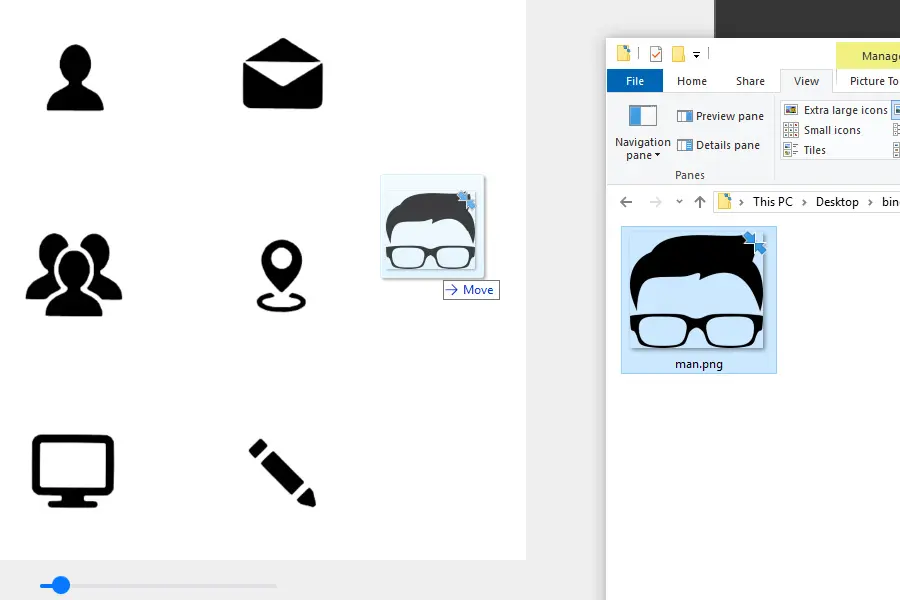
Click and hold the SVG file, then drag it directly into an open browser window. Alternatively, right-click the file, select "Open with," and choose Chrome, Firefox, Safari, or Edge.
The browser displays the vector graphic at full resolution. Use this step to check for rendering errors, missing fonts, or broken paths before moving the file into NiceSVG for editing.
This method works because SVG is a web standard. If the image does not appear, the file may be corrupted or saved in an incompatible format. For complex edits, switch to NiceSVG, but for quick checks, your browser is sufficient.
Edit SVG code directly
Editing an SVG file is as simple as opening it in any text editor, but using a code-aware IDE makes the process much faster. SVG files are just XML text, so your editor needs to understand that structure to help you navigate efficiently.
Choose the right editor
You can use Notepad or TextEdit for quick fixes, but a dedicated code editor like VS Code or Sublime Text is far better for larger files. These tools provide syntax highlighting, which colors different parts of the code to distinguish tags, attributes, and values. This visual cue prevents accidental typos that could break the rendering.
Locate the elements to change
Open the file and look for the <svg> root element. Inside, you will find nested tags like <path>, <circle>, or <rect>. Each tag has attributes that control its appearance. For example, fill changes the color, stroke sets the border, and d defines the shape's geometry.
Right-click the SVG file and select "Open with" your chosen code editor. If you are using NiceSVG, you can also paste the raw code directly into the editor panel to see immediate changes.
Use your editor's search function (Ctrl+F or Cmd+F) to locate the element you want to modify. Search for the id attribute if the file is well-structured, or look for specific color codes like #FF0000.
Change the values inside the tags. To change a color, update the fill attribute. To move an object, adjust the x and y coordinates. Be careful not to delete the quotation marks around values.
Save the file (Ctrl+S or Cmd+S). Open it in your browser to see the updates. If the image doesn't change, check the browser's developer console for syntax errors.
Avoid common syntax errors
XML is strict about formatting. A single missing quote or bracket can cause the entire graphic to disappear. Always ensure that every opening tag has a corresponding closing tag, or that self-closing tags like <circle> end with />. If you make a mistake, undo your changes and compare the structure against a known good example.
Use NiceSVG for visual edits
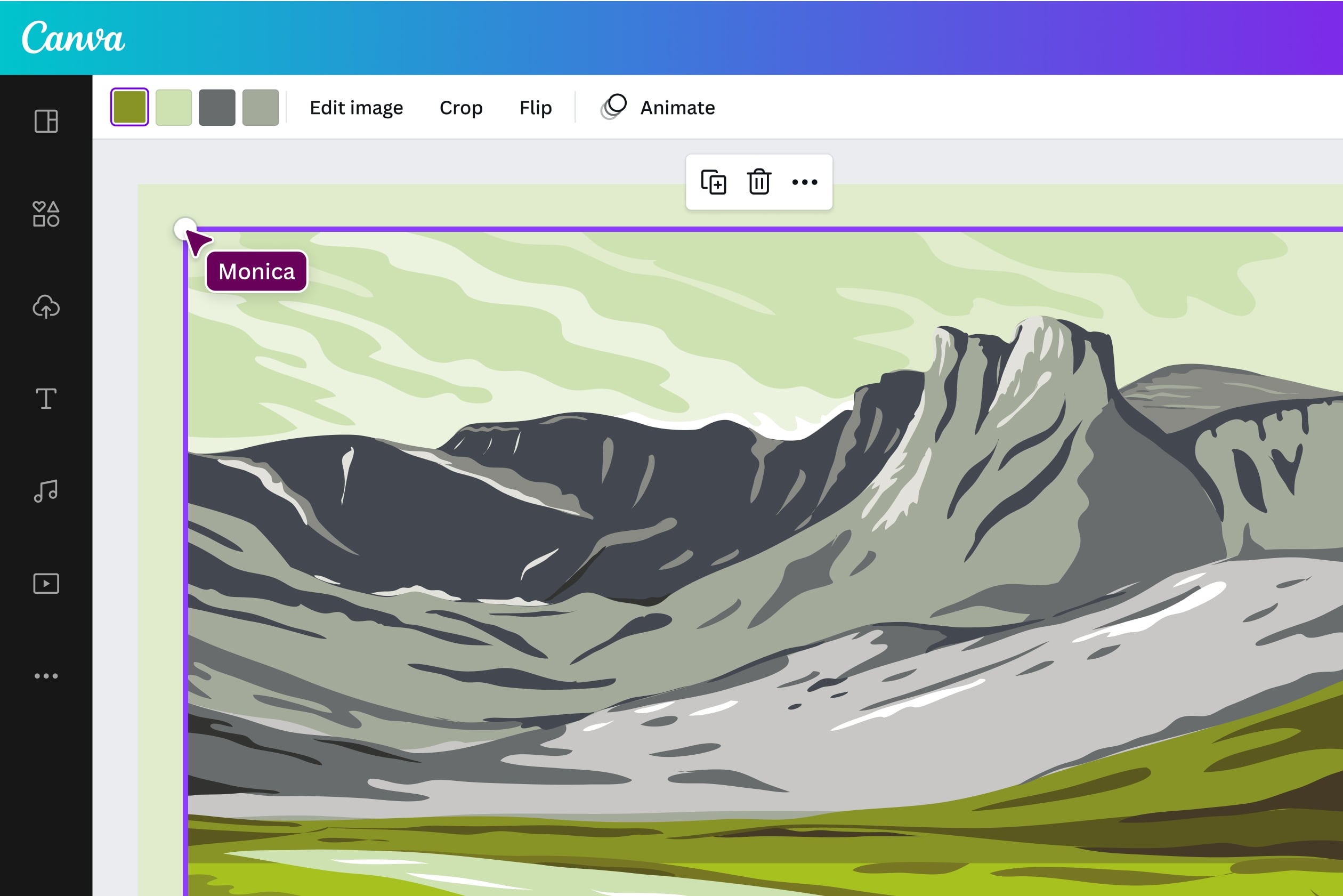
NiceSVG lets you tweak vector graphics without touching code. The interface works like a digital whiteboard where you click elements to change their properties. This approach is faster than editing XML attributes in a text editor and less intimidating than learning a full design suite.
Adjust colors and paths
Click any shape to reveal the properties panel on the right. Change the fill or stroke color using the color picker. You can also edit the path data directly if you need to reshape a curve or line. The changes apply in real time, so you see the result immediately.
Resize and rotate
Drag the corner handles of a selected object to resize it. Hold the Shift key to maintain the aspect ratio. Use the rotation handle to turn the element to a specific angle. You can also type exact dimensions and coordinates into the input fields for precision.
Export the edited file
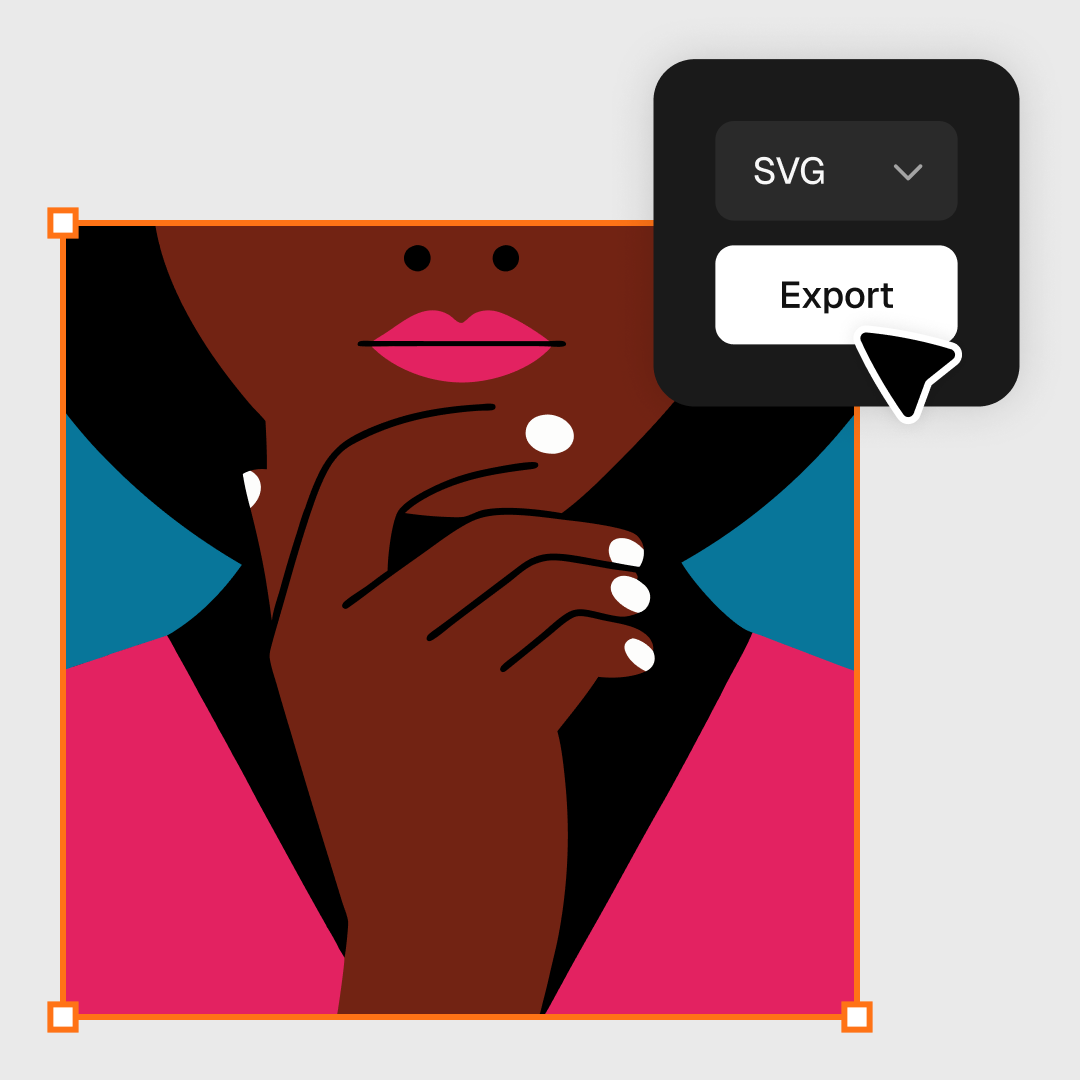
Once you are satisfied with the changes, click the Export button. Choose SVG as the output format. NiceSVG will clean up the code and remove unnecessary metadata. Download the file to your computer and use it in your website or design project.
Save and export your SVG
Exporting an SVG file is the final step in preparing your graphics for the web. When you save your work in NiceSVG, you are generating clean, scalable code that browsers can render instantly. The goal is to produce a file that is as small as possible without losing visual quality.
Optimize file size before saving
Large SVG files slow down page load times. Before you hit save, look for unnecessary data in your code. NiceSVG automatically strips out hidden metadata, comments, and editor-specific tags that add bulk but don't affect the image. This keeps your file size down, ensuring your website loads quickly for visitors.
Choose the right export settings
When exporting, select the "Clean" or "Optimized" option if available. This ensures that the code remains valid while removing redundant attributes. Avoid exporting as a raster format like PNG unless you specifically need a fixed-size image. SVGs shine when they remain vector-based, allowing them to scale to any size without pixelation.
Verify the output
After saving, open the new SVG file in a text editor to inspect the code. Ensure there are no broken paths or missing tags. You can also drag the file into a browser to confirm it renders correctly. A clean, optimized SVG is ready for use in your projects.

Navigate to the File menu in NiceSVG and select Export. Choose SVG as your format. This opens the export dialog where you can adjust settings.
Check the box for "Remove editor data" or "Optimize code." This step strips out unnecessary metadata, reducing file size significantly without affecting the visual appearance of your graphic.
Click the Save button. NiceSVG will generate a clean .svg file. Save it to your project folder. You can now upload it to your website or use it in design software.
Common SVG editing mistakes
Even with a capable tool like NiceSVG, small oversights can turn a crisp vector into a bloated, broken file. These pitfalls usually stem from importing complex assets or ignoring the file structure. Fixing them early keeps your SVGs lightweight and compatible across all browsers.
Bloated file sizes
Importing raster images or overly complex paths from other editors often inflates file size. NiceSVG’s export settings can help, but it starts with clean source material. Avoid embedding high-resolution photos; instead, use SVG-native shapes or simplified paths. If you must import an image, compress it first.
Broken paths and anchors
Editing nodes without checking the underlying path data can disconnect lines or break text anchors. Always preview your changes in the NiceSVG canvas before saving. Use the "Simplify Path" feature to remove unnecessary points that cause rendering glitches in older browsers.
Ignoring viewBox dimensions
A missing or incorrect viewBox attribute causes scaling issues when the SVG is resized. This is the most common reason an icon looks stretched or cut off on a responsive website. Ensure your viewBox matches the exact width and height of your artwork.
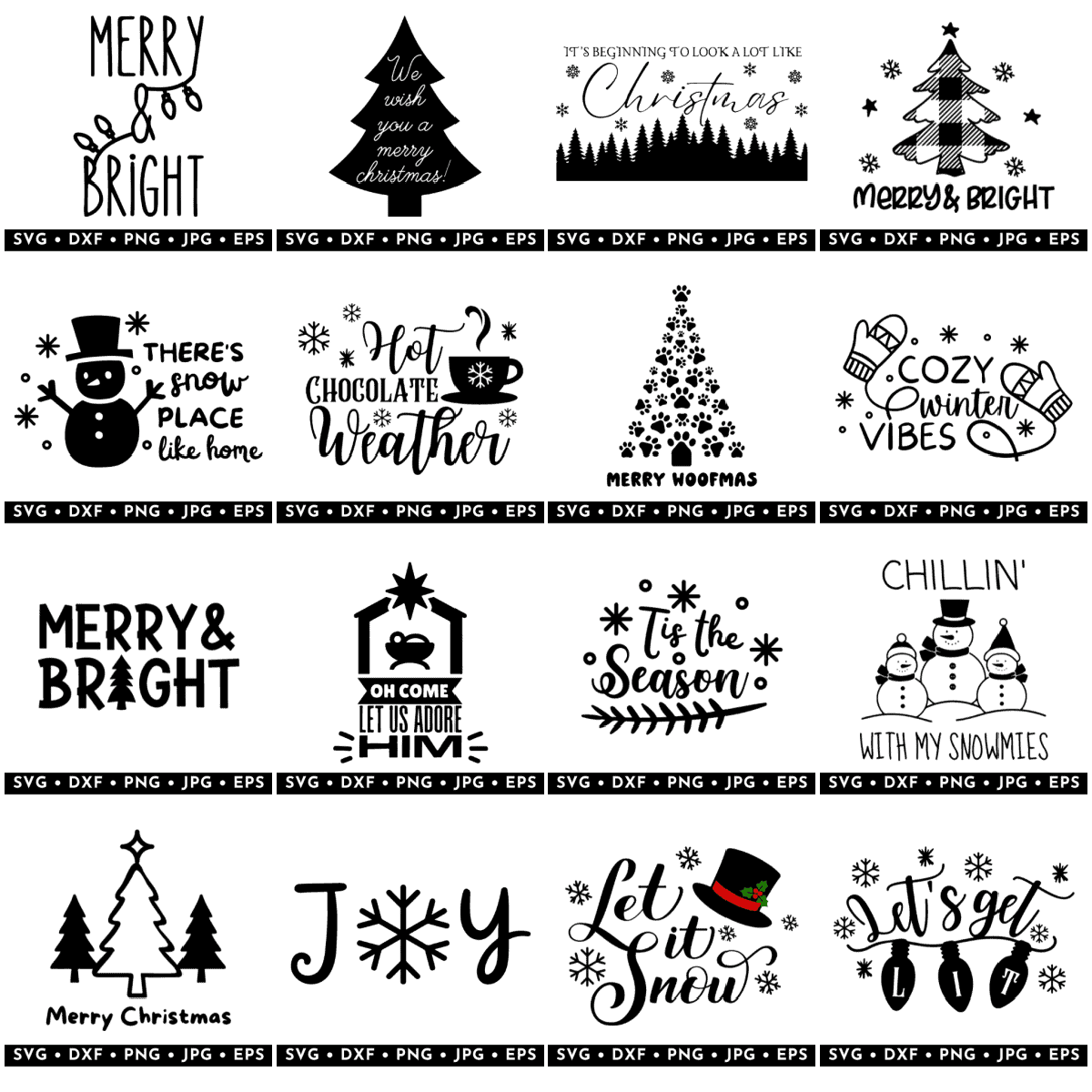
Where to find free SVG files
You can download free SVG assets from several reliable sources, but not all libraries are created equal. Some sites offer massive collections of icons, while others focus on decorative backgrounds or craft-specific graphics. Choosing the right source depends on whether you need simple UI elements or complex illustrations.
SVG Repo
SVG Repo hosts over 500,000 free vectors and icons. It is one of the largest collections available, making it easy to find specific shapes or common icons. Most files are licensed for commercial use, which simplifies the process if you are building a professional project. The search function is robust, allowing you to filter by color or category.
Creative Fabrica
Creative Fabrica offers a dedicated section for free SVGs, particularly useful for crafters and designers using tools like Cricut. The collection includes high-quality vector art and graphics that are ready for download. While many premium assets exist, the free section provides a solid starting point for projects requiring unique or decorative elements.
SVG Backgrounds
If you need subtle textures or website graphics, SVG Backgrounds is a strong option. The site provides copy-and-paste graphics that are customizable and tiny in file size. This makes them ideal for web development where load speed matters. All graphics are licensed for multi-use, reducing the need to check individual licenses for every element.
Frequently asked: what to check next
Can I edit SVG files without downloading software?
Yes. NiceSVG runs entirely in your browser, allowing you to open, modify, and save SVG files without installing any applications. This cloud-based approach ensures your workflow stays fast and accessible from any device.
Why do some SVG files look different in NiceSVG?
SVG is a code-based format, meaning visuals depend on how the original code was written. If a file uses complex filters, gradients, or specific font references that NiceSVG doesn't render, elements may appear simplified. You can often fix this by simplifying the source code or checking for missing assets.
Are free SVG websites safe to use?
Most reputable sources like SVG Repo or Flowbite provide safe, open-source vectors. However, always verify the license terms before using them in commercial projects. Be cautious of sites that disguise other vector formats as SVGs, as these may not edit correctly in NiceSVG.
No comments yet. Be the first to share your thoughts!