

What makes NiceSVG different
SVGs are XML-based vector images that scale infinitely without pixelation, making them ideal for responsive web design and icons. Unlike raster formats like JPEG or PNG, which break into blurry blocks when enlarged, an SVG is a set of mathematical instructions. This means the same file works perfectly on a smartwatch screen or a 4K monitor.
The file size is another major advantage. Because NiceSVG files store shapes rather than pixels, they are often tiny. A complex icon might be just a few kilobytes, which helps pages load faster. You can also edit the code directly to change colors or sizes without losing quality.
Modern web design relies on this flexibility. You can animate SVGs with CSS, make them accessible with screen readers, and optimize them for performance. NiceSVG simplifies this process by handling the heavy lifting, allowing you to focus on the design rather than the technical details.

Drag your SVG file into the NiceSVG editor or use the file picker to load it.
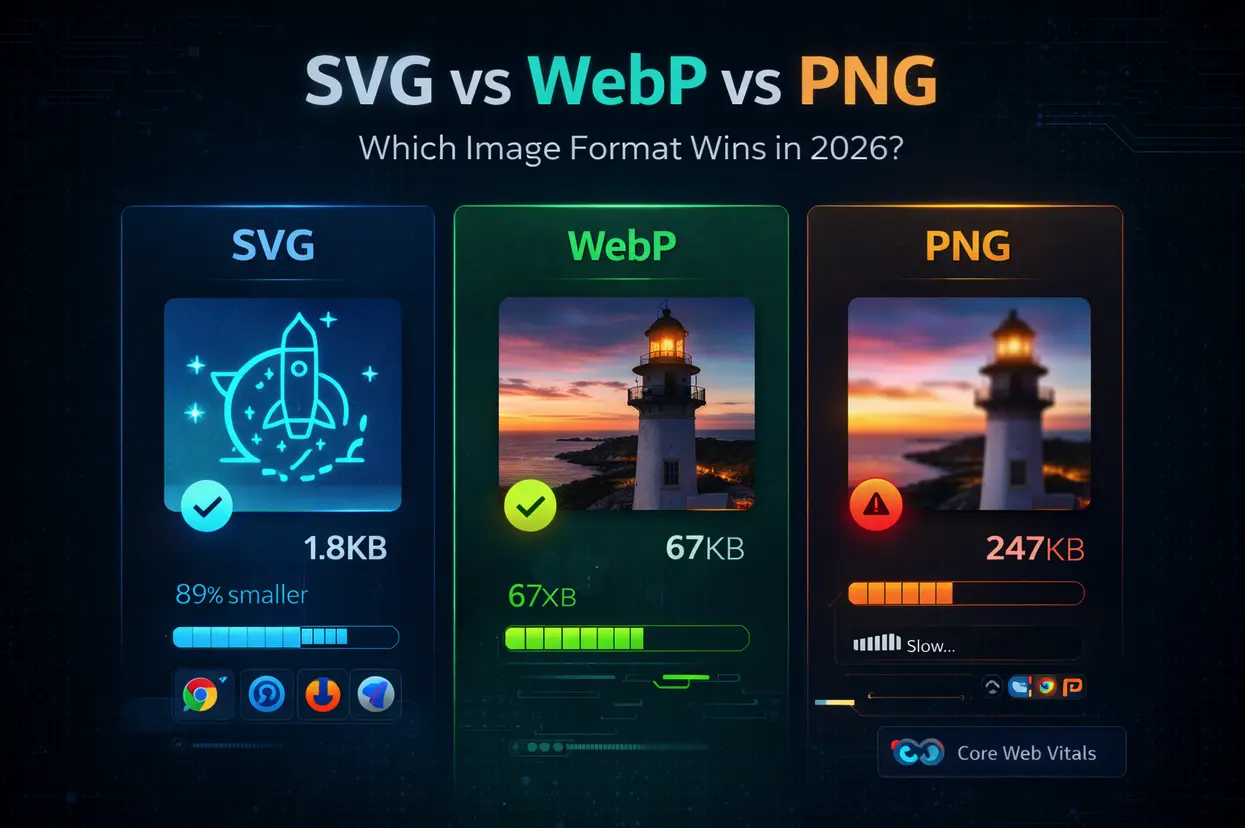
Modify colors, paths, and text directly using the intuitive visual interface.
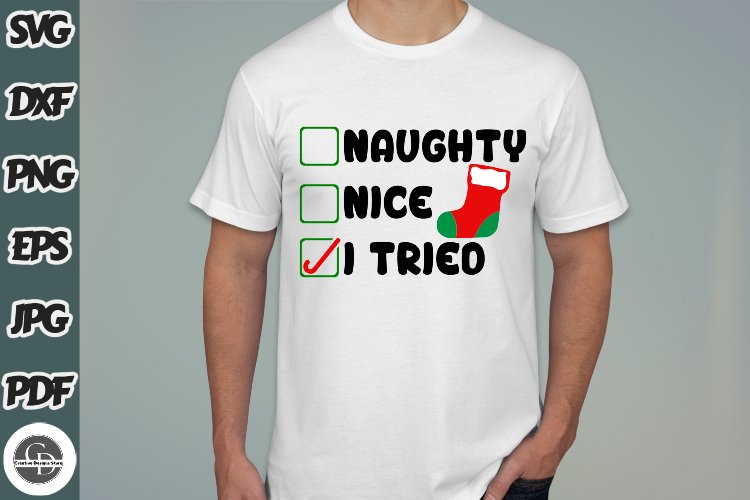
Clean up unnecessary code and export the final file for web use.
Open svg files in your browser
Before you spend time editing a NiceSVG file, you need to verify that the vector data renders correctly. Modern browsers are powerful enough to act as instant viewers, saving you the step of installing heavy design software for a quick sanity check.
Find the .svg file in your file explorer or download folder. Double-clicking it might open a default editor, so right-click the file and choose "Open with" to select your preferred browser.
Open a blank tab in Chrome or Firefox. Drag the file from your folder directly into the browser window. The browser will parse the XML and render the vector graphics immediately.
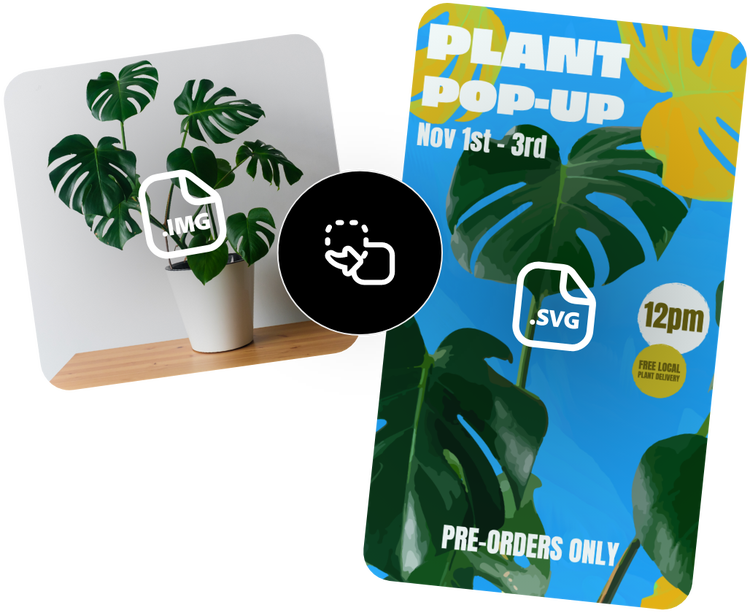
Zoom in to 200% or 400%. A properly formatted NiceSVG file will remain crisp and sharp at any scale. If you see pixelation or broken paths, the file may be corrupted or saved in a raster format.
This method is the fastest way to ensure your vector assets are ready for the editing phase. Once verified, you can proceed to open the file in a dedicated editor like Inkscape or Adobe Illustrator for deeper modifications.
Edit SVG code directly in VS Code
Opening NiceSVG files in a code editor like VS Code is often faster than waiting for a GUI to load. You can tweak colors, paths, and dimensions by editing the raw XML directly. This method is ideal for web developers who need precise control over the vector structure without the overhead of heavy design software.
Modify colors and dimensions
Editing the code is straightforward once you understand the basic tags. Look for <path>, <rect>, or <circle> elements. Change the fill or stroke hex codes to update colors instantly. Adjust the width and height attributes to resize the graphic without losing quality.
Optimize the file
After making changes, remove unnecessary attributes like xmlns or id if they are not required for your project. This reduces the file size and makes the NiceSVG cleaner for web use. Save the file and refresh your browser to see the updates immediately.
Choose the right editor for complex edits
Editing an SVG file is not a one-size-fits-all task. Your choice of tool depends entirely on whether you are comfortable with code or prefer a visual interface. Simple tweaks to colors or paths can be handled by any text editor, but complex structural changes require specialized software.
Visual vs. Code Editors
Visual editors like Adobe Illustrator or Figma allow you to manipulate nodes and layers without touching the underlying XML. This is ideal for designers who need to rebuild or heavily modify graphics. However, these tools can bloat your NiceSVG files with unnecessary metadata.
For developers and those prioritizing file size, code-based editors like VS Code are superior. You can edit the SVG source directly, ensuring the file remains lightweight and clean. This approach is best for web assets where performance matters more than visual editing convenience.
| Editor | Type | Best For | File Size Impact |
|---|---|---|---|
| VS Code | Code | Web developers, quick tweaks | Minimal |
| Figma | Visual | UI designers, layout changes | Low |
| Illustrator | Visual | Complex vector creation | High |
| Inkscape | Visual | Free alternative to Illustrator | Medium |
Selecting the Right Tool
If you are editing a NiceSVG file for a website, stick to code editors or lightweight visual tools like Figma to keep performance high. For print materials or complex illustrations, professional suites like Illustrator provide the necessary precision. Inkscape offers a robust free alternative for those who need visual editing without the subscription cost.
Optimize SVGs for web performance
Large SVG files can slow down page load times, especially on mobile networks. Even though SVGs are vector-based, they often carry hidden bloat from design software, such as unnecessary metadata, unused layers, and verbose code.
Cleaning up your files ensures they load instantly without sacrificing visual quality.
Remove Metadata and Bloat
Most vector editors embed hidden data like creator names, timestamps, and layer structures that browsers don’t need. Stripping this information can reduce file size by 20–50%.
Use an optimizer like SVGOMG or an inline plugin in your editor to remove these attributes. The visual output remains identical, but the code becomes leaner and faster to parse.
Minify Code Structure
Unnecessary whitespace, comments, and redundant path commands add up quickly. Minification compresses the code by removing these non-essential characters.
Many online tools automatically minify your NiceSVG files during export. Check the "minify" option in your editor’s settings or use a build step to process files before deployment.
Choose the Right Export Settings
Different editors handle SVG optimization differently. Some export verbose path data, while others use cleaner, more efficient commands.
| Feature | Adobe Illustrator | Inkscape | Figma |
|---|---|---|---|
| Metadata Removal | Manual | Automatic | Automatic |
| Minification | Basic | Basic | Basic |
| Path Simplification | Advanced | Advanced | Advanced |
Select the tool that best fits your workflow, but always verify the output with an optimizer to ensure maximum performance.
Where to find high-quality NiceSVG assets
Finding the right source for NiceSVG files depends on whether you need quick icons or intricate design elements. SVGRepo stands out as a primary resource for free vectors, offering a searchable database of over 500,000 assets. Its straightforward interface allows you to filter by color and category, making it easy to locate specific NiceSVG graphics for commercial or personal projects.
For more specialized craft designs, Creative Fabrica provides a curated selection of free and premium SVGs tailored for cutting machines like Cricut. Their freebies section includes high-quality vector art that is ready for immediate download. Flaticon remains a strong alternative for icon-heavy projects, though its library leans more toward standardized icon sets than artistic illustrations.

If you are looking to deepen your understanding of SVG design or access curated digital asset bundles, Amazon hosts several books and resources that can help refine your workflow.

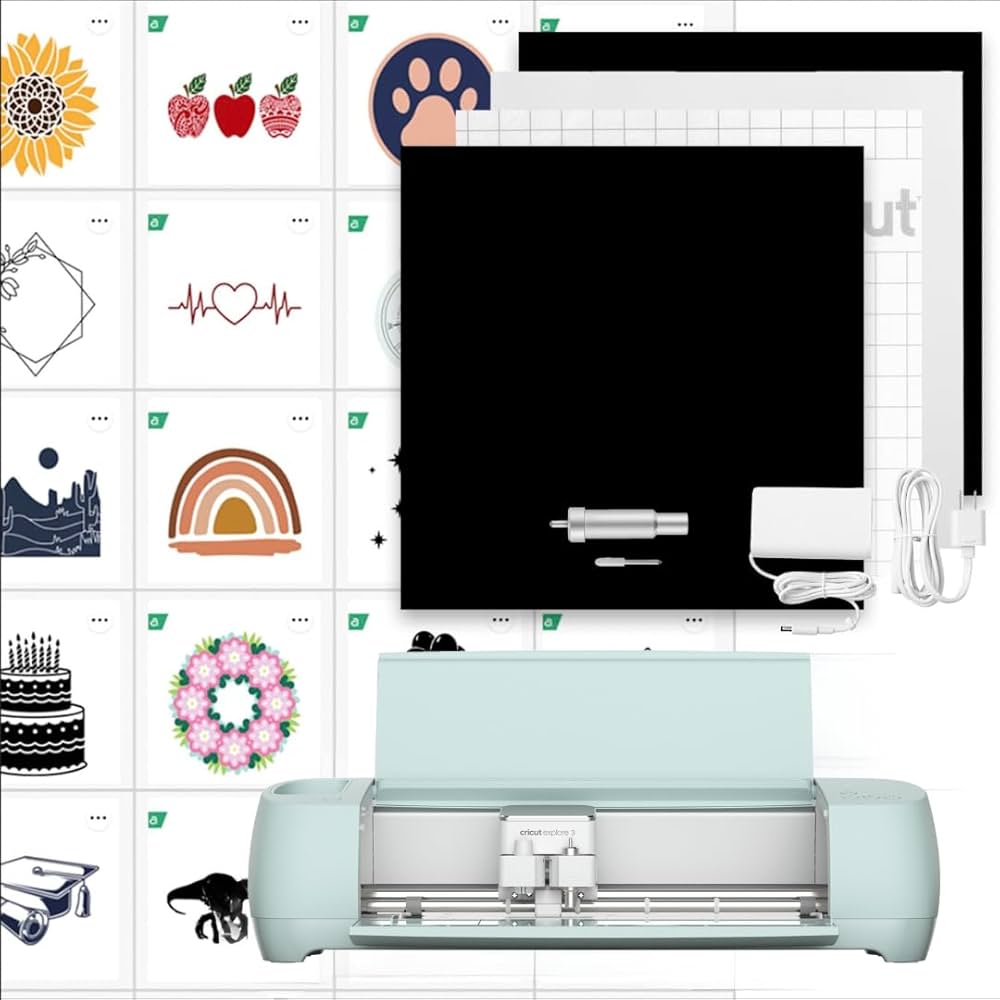

As an Amazon Associate, we may earn from qualifying purchases.
Common SVG mistakes to avoid
Even with NiceSVG tools, a few technical pitfalls can ruin a file. The most frequent issue is broken external links. When an SVG references an external image or CSS file, those links break if the file moves or is viewed offline. Always embed resources directly or use relative paths to ensure your graphics stay intact.
Missing fonts are another silent killer. If your design uses a custom typeface that isn't installed on the viewer's device, the text will fall back to a default font, ruining the layout. You can fix this by converting text to paths or embedding the font data directly into the SVG code.
Finally, avoid the misconception that SVG is inherently low quality. Quality is really just a matter of detail level. If an SVG is extremely complex, it may require more points to keep shapes accurate, but for most standard graphics, the resolution remains crisp regardless of scale. The issue is usually excessive complexity, not the format itself.
No comments yet. Be the first to share your thoughts!