

The Rise of AI-Generated Art and the SVG Need
The past couple of years have seen an explosion in the accessibility of AI image generation. Tools like Midjourney, DALL-E 3, and Stable Diffusion are putting the power to create visuals into the hands of anyone with an internet connection. Web designers use these tools to generate assets quickly. I don't think AI replaces artists, but it is a useful addition to our workflow.
However, simply having an image isn’t enough for effective web design. Scalability is the main reason to use SVGs for logos and icons. Unlike raster images (JPEGs, PNGs) that become pixelated when scaled up, SVGs are vector-based. This means they remain crisp and clear at any size, making them ideal for responsive design and high-resolution displays.
Beyond visual quality, SVGs offer significant benefits for accessibility and SEO. Because they are text-based, screen readers can interpret their content, improving accessibility for visually impaired users. Search engines can also crawl and index the text within an SVG, potentially boosting your site's ranking. A small SVG logo is often much lighter in file size than a comparable PNG, leading to faster page load times, which is always a win.
The demand for integrating these AI-created visuals into the web is growing, and that often means we need to get them into SVG format. It’s a practical necessity, even if the initial output from AI tools isn’t always vector-friendly.
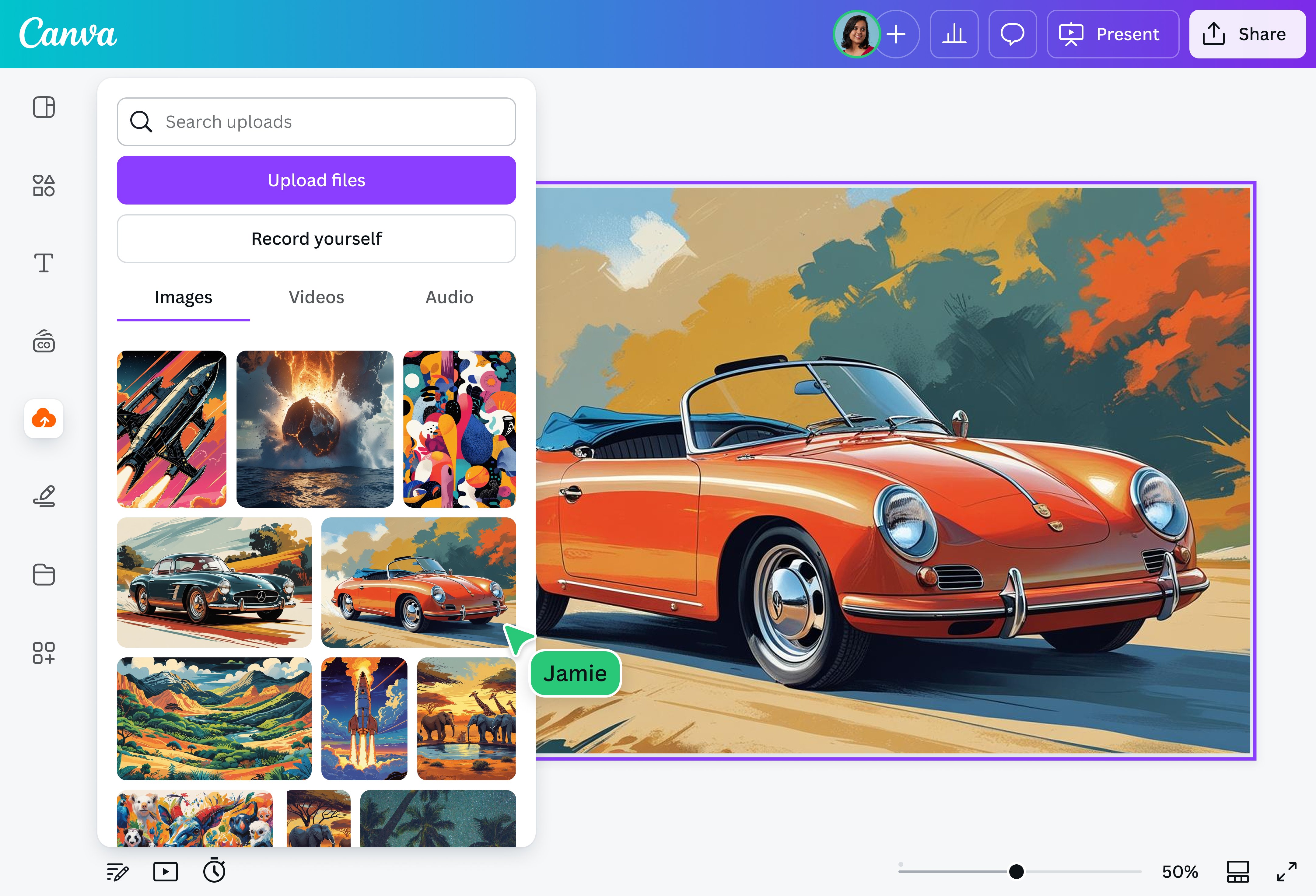
Why Directly Exporting to SVG Isn't Always an Option
It would be wonderful if Midjourney or Stable Diffusion simply had an "export as SVG’ button. Unfortunately, that"s currently not the case with most leading AI image generators. The core technology behind these tools often relies on raster-based generation processes. They build images pixel by pixel, focusing on producing visually appealing results rather than vector data.
The computational complexity of directly outputting SVG is also a factor. Creating precise vector paths requires significantly more processing power than generating a raster image. AI models are optimized for speed and visual fidelity, and adding vector output as a native feature would likely slow down the generation process. The focus right now is on the initial image creation, not the format.
Even if you take a raster image generated by AI and attempt to 'save as' SVG in a program like Photoshop, you’re not truly creating a vector graphic. You are simply wrapping a raster image inside an SVG container. This defeats the purpose of using SVG; you lose the scalability and editing benefits. The file size will also likely be larger than a true SVG.
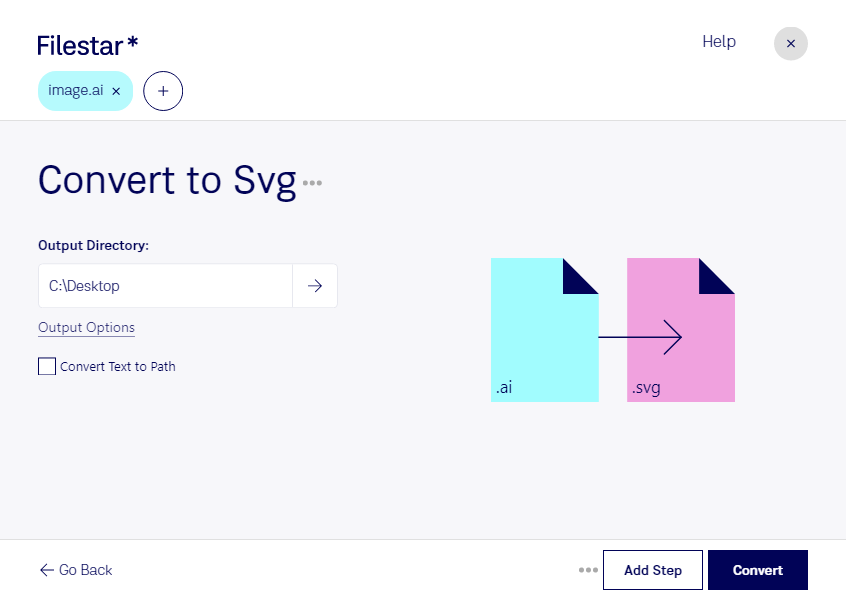
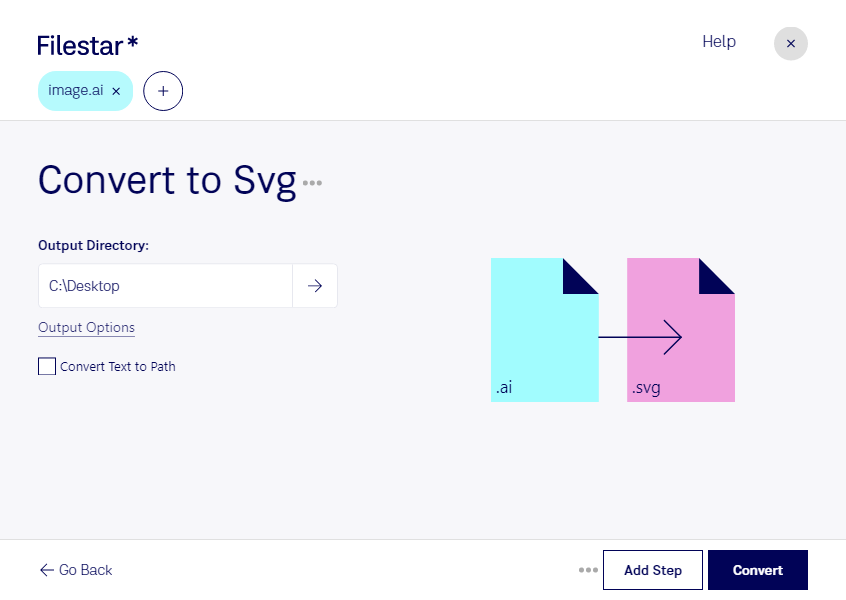
Mocha Trace: The Easiest Way to Convert Images to SVG on Desktop
— Chipp Walters (@chippwalters) March 31, 2026
Convert images to SVG — the easy way. Mocha Trace is a desktop app that automatically converts PNGs and JPGs into clean vector graphics you can actually use. ✔ No manual tracing ✔ Fast results ✔ Perfect for… pic.twitter.com/bzqaLGXD0D
Tracing Raster Images: The Core Conversion Technique
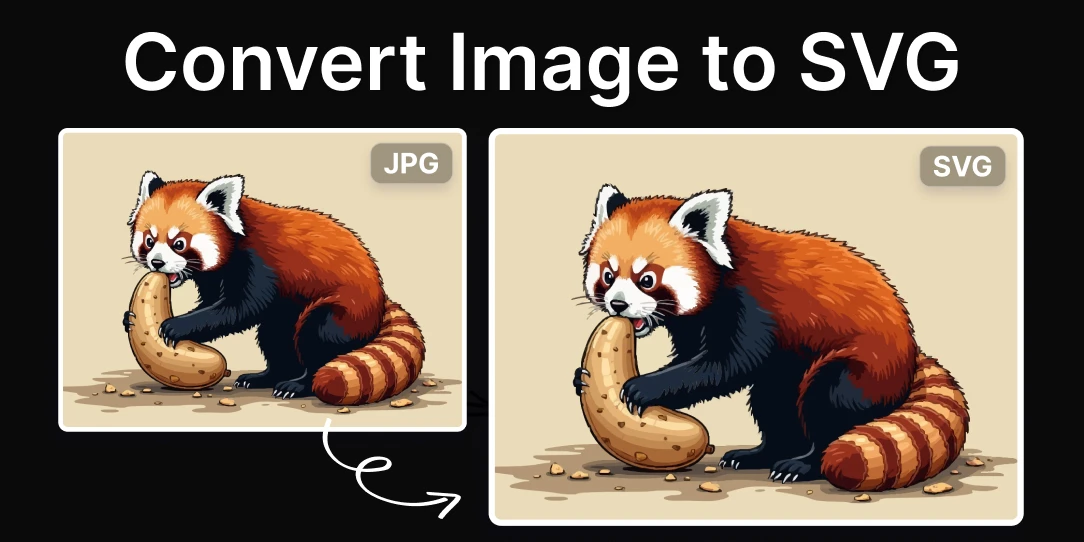
The primary method for converting AI-generated raster images to SVG is image tracing, also known as vectorization. This process analyzes the raster image and creates vector paths that approximate its shapes and colors. Essentially, the software attempts to "redraw" the image using lines, curves, and fills instead of pixels.
There are two main approaches to image tracing: manual and automatic. Manual tracing involves using vector editing software like Adobe Illustrator to carefully trace over the raster image, creating vector paths by hand. This is incredibly precise, allowing you to control every detail, but it's also extremely time-consuming, especially for complex images.
Automatic tracing uses algorithms to automate the process. Most vector editing programs, and many online converters, offer automatic tracing features. The quality of automatic tracing varies greatly depending on the algorithm used and the complexity of the image. It’s often a good starting point, but almost always requires some degree of cleanup and refinement. You'll likely need to adjust anchor points, smooth curves, and simplify paths.
The trade-off is clear: manual tracing gives you maximum control but demands significant time investment, while automatic tracing is faster but may produce less-than-ideal results. Knowing when to use each method—or a combination of both—is key to successful conversion.
AI-Powered SVG Conversion Tools: A Comparative Look
Fortunately, several online tools aim to simplify the AI to SVG conversion process. Convertio and CloudConvert are two popular options, both offering a range of conversion features, including raster-to-vector. Convertio, as of late 2026, supports a wide array of image formats for input and provides a relatively straightforward interface.
CloudConvert is another solid choice, offering similar functionality and a clean, user-friendly design. Both platforms allow you to upload your image, select SVG as the output format, and initiate the conversion. They typically handle common image formats like JPG and PNG with ease, which is what you’ll likely be exporting from AI tools.
The quality of the resulting SVG can vary depending on the complexity of the original image and the settings used during conversion. I've found that simpler images with clear lines tend to convert well with minimal cleanup, while more detailed images often require more manual editing. Neither tool consistently produces perfect results, so expect to spend some time refining the output.
VectoSolve is a newer option specifically focused on image-to-vector conversion, boasting AI-powered capabilities. They promote fast conversion speeds—'3 seconds'—and offer features like background removal and logo vectorization. It's worth exploring, but the quality compared to the more established platforms is something to test yourself.
AI-Generated Image to SVG Conversion Tools: A Comparison (2026)
| Tool | File Format Support | Ease of Use | SVG Quality | Pricing |
|---|---|---|---|---|
| Convertio | Supports a wide range of image formats for input, including those commonly generated by AI tools. Offers conversion *to* SVG. | Generally user-friendly interface; drag-and-drop functionality. | SVG quality is dependent on the source image and the conversion settings chosen. May require some manual cleanup for complex images. | Offers a free tier with limitations. Paid subscriptions are available for increased file size limits and features. |
| CloudConvert | Supports numerous image formats for input, including those often used with AI image generation. Converts *to* SVG. | Web-based interface is straightforward and easy to navigate. | SVG output quality can vary; may require refinement depending on the complexity of the original image. | Provides a free tier with a limited number of conversion minutes. Subscription plans unlock higher usage limits and additional features. |
| Vector Magic (Potential Option) | Designed specifically for raster-to-vector conversion, potentially suitable for AI-generated images. | May have a steeper learning curve than Convertio or CloudConvert due to more advanced settings. | Generally known for producing high-quality vector paths, potentially resulting in cleaner SVG code. Accuracy depends on the source image. | Typically a paid service with various subscription options or per-image costs. Specifics may change. |
| Manual Tracing (Adobe Illustrator/Inkscape) | Supports importing various raster image formats. | Requires significant user skill and time investment. | Offers the highest potential for SVG quality and control, as the user directly creates the vector paths. | Requires a license for Adobe Illustrator or is free and open-source with Inkscape. |
| Online Vectorizers (General) | Varies widely depending on the specific tool. Many support common image formats like PNG and JPG. | Ease of use ranges from very simple to moderately complex. | SVG quality is highly variable; often requires significant manual editing. | Many offer free usage with limitations, while others are subscription-based. |
Illustrative comparison based on the article research brief. Verify current pricing, limits, and product details in the official docs before relying on it.
Optimizing SVGs for the Web: Size and Performance
Converting an image to SVG is only half the battle. A poorly optimized SVG can actually be larger than its raster equivalent, negating many of the benefits. Optimization ensures fast loading and a better experience. One of the biggest culprits for large SVG file sizes is unnecessary metadata.
Tools like SVGOMG (SVG Optimizer) can remove this metadata, as well as comments, hidden elements, and default styles. Simplifying paths is another important step. The more points a path has, the larger the file size will be. Reducing the number of points while maintaining the overall shape can significantly reduce the file size.
Using short and consistent IDs for elements is also helpful. Long, descriptive IDs can add unnecessary bytes to the file. Minimize the number of gradients and effects, as these can also increase file size. Finally, consider using a tool like SVGO (SVG Optimizer) as part of your build process to automate optimization.
- Remove unnecessary metadata
- Simplify paths
- Use short, consistent IDs
- Minimize gradients and effects
Working with Complex AI-Generated Images: Challenges and Workarounds
Converting highly detailed or photorealistic AI images to SVG presents unique challenges. These images often contain a vast number of colors, gradients, and intricate details, which translate into extremely complex vector paths. The resulting SVG file can be enormous and slow to render in a browser. In some cases, the file size might be prohibitive.
Before attempting conversion, consider simplifying the image. Reducing the number of colors, removing unnecessary details, and flattening gradients can all help. Breaking the image into smaller, more manageable parts is another effective strategy. Convert each part separately and then combine them in your vector editing software.
Be realistic about the results. Some AI-generated images simply aren’t well-suited for SVG conversion. If the image is primarily photographic in style, it might be better to stick with a raster format. Trying to force a complex image into a vector format can often result in a bloated, unusable file.
Future Trends: AI and SVG Integration
le to expect that AI image generation tools will eventually be able to directly output clean, optimized SVGs. This would eliminate the need for separate conversion steps and streamline the workflow for web designers.
We may also see more sophisticated tracing algorithms that can handle complex images with greater accuracy and efficiency. These algorithms could automatically simplify paths, reduce file sizes, and optimize SVGs for the web. The development of AI-powered SVG editors could provide even more control and flexibility.
It’s difficult to predict the exact timeline, but the trend is clear. As AI technology continues to evolve, we can anticipate a future where creating and manipulating vector graphics becomes even easier and more accessible. The interplay between generative AI and vector design is a space to watch closely.
No comments yet. Be the first to share your thoughts!