

AI Images and the SVG Bottleneck
The past couple of years have seen a dramatic rise in AI image generation. Tools like Midjourney, DALL-E 3, and Stable Diffusion are letting anyone create visuals from text prompts, and the quality is constantly improving. This is fantastic for designers needing quick concepts or unique assets, but a problem quickly emerges: most of these tools output raster images – JPEGs, PNGs, things like that. For many design applications, this simply isn't good enough.
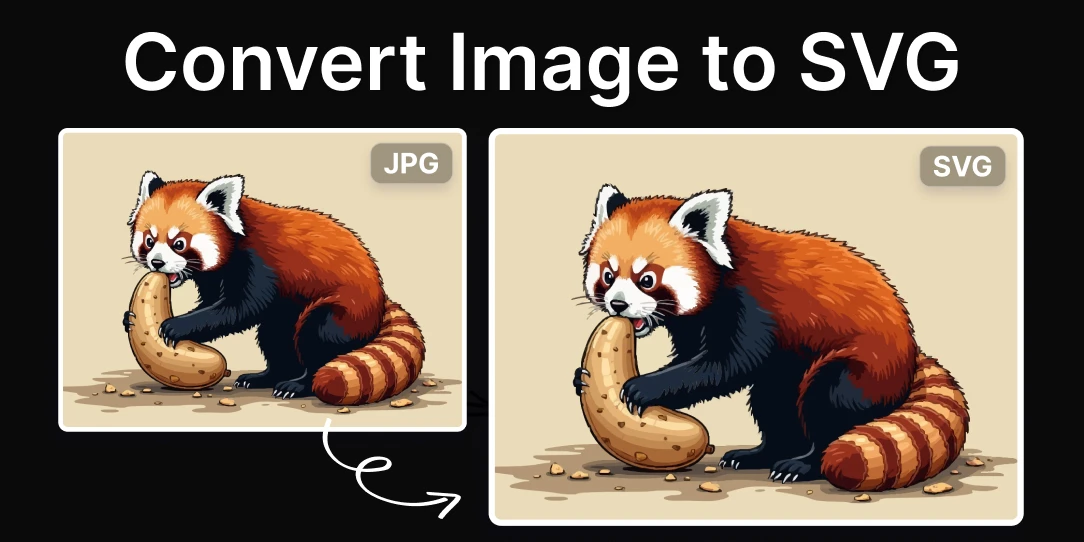
Raster images are made up of pixels. When you scale them up, you lose clarity; they become blurry or pixelated. That's fine for some purposes, but if you need a logo that looks sharp at any size, an illustration for a website that needs to be responsive, or anything that requires precise editing, you need a vector graphic. Vector graphics, like SVG files, are based on mathematical equations, meaning they scale infinitely without losing quality.
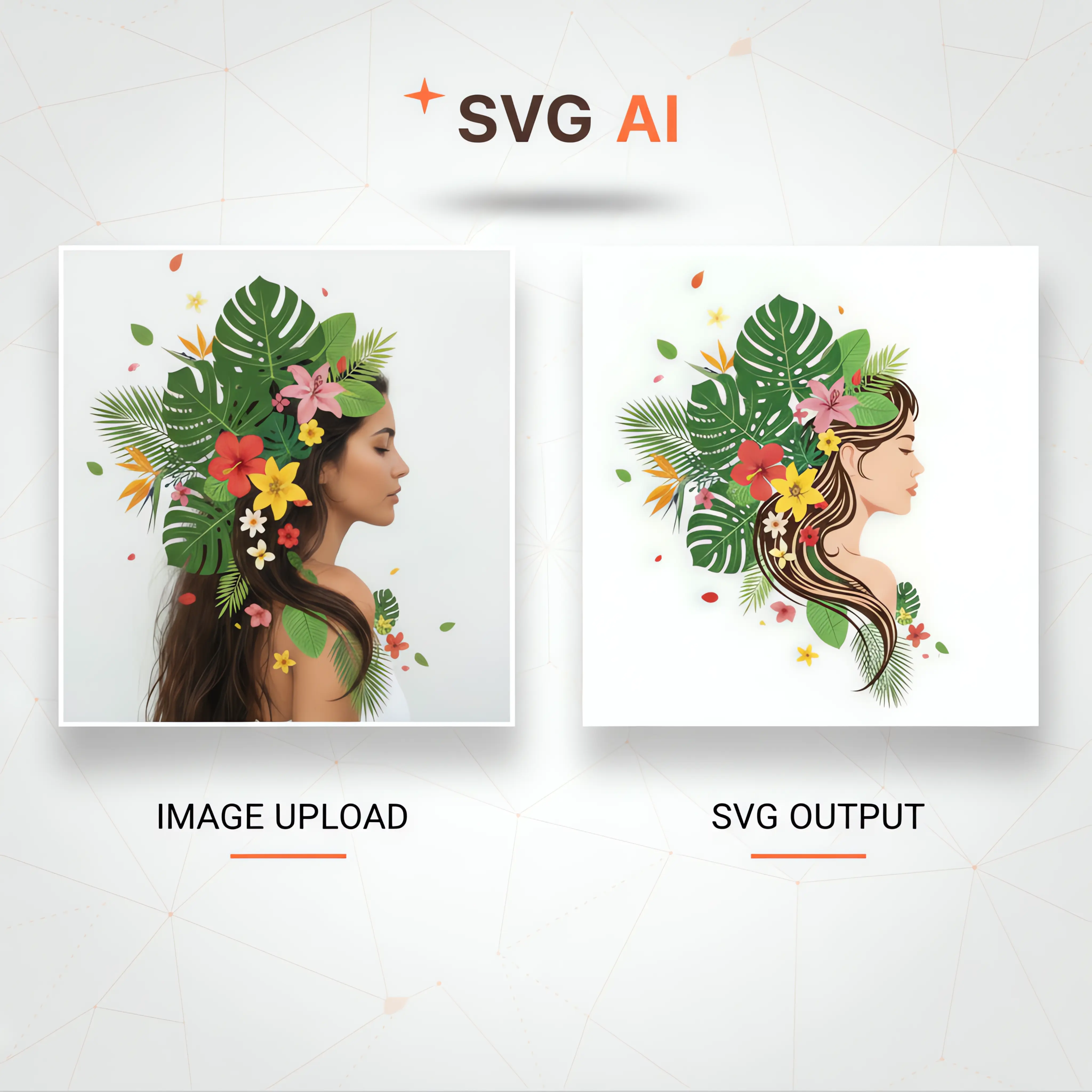
The core issue is this: there's currently a significant gap between the ease of creating images with AI and the ability to get those images into a scalable, editable vector format. Most AI image generators don’t offer a direct "export as SVG" option. Designers are left searching for workarounds, and that's where AI to SVG conversion comes in. It's a necessary step to unlock the full potential of AI-generated artwork.
It’s a frustrating situation, honestly. You have these incredibly powerful AI tools capable of producing amazing imagery, but then you’re forced to jump through hoops to make that imagery truly usable in professional design workflows. This bottleneck is driving demand for reliable and efficient AI to SVG conversion solutions.
Why Convert? Use Cases for Designers
So, why bother converting those AI-generated raster images into SVG format? The answer depends heavily on what you’re designing. For logo design, it's almost non-negotiable. A logo must be vector to ensure it looks crisp on a business card, a billboard, or a website favicon. The same goes for icon creation – you need clarity and scalability for UI elements.
Illustrations benefit immensely from SVG conversion. Whether you're creating artwork for a website, a print publication, or a marketing campaign, vector graphics allow for easy color adjustments and modifications without any loss of quality. Imagine spending hours perfecting an illustration, only to find the colors are off when printed – SVG eliminates that risk. It also keeps file sizes down, which is important for web performance.
Beyond the typical graphic design applications, SVG files are essential for projects like laser cutting and vinyl cutting. These machines require vector paths to accurately reproduce the design. Animations also benefit, as SVG allows for smooth scaling and manipulation of individual elements. Think animated logos or interactive web graphics.
Essentially, any project where scalability, editability, and file size are important considerations is a good candidate for AI to SVG conversion. It’s about taking the creative output of AI and making it truly practical and versatile for real-world design applications.
- Logo design: Scalability for all applications.
- Icon creation: Sharpness and clarity at any size.
- Web Illustrations: Smaller file sizes, responsive design.
- Print Graphics: High-resolution output, color accuracy.
- Laser Cutting/Vinyl Cutting: Precise reproduction of designs.
- Animations: Smooth scaling and manipulation.
CloudConvert: A Straightforward Option
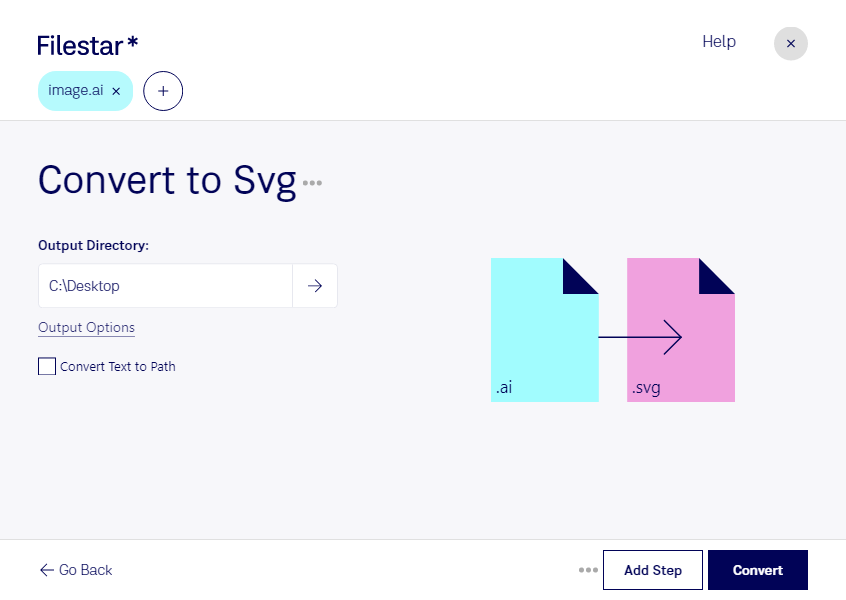
CloudConvert () is a popular online file conversion tool that includes AI to SVG conversion as one of its many capabilities. It’s a relatively simple and accessible option for designers who need to convert images occasionally and don’t require a lot of automation. The interface is clean and easy to navigate – you simply upload your AI image, select SVG as the output format, and click "Convert."
The process offers some control over the conversion settings. You can adjust the resolution and quality of the output SVG, which is helpful for balancing file size and detail. Higher resolutions result in larger files but preserve more of the original image's intricacies. CloudConvert also supports a range of other file formats, making it a versatile tool for various conversion needs. It handles AI files created by Adobe Illustrator, among others.
However, it’s important to be aware of the limitations. Complex images with intricate details or subtle gradients may not convert perfectly. You might experience some loss of detail, or the resulting SVG file might be overly complex, leading to performance issues. In these cases, manual cleanup and refinement in a vector editing program are often necessary. And CloudConvert is not free, though it offers a limited number of free conversions per day.
For more advanced users, CloudConvert offers an API. This allows you to automate the conversion process and integrate it into your own workflows. The CloudConvert Tools API pricing is available on their website, and varies depending on usage. This is particularly useful if you need to convert a large number of images regularly. While a solid choice for quick conversions, it's not the ideal solution for large-scale, automated workflows.
ConvertAPI: Automation for Volume
ConvertAPI () takes a different approach, focusing on providing an API for automated file conversions. While they do have a web interface, their real strength lies in their ability to handle high-volume conversions programmatically. This is ideal for designers or studios who need to integrate AI to SVG conversion into a larger design pipeline.
The ConvertAPI allows you to access its conversion functionality through a simple REST API. This means you can send conversion requests from your own scripts or applications, and receive the converted SVG files directly. They offer solutions for PDF print production and accessibility, showing the range of their capabilities. It requires some programming knowledge to set up, but the benefits in terms of efficiency and automation can be significant.
Consider a scenario where you’re generating hundreds of icons with AI each week. Manually converting each one using a web interface would be incredibly time-consuming. With ConvertAPI, you could automate the entire process, freeing up your time to focus on more creative tasks. The API allows for precise control over conversion settings, ensuring consistent results.
However, automation comes at a cost. ConvertAPI is a paid service, and the pricing is based on the number of conversion minutes used. You’ll need to carefully evaluate your usage patterns to determine if the cost is justified. It’s a powerful tool, but it’s best suited for users who have a consistent need for automated, high-volume AI to SVG conversions.
Python Script for AI Image to SVG Conversion
One effective approach for converting AI-generated images to SVG format is using a conversion API service. The following Python script demonstrates how to automate this process with proper error handling and file management.
import requests
import json

def convert_ai_image_to_svg(image_path, api_key):
    """
    Convert an AI-generated image to SVG format using ConvertAPI
    """
    try:
        # ConvertAPI endpoint for image to SVG conversion
        url = f"https://v2.convertapi.com/convert/png/to/svg"

        # Prepare the request
        headers = {
            'Authorization': f'Bearer {api_key}'
        }

        files = {
            'File': open(image_path, 'rb')
        }

        # Make the conversion request
        response = requests.post(url, headers=headers, files=files)

        if response.status_code == 200:
            result = response.json()
            download_url = result.get('Files', [{}])[0].get('Url')

            if download_url:
                # Download the converted SVG file
                svg_response = requests.get(download_url)
                with open('converted_image.svg', 'wb') as f:
                    f.write(svg_response.content)

                print("Conversion successful! SVG saved as 'converted_image.svg'")
                return True
            else:
                print("Error: No download URL in response")
                return False
        else:
            print(f"Conversion failed with status code: {response.status_code}")
            return False

    except FileNotFoundError:
        print(f"Error: Image file '{image_path}' not found")
        return False
    except requests.exceptions.RequestException as e:
        print(f"Network error: {e}")
        return False
    except Exception as e:
        print(f"Unexpected error: {e}")
        return False

# Example usage
if __name__ == "__main__":
    API_KEY = "your_convertapi_key_here"  # Replace with your actual API key
    image_file = "ai_generated_image.png"

    success = convert_ai_image_to_svg(image_file, API_KEY)
    if success:
        print("Your AI image has been successfully converted to SVG format!")
This script handles common conversion scenarios including file validation, API authentication, and response processing. Remember to replace the API key placeholder with your actual credentials and ensure your AI-generated image is in a supported format like PNG or JPEG. The converted SVG file will maintain the visual elements of your original AI image while providing the scalability benefits of vector format.
Tracing and Manual Vectorization: When Conversion Fails
Automated conversion tools like CloudConvert and ConvertAPI are incredibly useful, but they aren’t perfect. When dealing with complex AI-generated images – those with intricate details, subtle gradients, or unusual textures – the results can often be unsatisfactory. You might end up with a messy, inaccurate vectorization that requires significant cleanup. In these cases, manual tracing is often the best approach.
Manual tracing involves recreating the image as a vector graphic from scratch using vector editing software like Adobe Illustrator, Inkscape, or Affinity Designer. The process typically involves using the software's 'Image Trace' feature (in Illustrator) or similar tools to automatically detect shapes and paths within the raster image. You then refine and adjust these paths to create a clean, accurate vector representation.
The Image Trace feature in Illustrator, for example, allows you to control the number of colors, paths, and corners in the resulting vector graphic. Experimenting with these settings is crucial to achieving the desired level of detail and accuracy. It’s a time-consuming process, often requiring a skilled eye and a steady hand, but it gives you complete control over the final result.
The trade-off is clear: automated conversion is faster and easier, but manual tracing produces higher-quality results, especially for complex images. It's a question of balancing time investment with the desired level of precision. Don't underestimate the amount of time tracing can take; a highly detailed image could require hours of work.
Software Showdown: Illustrator vs. Inkscape
When it comes to manual vectorization, two programs consistently stand out: Adobe Illustrator and Inkscape. Illustrator is the industry standard, known for its powerful tracing tools, comprehensive feature set, and seamless integration with other Adobe Creative Cloud applications. However, it comes with a significant price tag – a monthly subscription can be expensive.
Inkscape, on the other hand, is a free and open-source vector graphics editor. It offers a surprisingly robust set of tracing capabilities, and it’s a viable alternative for designers who are on a budget or prefer open-source software. However, Inkscape has a steeper learning curve than Illustrator, and its interface can be less intuitive.
For AI to SVG conversion specifically, Illustrator’s "Image Trace’ feature is generally considered more sophisticated, offering greater control over the tracing process and producing cleaner results. But Inkscape’s ‘Trace Bitmap" feature is capable of producing good results, especially with some practice. The choice ultimately depends on your budget, skill level, and specific needs.
Consider this: Illustrator’s advanced tools allow for precise control over path simplification and corner smoothing, resulting in cleaner, more optimized SVG files. Inkscape, while capable, may require more manual cleanup to achieve the same level of refinement. Also, Illustrator’s integration with other Adobe tools can streamline your workflow if you’re already using Photoshop or other Adobe applications.
- Adobe Illustrator: Powerful tracing, industry standard, expensive.
- Inkscape: Free and open-source, good tracing, steeper learning curve.
Illustrator vs. Inkscape for Converting AI-Generated Images to SVG (2026)
| Price | Ease of Use (Tracing) | Feature Set (Tracing) | File Compatibility (SVG) | Community Support |
|---|---|---|---|---|
| Commercial - Subscription Based | 4 stars | 5 stars | 5 stars | 4 stars |
| Free and Open Source | 3 stars | 4 stars | 4 stars | 5 stars |
| Illustrator generally offers more refined tracing controls. | Moderate learning curve for both, but Illustrator’s interface is often perceived as more intuitive for professional designers. | Illustrator offers advanced options like image trace presets and adjustments. | Both programs fully support SVG import and export. | Illustrator has a large professional user base, while Inkscape has a very active open-source community. |
| Illustrator's subscription model can be a barrier for some users. | Inkscape's tracing can sometimes require more manual cleanup. | Inkscape's feature set is continually expanding but may lack some of the specialized tools found in Illustrator. | Both programs provide robust SVG compatibility, though subtle differences in rendering may occur. | Both communities offer extensive tutorials and support forums. |
Illustrative comparison based on the article research brief. Verify current pricing, limits, and product details in the official docs before relying on it.
Optimizing SVG Output: Size and Complexity
Once you have your SVG file, whether it’s the result of automated conversion or manual vectorization, it’s important to optimize it for performance. Large, complex SVG files can slow down web pages and consume excessive resources. Reducing file size and simplifying paths are crucial for ensuring a smooth user experience.
One of the most effective techniques is removing unnecessary metadata from the SVG file. This includes comments, editor information, and other non-essential data that adds to the file size. Another technique is simplifying paths – reducing the number of points used to define shapes. This can significantly reduce file size without noticeably affecting the visual quality.
Using an efficient color palette can also make a difference. Avoid using a large number of colors, as this increases file size. Instead, try to use a limited palette of colors that are well-suited to your design. Tools like SVGO (SVG Optimizer) can automate many of these optimization tasks, removing unnecessary data and simplifying paths.
Path complexity directly impacts rendering speed. The more points a path has, the longer it takes for the browser to render it. Keeping paths as simple as possible is essential for maintaining performance, especially on mobile devices. Regularly reviewing and optimizing your SVG files is a good practice to ensure they are performing optimally.
The 2026 Outlook: AI Tools Getting Smarter
AI image generation tools are expected to evolve, likely leading to improved SVG conversion capabilities. By 2026, more AI tools may offer direct SVG export options, reducing the need for separate conversion steps. The quality of automated conversion will also likely improve.ikely improve, reducing the need for manual cleanup.
We might also see the emergence of AI-powered SVG optimization tools that can automatically analyze and simplify SVG files, further improving performance. These tools could learn to identify and remove redundant paths, optimize color palettes, and reduce file size without sacrificing visual quality. It's reasonable to expect that AI will play a larger role in the entire SVG workflow.
However, it's important to acknowledge the uncertainty. The pace of innovation in AI is rapid, and it’s difficult to predict exactly what the future holds. It's possible that the limitations of raster-to-vector conversion will prove difficult to overcome entirely. There will likely always be a need for skilled designers to refine and optimize SVG files, even with the help of AI.
For now, designers should focus on mastering the tools and techniques available today – CloudConvert, ConvertAPI, Illustrator, Inkscape, and SVG optimization tools. The ability to effectively convert and optimize AI-generated images for SVG will remain a valuable skill in the years to come, regardless of how AI technology evolves.
- Direct SVG Export: More AI tools offering SVG export.
- Improved Conversion Quality: Less manual cleanup needed.
- AI-Powered Optimization: Automated SVG simplification and optimization.
- Continued Need for Skill: Designers still needed for refinement.
No comments yet. Be the first to share your thoughts!