

AI Images & SVG: Why Convert?
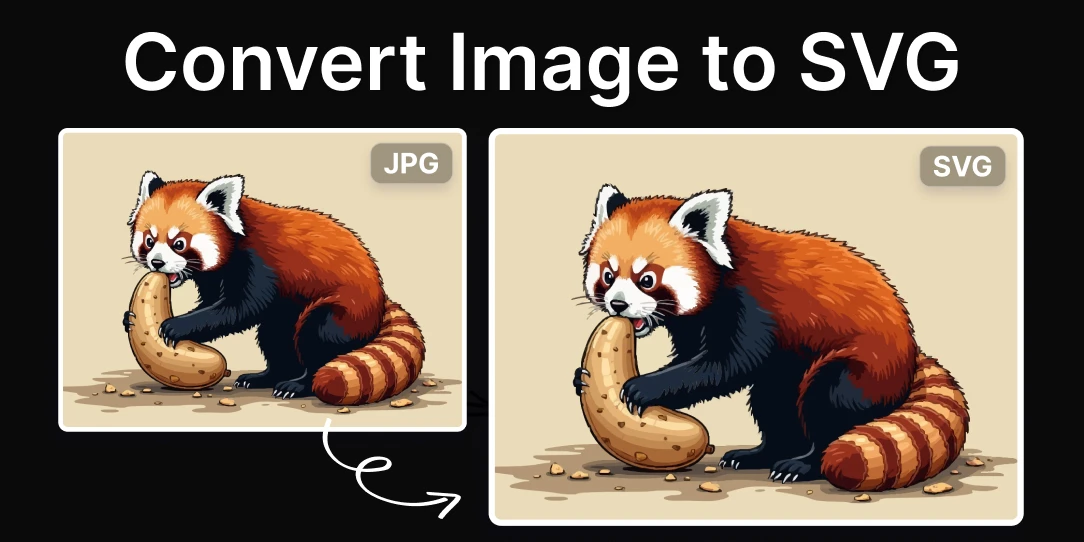
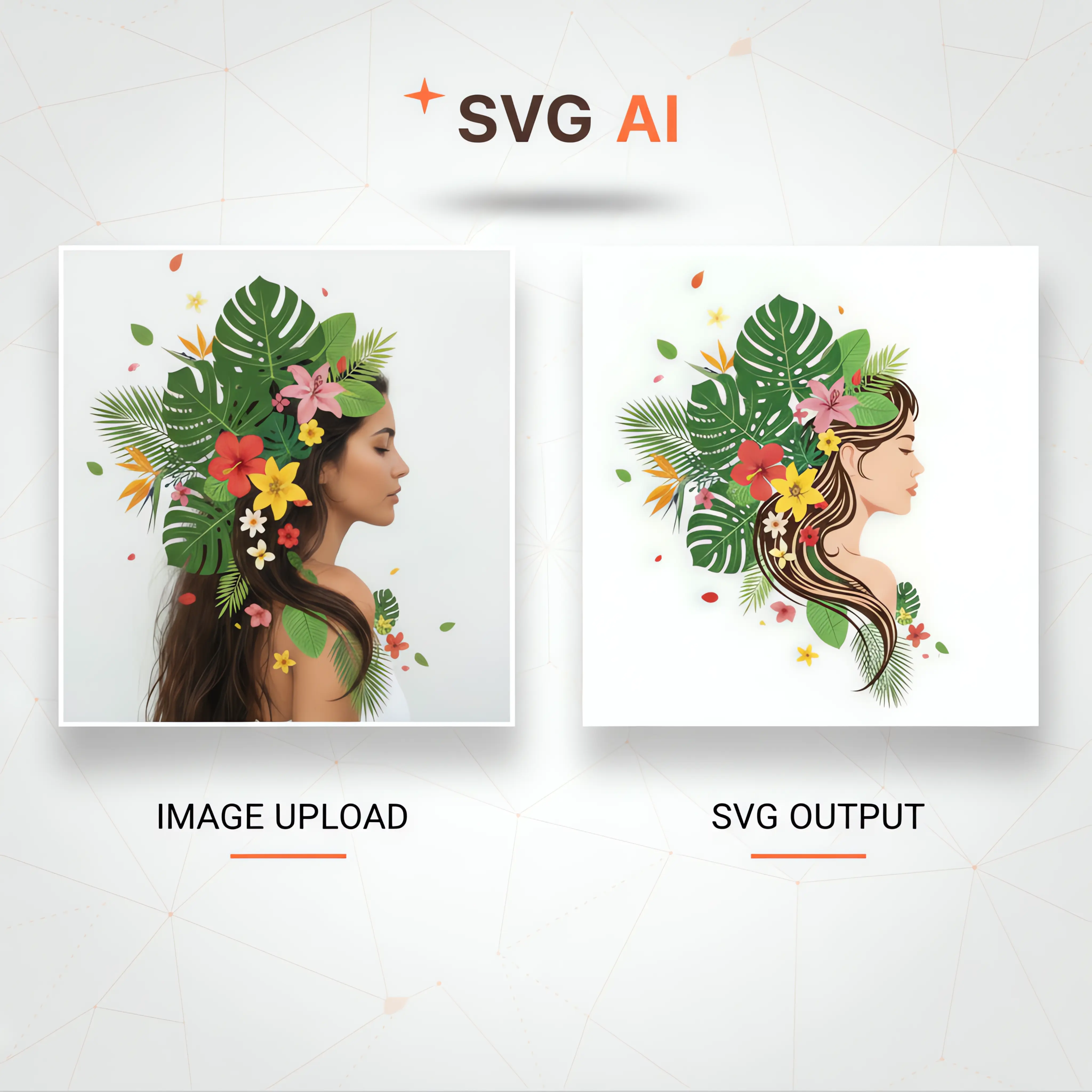
The explosion of AI image generation tools like Midjourney, DALL-E 3, and Stable Diffusion has been incredible. But these tools almost universally produce raster images – think JPG or PNG. That’s fine for some uses, but if you need to scale an image significantly, or use it in a context where quality is paramount, you quickly run into problems. Raster images become pixelated and blurry when enlarged. This is where SVG files come in.
SVG, or Scalable Vector Graphics, are based on mathematical equations rather than pixels. This means they can be scaled infinitely without any loss of quality. They’re also significantly smaller in file size than raster images, which makes them ideal for web use. Beyond that, SVG files are editable – you can open them in a vector editor like Adobe Illustrator and change colors, shapes, and other elements. This is something you simply can't do with a JPG or PNG.
The ability to animate SVG files using CSS or JavaScript is another huge advantage. This opens up possibilities for interactive web graphics and dynamic animations. While AI image generators create stunning visuals, they lack the inherent flexibility and scalability of SVG. Converting these images to a vector format unlocks a whole new level of creative control and practical application.
However, it’s important to be realistic. Converting a raster image to SVG isn’t a perfect, one-click process – at least not yet. It often requires some degree of manual intervention and cleanup to achieve optimal results. We'll explore the available methods and their limitations in the following sections.
Direct Conversion: What Doesn’t Work (Yet)
As of late 2026, most AI image generators do not offer a direct export to SVG. You can generate a beautiful image in Midjourney, for example, but you’ll receive a JPG or PNG file. This isn’t a technological oversight, but a consequence of how these systems operate. AI image generators are built on diffusion models that create images pixel by pixel, resulting in raster graphics.
SVG, on the other hand, is defined by vector paths and shapes. Bridging that gap requires a fundamentally different approach to image creation. There have been some experimental attempts to incorporate vector elements into AI image generation, but these are still in their early stages and often produce limited or imperfect results.
The core issue is that AI models are trained to generate realistic looking images, not necessarily geometrically precise ones. Representing an image as a series of vectors requires understanding its underlying structure, which is a challenge for current AI algorithms. Don't expect to see a simple 'Export as SVG' button in your favorite AI image generator anytime soon. For now, we need to rely on conversion methods.
CloudConvert: A Reliable Starting Point
CloudConvert (cloudconvert.com) is a versatile online file conversion tool that includes AI to SVG conversion as one of its many features. It’s a good starting point for converting AI-generated images, particularly if you need a quick and easy solution. The service supports a wide range of input formats, including AI (Adobe Illustrator files), JPG, and PNG – the typical output from most AI image generators.
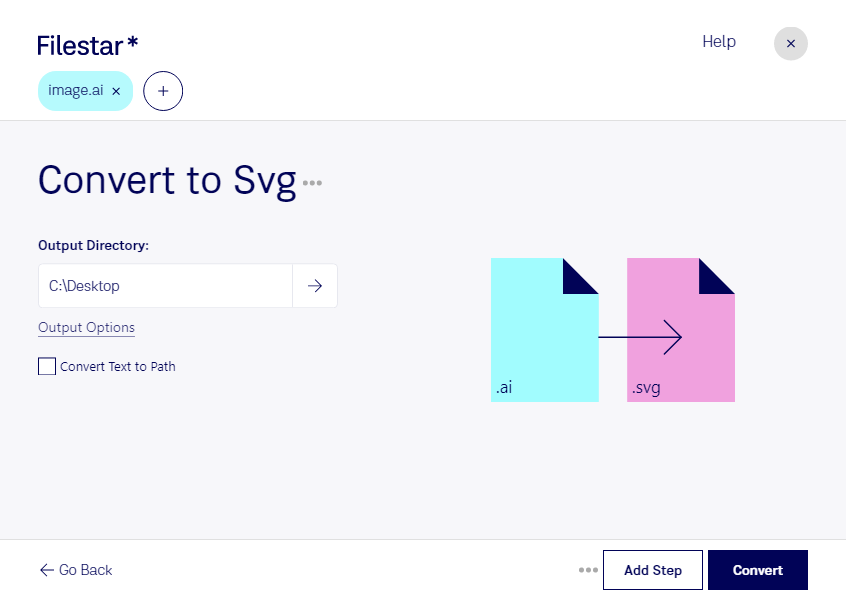
Here’s a step-by-step guide to using CloudConvert for AI to SVG conversion: First, navigate to the CloudConvert website and select 'AI to SVG' as your conversion target. Then, upload your image file. You can either select a file from your computer or provide a URL. Next, you'll have the option to adjust quality settings. These include resolution (DPI) and image scaling. Higher resolution settings will result in a larger SVG file with more detail, while lower settings will produce a smaller file with less detail.
Once you've configured the settings, click the 'Convert' button. CloudConvert will process your image and generate the SVG file. Finally, download the converted SVG file to your computer. It’s important to note that the quality of the conversion can vary depending on the complexity of the original image and the settings you choose. You may need to experiment with different settings to achieve the desired result.
CloudConvert isn’t perfect. The automated conversion process can sometimes produce imperfect SVGs, with excessive nodes or inaccurate paths. This often requires manual cleanup in a vector editor like Illustrator. However, it’s a reliable and convenient option for a first pass at AI to SVG conversion. They offer a free tier, but larger conversions or frequent use will require a paid subscription.
ConvertAPI: Automation & Integration
ConvertAPI (convertapi.com) takes a different approach, focusing on providing an API for automated file conversion. This is ideal for developers who need to integrate AI-to-SVG conversion into their own applications or workflows. Instead of manually uploading files through a web interface, you can use the ConvertAPI to programmatically convert images to SVG.
The API allows you to specify various parameters, such as the input file format, output file format, and conversion options. This gives you a high degree of control over the conversion process. Potential use cases include automated image processing pipelines, where AI-generated images are automatically converted to SVG as part of a larger workflow.
For example, you could build a system that automatically generates SVG icons from AI-generated artwork, or a tool that converts AI-generated illustrations to SVG for use in web design projects. While I won't provide specific code examples here, the ConvertAPI documentation provides detailed instructions and sample code for various programming languages.
ConvertAPI is a powerful tool for developers, but it requires some technical expertise to set up and use. They offer a range of pricing plans based on the number of conversions and API calls. It’s a solid solution if you need to automate the conversion process at scale.
Vectorization Services: AutoTrace & Beyond
Several services specialize in image tracing and vectorization, effectively redrawing raster images as vector paths. These include AutoTrace, Vector Magic, and others. These tools aren’t specifically designed for 'AI to SVG' conversion, but they achieve the same end result – transforming a raster image into a scalable vector graphic.
These services work by analyzing the input image and identifying shapes, lines, and colors. Then, they recreate the image using vector paths that approximate the original pixels. The quality of the vectorization depends on the complexity of the image and the settings you choose. More complex images require more sophisticated algorithms and often result in larger SVG files.
AutoTrace and Vector Magic both offer online interfaces and desktop applications. They typically require a subscription or per-image fee. A key difference is in how they handle color gradients and transparency. Vector Magic often excels at preserving subtle color variations, while AutoTrace may simplify them.
The results can vary significantly depending on the original image. Images with clean lines and distinct shapes tend to vectorize well, while images with complex textures and gradients can be challenging. These services are a good option when you need a quick and automated solution, but they may not always produce the desired level of accuracy or detail.
- AutoTrace: Offers a range of tracing options and settings.
- Vector Magic: Known for its ability to preserve color gradients.
- Online-Convert.com: Another online vectorization tool with a simpler interface.
Vectorization Service Comparison (2026)
| Service | Ease of Use | Output Quality | Supported Input Formats | Batch Processing |
|---|---|---|---|---|
| AutoTrace | Good, requires some learning curve | Generally Good, can require manual refinement | PNG, JPG, BMP, GIF | Limited, depends on software version |
| Vector Magic | Excellent, user-friendly interface | Excellent, known for high-fidelity results | PNG, JPG, TIFF, BMP, GIF | Available with subscription |
| Online-Convert | Good, web-based and straightforward | Fair to Good, quality varies based on settings | Wide range including AI, JPG, PNG, GIF, TIFF | Good, supports processing multiple files |
| CloudConvert | Good, web-based with API access | Fair to Good, relies on conversion settings | AI, JPG, PNG, and many more | Excellent, designed for automated workflows |
| ConvertAPI | Moderate, geared towards developers | Fair, quality dependent on input and configuration | AI, and various raster formats | Excellent, API focused for large-scale processing |
Qualitative comparison based on the article research brief. Confirm current product details in the official docs before making implementation choices.
Manual Tracing in Illustrator: The Control Option
For the greatest degree of control, manual tracing in Adobe Illustrator is the way to go. Illustrator's Image Trace feature allows you to convert raster images to vector paths, but it's not a fully automated process. It requires careful adjustment of settings and often manual cleanup of the resulting vector paths.
Start by importing your AI-generated image into Illustrator. Then, select the image and go to 'Object > Image Trace'. Illustrator offers a variety of tracing presets, such as 'High Fidelity Photo', 'Low Fidelity Photo', '3 Colors', and '6 Colors'. Experiment with different presets to see which one produces the best results for your image. You can also adjust the tracing settings manually, such as the number of colors, the path fidelity, and the corner sharpness.
Once you've applied the Image Trace, you'll need to expand the tracing to convert it into editable vector paths. Go to 'Object > Expand'. This will create a complex network of paths and shapes. The next step is to clean up the tracing. Use Illustrator's path simplification tools to reduce the number of nodes and smooth out the paths. The Pathfinder panel can be used to combine or subtract shapes.
This method is the most time-consuming, but it gives you complete control over the final result. You can fine-tune every aspect of the vectorization, ensuring that the SVG file is optimized for your specific needs. It’s essential to understand the various tracing presets and settings to achieve the desired level of accuracy and detail. A good workflow involves starting with a suitable preset, expanding the trace, simplifying paths, and then refining the details manually.
- Import: Bring the AI image into Illustrator.
- Image Trace: Apply a suitable preset and adjust settings.
- Expand: Convert the trace into editable vectors.
- Simplify: Reduce nodes and smooth paths.
- Refine: Clean up and adjust details.
Post-Conversion Cleanup: Essential Techniques
Regardless of the conversion method you choose, SVG files generated from raster images often require cleanup. The automated processes aren’t perfect, and the resulting SVG can be bloated with unnecessary nodes and overlapping paths. This can lead to larger file sizes and performance issues, especially in web browsers.
One common issue is excessive nodes. Each node represents a point on a vector path, and a large number of nodes can significantly increase the file size. Use Illustrator’s path simplification tools (Effect > Simplify) to reduce the number of nodes without sacrificing too much detail. Be careful not to oversimplify, as this can distort the image.
Overlapping paths are another common problem. These can occur when the tracing process creates multiple paths that cover the same area. Use the Pathfinder panel (Window > Pathfinder) to combine or subtract overlapping paths. This will create a cleaner and more efficient SVG file. The Live Paint Bucket tool (K) can also be helpful for filling areas with color and simplifying complex shapes.
Incorrect color assignments can also occur during conversion. Use Illustrator’s color panel to adjust the colors and ensure they match the original image. Finally, always save your SVG file with appropriate compression settings to further reduce the file size. Optimizing the SVG for web use is crucial for fast loading times and a smooth user experience.
Future Trends: AI-Native SVG Generation
The future of AI and SVG is intriguing. While direct SVG output from AI image generators isn’t currently widespread, I believe it’s only a matter of time before we see significant advancements in this area. As AI models become more sophisticated, they may be able to learn to generate images directly in a vector format.
This would require a fundamental shift in how AI image generators are designed, moving away from pixel-based diffusion models to algorithms that can create images based on mathematical equations. Developments in neural rendering and differentiable rendering could play a key role in enabling this capability. These techniques allow for the creation of images that can be easily converted to vector formats.
Beyond direct SVG generation, we can also expect to see AI-powered SVG optimization tools that automatically clean up and simplify SVG files. These tools could use machine learning algorithms to identify and remove unnecessary nodes, optimize paths, and reduce file sizes. These tools could become invaluable for designers and developers.
The combination of AI and SVG has the potential to revolutionize the way we create and use vector graphics. While the technology is still evolving, the future looks promising for seamless integration between AI-powered image generation and scalable vector graphics.
No comments yet. Be the first to share your thoughts!