

Why vector files matter for web design
SVG files are often 10x smaller than PNG equivalents for simple graphics, making them the backbone of fast-loading websites. Unlike raster images that pixelate when scaled, vector graphics use mathematical paths to remain crisp at any resolution. This scalability ensures your designs look sharp on everything from mobile screens to 4K monitors without sacrificing performance.
Managing these files manually can be tedious, which is where NiceSVG comes in. The tool simplifies the process of opening, editing, and saving SVGs, allowing you to tweak paths, adjust colors, and optimize code without needing heavy desktop software. By streamlining the workflow, NiceSVG helps designers focus on creativity rather than file management.
Open SVG files in your browser
You don't need heavy design software just to check if an SVG file is valid. Your web browser is already a capable SVG viewer that renders vector graphics instantly. This quick check helps you verify that the file structure is intact before you commit to editing it in NiceSVG or another tool.

This method is the fastest way to rule out file corruption. Once you confirm the SVG renders and contains proper code, you are ready to move into NiceSVG for actual edits.
Edit SVG code directly in NiceSVG
NiceSVG strips away the learning curve of professional vector software. Instead of wrestling with complex toolbars, you get a clean interface that lets you tweak colors, paths, and attributes in seconds. This approach is ideal for designers who need quick fixes without opening heavy applications like Illustrator.
Drag and drop your SVG file into the NiceSVG workspace. The editor instantly parses the code, displaying a live preview of your design on the right and the raw SVG code on the left. This split-screen view lets you see exactly how code changes affect the visual output in real time.
Locate the specific tags in the code editor, such as <path> or <rect>, and modify their fill or stroke properties. You can also use the visual controls to pick hex codes or adjust opacity. This direct manipulation allows for precise color matching without navigating through multiple menu layers.
For structural changes, edit the d attribute within path tags. NiceSVG highlights the corresponding visual element as you type, making it easier to understand how coordinate changes impact the shape. This visual feedback loop is crucial for correcting alignment issues or simplifying complex vector paths.
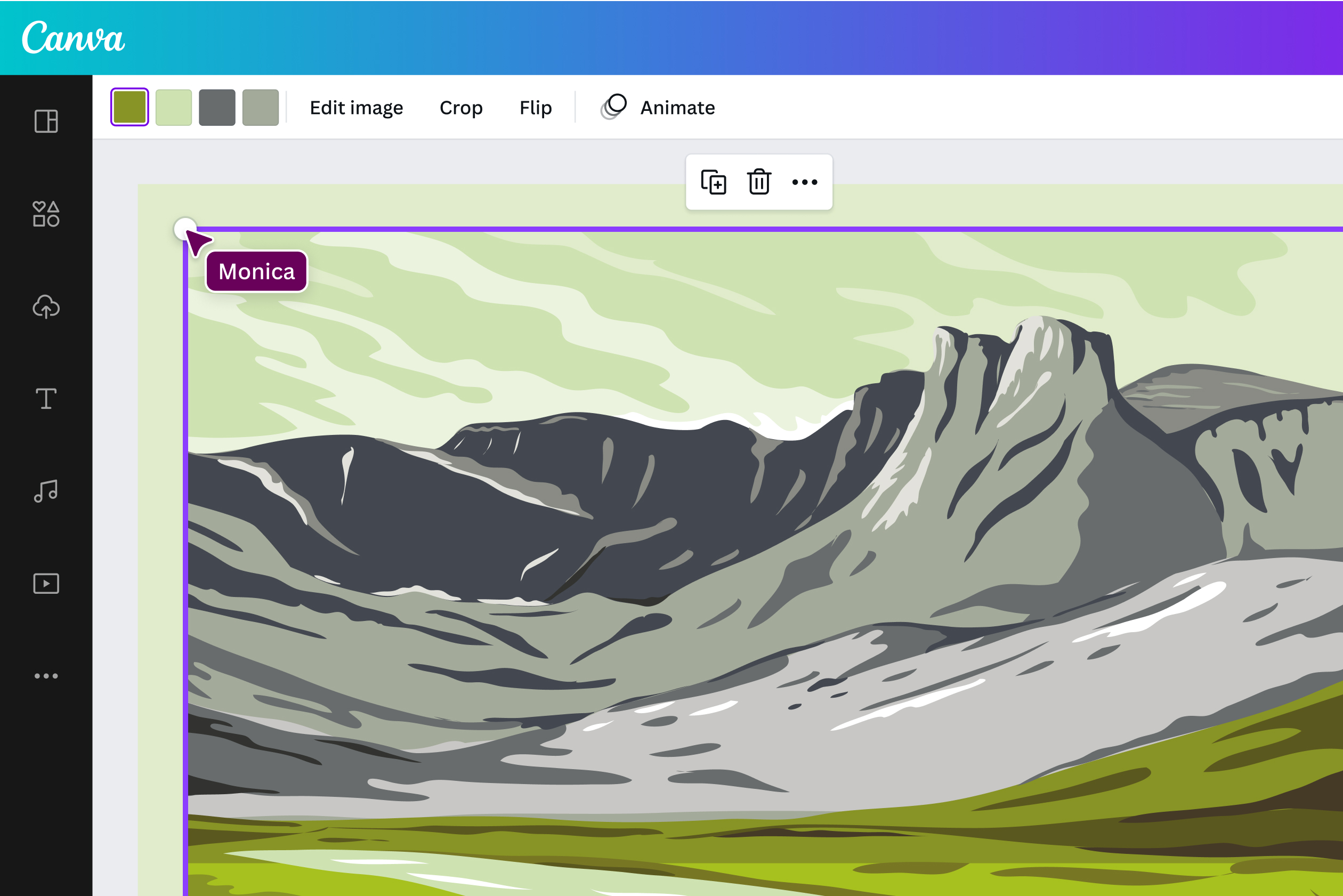
Once your edits are complete, click the export button to download the optimized file. NiceSVG automatically cleans up redundant code and ensures the SVG is valid for web use. This streamlined workflow saves hours of manual coding and cleanup typically required in traditional design software.
This method transforms SVG editing from a technical chore into a straightforward visual task. By focusing on the core elements—colors, paths, and attributes—you can achieve professional results with minimal effort.
Export optimized SVGs for production
Once your design is finalized in NiceSVG, the final step is exporting clean code ready for the web. Exporting directly from NiceSVG ensures you get a lean, minified file without the bloat often added by other editors.
Click the Export button in the top-right corner of the NiceSVG interface. This opens the export settings panel where you can choose your output format.
In the format dropdown, choose SVG Code. Make sure the Minify option is checked. This removes all unnecessary whitespace, comments, and hidden metadata, shrinking the file size significantly for faster page loads.

Click Download to save the .svg file to your computer. You can now drag and drop this file directly into your website’s assets folder or embed the code snippet into your HTML.
By using NiceSVG’s native export, you avoid the "dirty code" problem common in Illustrator or Figma exports. The resulting file is lightweight, valid XML, and ready for production use without needing a secondary cleanup tool.
Fix common SVG rendering errors
Even a small syntax mistake can break an SVG display, turning a crisp icon into a blank space or a distorted mess. Because SVG is code-based, browsers are strict about structure. The NiceSVG workflow makes these errors visible immediately, allowing you to correct them before they cause issues in your final project.
Missing or incorrect viewBox
The viewBox attribute defines the coordinate system for your graphic. Without it, the browser doesn't know how to scale the image, often resulting in a tiny, pixelated icon or a massive, cropped shape. In NiceSVG, the preview window automatically adjusts to the viewBox dimensions. If your graphic looks cut off or stretched, check the code editor for the viewBox="0 0 [width] [0 [height]" line. Ensure the numbers match the actual width and height of your design elements.
Incorrect color codes
SVGs rely on specific color formats. Using hex codes without the # symbol, or mixing up RGB and HSL values, will cause elements to disappear or render as black. NiceSVG highlights these errors with red underlines in the code editor. Simply click the colored element in the preview pane to see its current style, then correct the hex code (e.g., #FF5733) or RGB value in the properties panel. This ensures your colors appear exactly as intended.
Unclosed tags and stray characters
XML requires every opening tag to have a matching closing tag. A missing > or an unclosed <path> tag breaks the entire file. NiceSVG’s syntax checker catches these instantly. Look for error messages in the bottom status bar. Common culprits include stray spaces inside tags or forgotten closing quotes on attributes like fill="blue". Fixing these small syntax errors restores the graphic’s integrity.
Where to find free SVG assets
You don’t need to draw every icon or illustration yourself. Once you understand how to open and edit SVG files in NiceSVG, you can pull from massive libraries of free vectors to speed up your workflow. These repositories let you download clean code that you can drop directly into your projects or tweak inside NiceSVG without needing heavy design software.
Top sources for free SVG assets
-
SVG Repo
Search over 500,000 vectors and icons. Great for finding specific shapes or icons that you can download and immediately open in NiceSVG for color adjustments. -
FreeSVG.org
A curated library of public domain clip art and silhouettes. Ideal for crafters and designers looking for unique, non-generic illustrations to edit. -
Flowbite Icons
A collection of open-source SVG icons built for Tailwind CSS. Perfect if you need clean, minimalist line icons that scale perfectly in your web projects.
NiceSVG workflow checklist
Use this checklist to verify your edits before sharing or publishing. It covers the most common friction points in vector editing.
-
Verify the viewBox attribute matches the final display size.
-
Check all hex color codes for typos or unintended transparency.
-
Minify the code to remove unnecessary whitespace and comments.
-
Test the file in Chrome, Safari, and Firefox to ensure consistency.
A clean SVG file loads instantly and scales without pixelation. Skipping these steps often leads to broken layouts or large file sizes that slow down your site. Running through this list ensures your graphic is production-ready.
Common questions about SVG files
Users often ask if they can convert other formats to SVG or edit them without specialized software. The answer is yes, and NiceSVG makes these tasks straightforward without requiring expensive design suites.
Can I convert PNG to SVG?
Yes. NiceSVG includes an automatic tracing tool that converts raster images like PNG or JPG into editable vector paths. Simply upload your image, and the tool will generate an SVG you can edit immediately.
How do I edit SVGs without software?
You don’t need Adobe Illustrator. NiceSVG runs entirely in your browser, allowing you to change colors, resize shapes, and adjust paths directly. It’s a lightweight, accessible alternative to heavy desktop software.
Is SVG supported in all browsers?
Modern browsers like Chrome, Firefox, Safari, and Edge fully support SVG. It’s a web standard, meaning your graphics will scale crisply on any device without losing quality.
No comments yet. Be the first to share your thoughts!