
Find free SVG files
Start with a clean source. NiceSVG works best when the input file is well-structured, so picking the right asset library matters more than tweaking settings later. Stick to repositories that offer standard vector paths rather than raster images disguised as SVGs.
SVG Repo is a reliable starting point. It hosts over 500,000 free vectors and icons, most of which are licensed for commercial use. The search interface is straightforward, allowing you to filter by color or popularity. Look for files with simple path data to ensure smooth editing in NiceSVG.
For crafting projects, Freesvg.org provides public domain clip art and silhouettes. These files are often optimized for cutting machines like Cricut and Silhouette, meaning they usually have clean, closed paths. This makes them excellent candidates for quick edits without worrying about stray nodes or broken shapes.
If you need graphics for web design, SVG Backgrounds offers tiny, customizable assets. These files are designed for copy-and-paste integration, so they tend to be lightweight and structurally sound. Using these as your base ensures that NiceSVG can manipulate the elements without performance lag or rendering errors.
Open SVG in your browser
The fastest way to verify an SVG file’s structure and scaling before you start editing is to open it directly in your browser. This method acts as a quick health check, letting you see exactly how the vector renders without needing specialized design software.
Drag and drop
Locate your SVG file in your computer’s file explorer or Finder. Click and hold the file, then drag it into an open browser window. Drop it anywhere in the main content area. The browser will immediately render the vector graphic at its full resolution. This is the quickest way to confirm the file isn’t corrupted and that the colors and shapes appear as intended.
Paste into the address bar
If dragging feels cumbersome, you can also paste the file path directly into the browser’s address bar. Ensure the path starts with file:/// followed by the exact location of your SVG. Press Enter, and the browser will display the graphic. This method is particularly useful for verifying complex paths or when working with files in deeply nested folders.
Check scaling and resolution
Once the SVG is open, zoom in and out to verify that the image remains crisp at any size. Unlike raster images, SVGs should not pixelate. If the graphic looks blurry or distorted, the file may be embedded with raster elements or corrupted. This step ensures your SVG is truly vector-based and ready for editing in NiceSVG.
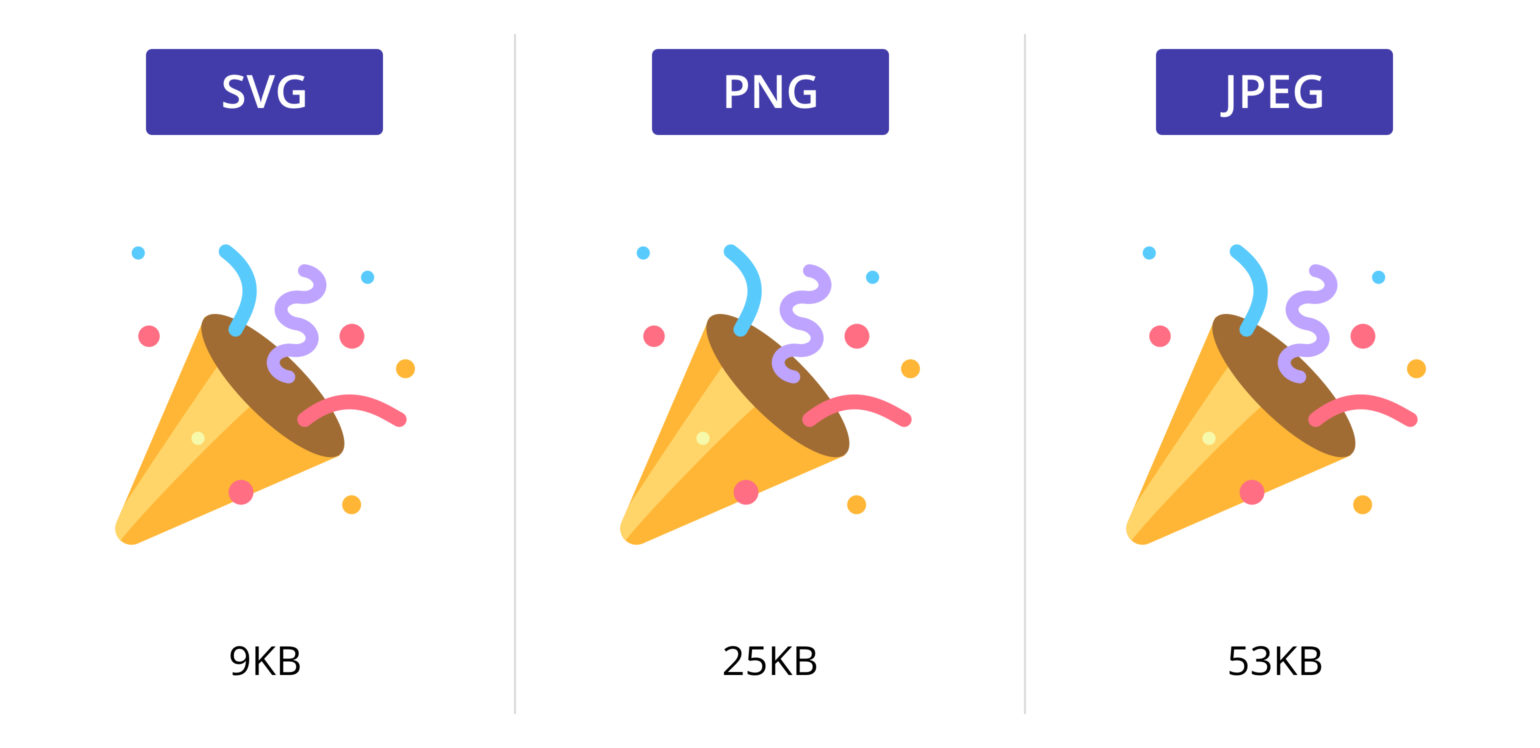
Click and hold the SVG file in your file explorer, then drag it into an open Chrome, Firefox, or Safari window. Release the mouse button to render the vector instantly.
Check that the shapes, colors, and text appear as expected. Zoom in to ensure the lines remain sharp and do not pixelate, confirming the file is a true vector.
If dragging fails, copy the file’s full path from your explorer and paste it into the address bar, ensuring it starts with file:///. Press Enter to load the graphic.
Edit SVG code directly
Editing SVG code is like tweaking the wiring in a lamp. You don't need a new fixture to change the bulb's brightness or color; you just need to adjust the connections. For SVG files, this means opening the XML structure to modify attributes like fill, stroke, or width directly.
NiceSVG makes this process accessible even if you aren't a developer. While you can use any text editor, NiceSVG provides a visual interface that highlights the code you are changing, reducing the risk of breaking the file structure.
Step 1: Open the file in NiceSVG
Upload your SVG file to NiceSVG. Once loaded, look for the "Code" or "Source" view option. This switches the interface from the visual canvas to the raw XML text. You will see tags like <svg>, <path>, and <rect>.
Step 2: Locate the attribute you want to change
Search for the specific property you wish to modify. Common targets include:
fill: Controls the interior color of shapes.stroke: Controls the outline color and width.widthandheight: Sets the dimensions.
For example, if you want to change a red icon to blue, find the fill attribute within the relevant <path> or <rect> tag.
Step 3: Update the value and save
Replace the existing hex code (e.g., #FF0000) with your desired color (e.g., #0000FF). If changing dimensions, update the width and height values. After making your edits, click "Save" or "Export" to download the modified SVG. The visual canvas in NiceSVG should update instantly to reflect your changes.
This method gives you precise control over every element in your vector graphic, allowing for customizations that standard editors might not offer.
Convert SVG to other formats
You often need to export an SVG as a PNG or JPG so it displays correctly in email clients, social media, or older software that doesn't support vector graphics. While SVG files are ideal for crisp scaling, raster formats like PNG and JPG are universally compatible. NiceSVG makes this conversion straightforward, allowing you to choose the right output format for your specific project needs.
The choice between PNG and JPG depends on whether your design includes transparency or complex gradients. PNG preserves sharp edges and transparent backgrounds, making it perfect for logos and icons. JPG compresses images by discarding data, which results in smaller file sizes but can introduce artifacts in sharp lines. Use the table below to decide which format fits your workflow.
| Format | Transparency | Best Use Case | File Size |
|---|---|---|---|
| PNG | Yes | Logos, icons, screenshots | Medium |
| JPG | No | Photos, gradients, web banners | Small |
| SVG | Yes | Web design, print, scaling | Very Small |

To convert your file in NiceSVG, simply open your SVG and look for the export or download options. Select PNG if you need a transparent background or sharp vector-to-raster conversion. Choose JPG if you are dealing with photographic content and want to minimize file size. Always preview the exported file to ensure the quality meets your standards before using it in your final project.
Fix common SVG errors
Even when NiceSVG handles most conversion and editing tasks, you might occasionally encounter a file that refuses to render or displays incorrectly. Broken paths, missing coordinates, or incorrect scaling are the usual suspects. Before diving into complex code, start by validating the structure.
Missing paths or broken shapes
If your image appears as a blank box or shows jagged edges, the path data is likely corrupted or incomplete. SVGs rely on precise coordinate commands (like M for move and L for line). If these are missing, the browser doesn't know where to draw.
Open the file in NiceSVG’s code editor. Look for any d="..." attributes that end abruptly or contain obvious typos. Ensure every M has a corresponding closing tag or path sequence. If the path is missing entirely, you may need to redraw the shape using NiceSVG’s vector tools rather than trying to patch the code manually.
Incorrect scaling or aspect ratio
A common issue is an SVG that stretches unnaturally when resized. This usually happens when the viewBox doesn’t match the actual width and height attributes. The viewBox defines the internal coordinate system, while width and height define the display size.
Check the opening <svg> tag. If viewBox="0 0 100 100" but width="200" height="100", the image will stretch horizontally. Use NiceSVG’s resize tool to recalculate these values proportionally, or manually edit the attributes to ensure the aspect ratio remains consistent across different display sizes.
Color and opacity glitches
Sometimes colors appear washed out or invisible. This can be caused by incorrect fill or stroke values, or opacity settings that blend the shape into the background. Ensure your color codes are valid hex values (e.g., #FF0000) or named colors. If using transparency, check that the opacity attribute isn’t set to 0 by mistake.
If the issue persists, inspect the layer order. A transparent shape placed over a solid one can sometimes cause rendering artifacts in older browsers. Rearranging the elements in NiceSVG’s layer panel often resolves these visual glitches.
Verify SVG quality before use
Before deploying your edited vector, run a quick quality check to ensure it scales cleanly and loads fast. Open the file in NiceSVG to inspect the layers and paths. Look for stray points or overlapping shapes that might cause rendering glitches in browsers.
Check the file size next. Clean SVGs are lightweight; if your file is unexpectedly large, it may contain embedded raster images or unnecessary metadata. Remove unused layers and simplify complex paths to keep the download speed snappy for your users.
Finally, test the colors and responsiveness. Ensure the palette is consistent across all elements and that the viewBox allows the graphic to stretch without distortion. A clean, optimized SVG acts like a sharp lens—crisp at any size.
-
Verify paths are clean and closed
-
Check file size is under 50kb if possible
-
Confirm colors match your brand palette
-
Test scaling at 100% and 200% zoom
Frequently asked: what to check next
Can I edit SVG files in Photoshop?
You can open an SVG in Photoshop, but it will rasterize the image into pixels rather than keeping it as editable vector paths. This means you lose the scalability benefits of SVG and cannot easily change individual shapes or text attributes later. For true vector editing, use NiceSVG or a dedicated vector tool like Inkscape.
How do I change the color of an SVG?
The fastest way to change colors is to edit the fill or stroke attributes directly in the SVG code. In NiceSVG, you can often adjust colors using the visual color picker without touching the code. If you need to batch-change colors across multiple files, use a command-line tool or a dedicated converter.
Are free SVG files safe to use?
Most free SVGs from reputable sources like SVG Repo or Freesvg.org are safe, but always check the license. Some files may contain embedded scripts or metadata that could pose security risks if uploaded to a public server. Stick to trusted repositories and scan downloaded files if you are unsure.
Can I convert SVG to PNG or JPG?
Yes, NiceSVG allows you to export SVG files as PNG or JPG for web use. This is useful when you need a raster format for social media or when the recipient’s software does not support vector graphics. Keep in mind that converting to raster formats loses the infinite scalability of the original SVG.
No comments yet. Be the first to share your thoughts!