

Why Convert AI to SVG? Understanding the Benefits
Adobe Illustrator (AI) is a powerful tool for creating vector graphics, but its file format is proprietary. Scalable Vector Graphics (SVG), on the other hand, is an open standard. Converting from AI to SVG unlocks a lot of flexibility. SVG’s biggest strength is its scalability; you can resize an SVG image to any dimension without losing quality, unlike raster images like JPEGs or PNGs.
SVG files are also typically smaller in file size than AI files, making them ideal for web use. Because SVG is XML-based, you can actually open and edit the code directly in a text editor. This opens up possibilities for animation using CSS or JavaScript, and allows for programmatic manipulation of the graphic. The format works across almost all modern software.
The proprietary nature of AI files can create compatibility issues. Not everyone has access to Adobe Illustrator, and even if they do, different versions might interpret the file slightly differently. SVG’s open standard ensures consistent rendering across various browsers and applications. It’s a more universally accessible format.
Consider the use cases. SVG is fantastic for web graphics, logos, icons, user interface (UI) design, and even preparing graphics for print. Anything requiring sharp, scalable visuals benefits from the SVG format. You’ll find SVG powering interactive maps, data visualizations, and animated illustrations across the internet.
The Core Differences: AI vs. SVG File Structures
At a fundamental level, AI and SVG files store graphic information in drastically different ways. AI files are complex, binary files. They contain a wealth of instructions specific to Adobe Illustrator – layer information, effects, appearances, and more – all encoded in a format that only Illustrator can fully understand.
SVG files, conversely, are XML-based text files. This means the entire graphic is described using text tags. You can open an SVG file in any text editor and see the code that defines the shapes, colors, and positions of elements. This text-based structure makes SVG incredibly flexible and editable. It also lends itself well to version control systems like Git.
The difference in structure impacts editing and automation. While you can edit individual elements within Illustrator for AI files, modifying SVG files directly in a text editor allows for precise control and the potential for automating tasks using scripting languages. You can programmatically generate or modify SVG graphics, something much harder to achieve with AI files.
Both formats use mathematical equations to define points and curves, ensuring they stay sharp when resized. While AI files often bundle raster images (pixels) alongside vectors, SVG remains a lightweight, text-based standard for the web.
Direct Conversion: When It Works (and When It Doesn't)
Some programs offer the ability to directly open AI files and then save them as SVG. Newer versions of Inkscape, for example, generally handle AI import reasonably well. Adobe Illustrator itself can also open AI files and export them to SVG format. However, this isn’t always a seamless process.
Complex AI files, especially those utilizing advanced effects, gradients, or specific Illustrator features, might not translate perfectly. You might experience fidelity loss – colors shifting, gradients appearing differently, or certain effects being flattened or removed. It really depends on the complexity of the original AI file and the capabilities of the importing/exporting software.
Troubleshooting common import issues often involves simplifying the AI file before conversion. Try flattening complex layers, reducing the number of gradients, and removing any unnecessary effects. If you’re experiencing font issues, ensure the fonts are outlined in Illustrator before exporting. Sometimes, a slightly different export setting can make a big difference.
Older software versions often lack support for newer AI files. If you're using an older version of Inkscape, for example, it might not be able to open newer AI files correctly. Always check the software’s documentation for compatibility information.
Top Free Online AI to SVG Converters in 2024
When direct conversion isn’t sufficient, online converters provide a convenient solution. Several free options are available, but quality and features vary. CloudConvert and Convertio are two popular choices. Others include Online-Convert.com and Zamzar, but we’ll focus on the first two for a more in-depth look. It’s important to be aware of privacy implications when uploading files to online converters – always review their terms of service.
CloudConvert stands out for its broad format support and generally good conversion quality. The interface is clean and straightforward. You simply upload your AI file, select SVG as the output format, and click "Convert". They support files up to 1 GB in size for free users, which is generous. However, free users are limited to a certain number of conversions per day.
Convertio is another solid option. It also offers a simple drag-and-drop interface. Convertio supports a wide range of input and output formats, making it a versatile tool. They have a file size limit of 100MB for free conversions, which is smaller than CloudConvert. They also limit the number of conversions you can perform per day. They offer integrations with cloud storage services like Google Drive and Dropbox.
Each converter has its quirks. Some might handle gradients better than others, or preserve colors more accurately. Testing a few different converters with your specific AI file is often the best way to determine which one produces the best results. Speed can also vary significantly depending on the file size and server load.
- CloudConvert: Excellent format support, up to 1 GB file size, limited daily conversions.
- Convertio: Simple interface, supports cloud storage, 100MB file size limit, limited daily conversions.
- Online-Convert.com: Supports a wide range of file formats, but can be ad-heavy.
- Zamzar: Easy to use, but slower conversion speeds and limited free conversions.
AI to SVG Converter Comparison - 2024
| Converter Name | Ease of Use | Feature Support | Privacy Considerations | Overall Rating |
|---|---|---|---|---|
| CloudConvert | Moderate | Good for basic shapes and paths; may have limitations with complex effects. | Moderate - Files are stored on their servers during conversion. | 4/5 stars |
| Convertio | Simple | Supports a range of AI features, but complex elements may lose fidelity. | Moderate - Files are stored temporarily for conversion. | 3.5/5 stars |
| Online-Convert.com | Simple | Basic vector conversion; limited control over SVG output. | Moderate - Files are stored temporarily. | 3/5 stars |
| Zamzar | Simple | Good for quick conversions; may struggle with intricate designs. | Moderate - Files are stored temporarily. | 3/5 stars |
| FreeConvert.com | Moderate | Handles gradients and some transparency, but complex effects may be simplified. | Moderate - Claims to delete files after conversion, but standard online privacy considerations apply. | 3.5/5 stars |
Qualitative comparison based on the article research brief. Confirm current product details in the official docs before making implementation choices.
CloudConvert: A Deeper Look
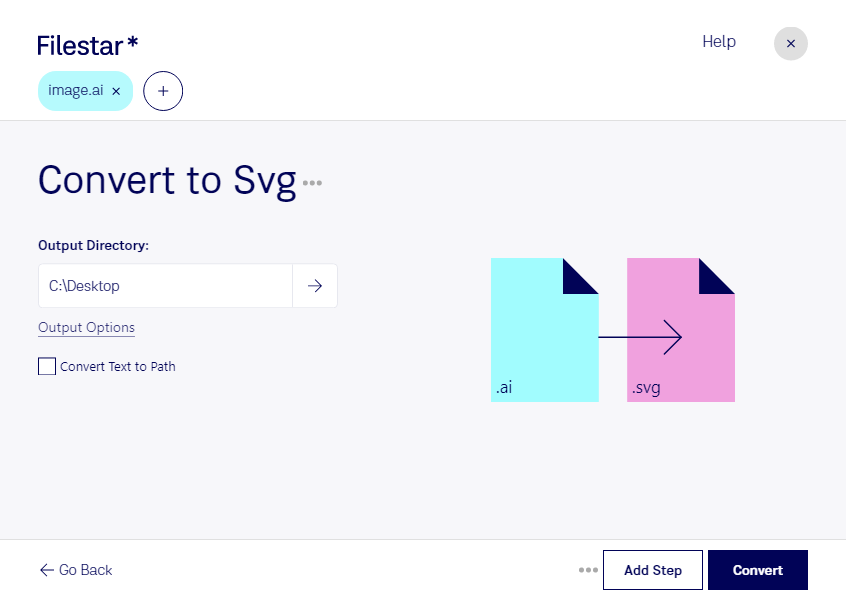
CloudConvert is a powerful online file conversion tool that’s particularly effective for converting AI files to SVG. The process is incredibly straightforward. First, navigate to the CloudConvert AI to SVG converter page. Then, click the "Select File" button and choose the AI file you want to convert from your computer.
Once the file is uploaded, you can optionally adjust conversion settings. For AI to SVG conversion, these options are limited, but you can choose to optimize the SVG output for different purposes. After selecting your options (or leaving them at the default settings), click the "Convert" button. CloudConvert will then process your file and make the SVG version available for download.
The pros of using CloudConvert include its broad format support, generous file size limit for free users (1 GB), and generally high conversion quality. The cons are the limitations on the number of conversions you can perform per day as a free user, and the fact that you’re uploading your file to a third-party server.
CloudConvert also offers a paid API for developers who need to automate file conversions. This allows for programmatic access to their conversion services. While the API is a paid feature, it opens up possibilities for integrating CloudConvert into larger workflows.
- Step 1: Go to the CloudConvert AI to SVG converter.
- Step 2: Upload your AI file.
- Step 3: (Optional) Adjust conversion settings.
- Step 4: Click 'Convert'.
- Step 5: Download the converted SVG file.
Convertio: Another Solid Option
Convertio provides a similar experience to CloudConvert, making it easy to convert AI files to SVG. Start by visiting the Convertio AI to SVG converter page. You can upload your AI file by clicking the "Choose Files" button or by dragging and dropping it directly onto the page.
Convertio offers integrations with cloud storage services like Google Drive and Dropbox, allowing you to import AI files directly from those platforms. Once the file is uploaded, you can click the "Convert" button to initiate the conversion process. Convertio will then process your file and provide a download link for the SVG version.
A key difference between Convertio and CloudConvert is the file size limit for free users – Convertio limits uploads to 100MB. Convertio also limits the number of conversions per day. However, its integration with cloud storage can be a significant convenience for some users.
In my testing, Convertio’s conversion quality was comparable to CloudConvert’s, though I observed slightly more color variations in some complex gradients. It’s always a good idea to compare the results from both converters to see which one best suits your needs.
Beyond Online Converters: Desktop Software Alternatives
While online converters are convenient, desktop software offers more control and potentially better results. Inkscape is a free and open-source vector graphics editor that can open AI files and export them as SVG. It’s a powerful tool with a steep learning curve, but it provides a lot of flexibility.
Adobe Illustrator itself, the native application for AI files, is another option. Illustrator allows you to open AI files and export them as SVG with precise control over the export settings. However, Illustrator is a paid software, and it’s not the most accessible option for everyone.
Other vector graphics editors, like CorelDRAW and Affinity Designer, also support AI import and SVG export. These programs offer a balance between features and price, but they also require a software purchase and installation. The choice depends on your budget and specific needs.
- Inkscape: Free and open-source, powerful features, steep learning curve.
- Adobe Illustrator: Industry standard, precise control, paid software.
- CorelDRAW: Professional features, paid software.
- Affinity Designer: Affordable alternative, paid software.
Desktop Software for AI to SVG Conversion
- Inkscape - This free and open-source vector graphics editor is a powerful tool for opening, editing, and saving AI files as SVGs.
- Adobe Illustrator - As the industry standard for vector graphics, Illustrator seamlessly converts AI files to SVG with robust control over export settings.
- CorelDRAW - This professional vector graphics editor provides comprehensive features for converting AI files to SVG, offering precise control over the output.
- Affinity Designer - A cost-effective alternative to Adobe Illustrator, Affinity Designer allows you to open and export AI files as SVGs with a focus on performance and precision.
- Vector Magic - While primarily an online tool, Vector Magic also offers a desktop application that specializes in converting raster images (and AI files) to vector formats like SVG.
- Boxy SVG - This dedicated SVG editor can open AI files and save them as SVG, offering a streamlined workflow for SVG creation and editing.
Troubleshooting Common Conversion Issues
Conversion isn’t always perfect. Missing fonts are a common problem. To avoid this, outline your fonts in Illustrator before converting. Color conversions can also be tricky; sometimes colors appear differently in SVG. Check your color profiles in Illustrator and experiment with different color modes during conversion.
Lost gradients or distorted shapes can occur with complex AI files. Simplify the file as much as possible before converting – flatten layers, reduce the number of gradients, and remove unnecessary effects. If shapes are distorted, try increasing the resolution during conversion (if the converter offers that option).
Errors during upload or download are usually due to file size limits or network issues. Try compressing the AI file or using a different converter. Ensure you have a stable internet connection. It’s also worth checking the converter’s documentation for any known issues or limitations.
FAQ: Why is my SVG file blurry? This usually indicates a raster image was included in the original AI file. SVG is vector-based, so raster images won't scale well. Why are my colors different? Color profiles can vary. Ensure consistent color profiles in Illustrator and the converter. Why are my fonts missing? Outline your fonts in Illustrator before converting.
No comments yet. Be the first to share your thoughts!