Get NiceSVG Right
Before you start editing, check that your file is actually ready for the browser. NiceSVG works best with clean, standard SVG code. If the file is cluttered with legacy attributes or embedded raster images, the editor may behave unpredictably or fail to render correctly.
Start by opening your SVG in a text editor or a code viewer. Look for the <svg> tag at the top. It should include xmlns="http://www.w3.org/2000/svg". Without this namespace declaration, modern browsers might ignore the file or display a broken image icon instead of your graphic.
Next, verify the dimensions. The viewBox attribute is more important than fixed width and height values. A proper viewBox (like 0 0 100 100) allows the SVG to scale responsively. If your file uses only fixed pixels, it will look tiny on high-resolution screens or huge on mobile devices.
Finally, check for embedded fonts or external links. NiceSVG and most web editors strip out external dependencies. If your design relies on a specific web font or an external CSS file, it will break when you preview or export the file. Use system fonts or inline styles to keep everything self-contained.
Work through the steps
The SVG works best as a clear sequence: define the constraint, compare the realistic options, test the tradeoff, and choose the path with the fewest hidden costs. That order keeps the advice usable instead of decorative. After each step, pause long enough to check whether the recommendation still fits the reader's actual situation. If it depends on perfect timing, unusual access, or a best-case budget, include a simpler fallback.

Common mistakes when working with SVG files
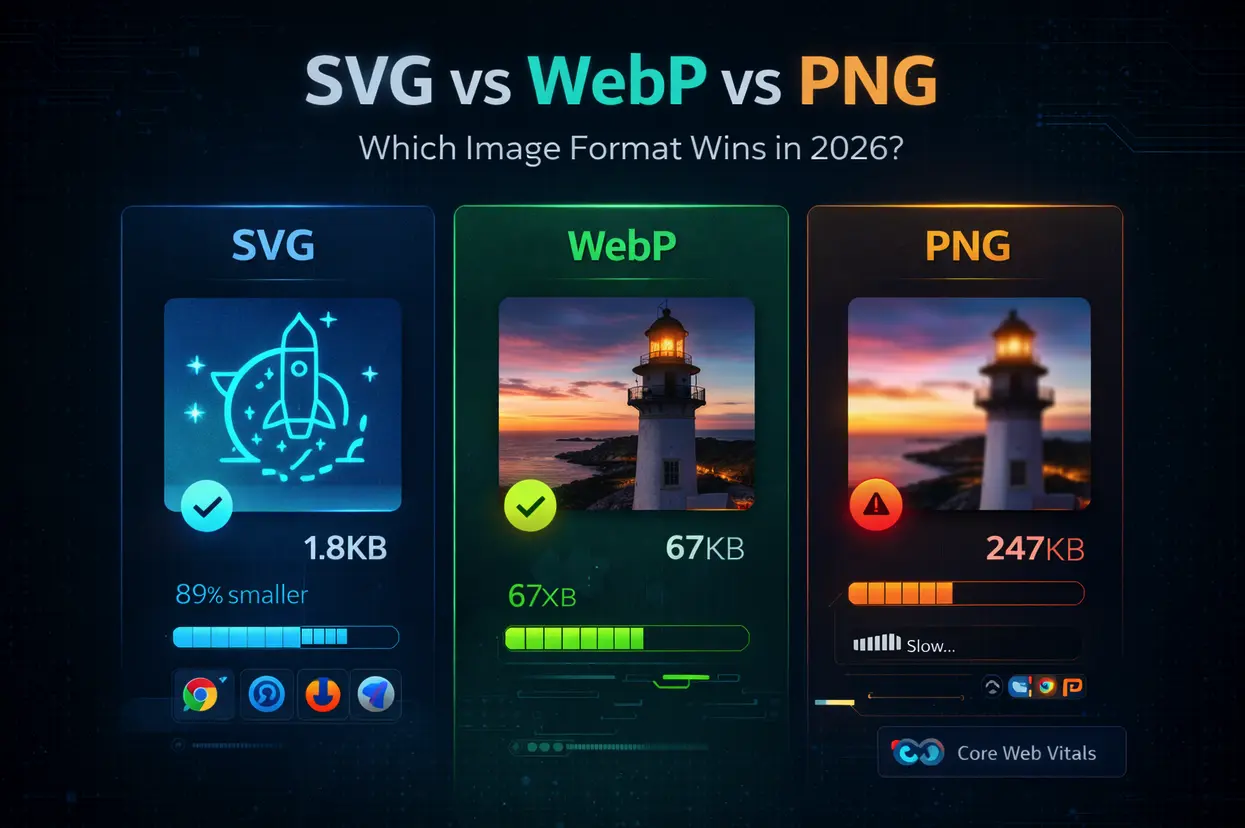
Even with modern tools, small errors in your SVG code or export settings can break your design or slow down your website. These mistakes usually come from how the file was created or saved, not just how you open it. Fixing these issues early saves time and keeps your web performance high.
Leaving unnecessary code behind
Design tools often export more data than you need. If you copy and paste code from an editor without checking it, you might carry over hidden metadata, editor-specific tags, or unused gradients. This bloats the file size and makes the code harder to read. Always clean up your SVGs by removing any attributes that don’t directly affect the visual output. Tools like SVGO can automate this, but manual review ensures nothing critical is lost.
Using the wrong viewBox
The viewBox attribute defines the coordinate system of your SVG. If you export an icon with a fixed width and height but no viewBox, it won’t scale correctly on different screens. Conversely, if the viewBox doesn’t match the actual content bounds, your icon might appear clipped or stretched. Check the bounding box of your artwork and set the viewBox to match it exactly, such as viewBox="0 0 24 24" for a standard icon grid.
Ignoring accessibility labels
Screen readers see an empty box if your SVG lacks proper labeling. This is a common oversight for designers who focus only on visuals. Add an aria-label attribute to the <svg> tag to describe its purpose, or use <title> inside the SVG for a more semantic approach. This small step ensures your graphics are accessible to all users and improves your site’s SEO score.
Mixing coordinate systems
When combining multiple SVG elements or layers, ensure they all use the same coordinate system. Mixing absolute and relative positioning can cause elements to drift out of place when the SVG is resized or embedded in different contexts. Stick to one system throughout your design to maintain consistency and prevent layout shifts.
Nicesvg: what to check next
Before committing to an SVG workflow, it helps to clear up common friction points. These answers address the practical hurdles of opening, editing, and saving vector files for modern web design.
These clarifications ensure you approach SVGs with the right expectations for editing capabilities and security.
No comments yet. Be the first to share your thoughts!