

Vector vs. raster: the basics
Web images are either raster or vector. Raster files, like JPEGs, are grids of pixels. They get blurry when you stretch them. SVGs are different. They use math to draw lines and shapes, so they stay sharp at any size. I prefer SVGs for logos because they never pixelate on high-res screens.
The history of these formats is quite distinct. Raster graphics have been around since the early days of computing, with formats like GIF and JPEG becoming popular in the 1990s. SVG, however, is a relatively newer format, first standardized in 2001. It emerged as the web evolved and the need for scalable graphics, particularly for responsive web design, became apparent. Before SVG, designers often relied on raster images for everything, leading to blurry logos and icons on high-resolution screens.
The core difference impacts how images behave. If you zoom in on a raster image far enough, you’ll eventually see those individual pixels. With a vector image, zooming in simply refines the mathematical definitions, keeping the image crisp and clear. This makes SVGs ideal for logos, icons, and illustrations that need to look sharp on any device. Raster images are better suited for photographs and complex scenes where subtle variations in color and texture are important.
File size is another key consideration. Raster images generally have larger file sizes, especially at high resolutions. SVG files can often be smaller, particularly for simpler graphics, because they store instructions rather than pixel data. However, very complex vector images with many paths and gradients can sometimes be larger than their raster counterparts. It all comes down to the image’s content and complexity.
Why SVGs are better for icons
SVG truly shines when it comes to scalability. This isn’t just about looking good on different screen sizes; it’s about future-proofing your designs. As display technology continues to improve with higher pixel densities, SVG images will remain sharp and clear, while raster images may require constant updates to maintain quality. That’s a significant advantage for brands that want to maintain a consistent visual identity across all platforms.
Beyond scalability, SVG has a unique superpower: interactivity. Unlike raster images, SVGs are written in XML, which means they can be manipulated with CSS and JavaScript. This opens up a world of possibilities for dynamic and engaging web experiences. You can easily change colors on hover, animate shapes, and even create complex data visualizations.
Consider a simple example: a button icon. With an SVG, you could change the fill color of the icon when the user hovers their mouse over it, providing visual feedback. Or imagine a simple animated loading spinner. These effects are relatively easy to implement with SVG and a few lines of code. Achieving the same effect with a raster image would require more complex techniques and potentially larger file sizes.
If you’re a designer who isn’t comfortable writing code, don’t worry. Tools like NiceSVG are making it easier than ever to create custom SVGs. Their AI-powered features allow you to generate vector graphics instantly, even if you don’t have any prior experience. This democratizes access to the benefits of SVG, allowing more designers to leverage its power.
- Change colors on hover for instant feedback.
- Animate shapes: Create engaging loading spinners or other dynamic effects.
- Data visualizations: Represent complex data in a clear and interactive way.
Modern raster formats: WebP and AVIF
While SVG offers unique advantages, raster images remain essential for many web applications, particularly those involving photographs and complex scenes. WebP and AVIF are modern raster formats designed to improve upon older formats like JPEG and PNG. Both formats offer superior compression and quality, resulting in smaller file sizes and faster loading times.
WebP, developed by Google and released in 2010, was the first major step forward. It supports both lossy and lossless compression, giving developers flexibility to balance file size and image quality. AVIF, a more recent format based on the AV1 video codec, takes things even further. It generally achieves better compression ratios than WebP, resulting in even smaller file sizes for the same level of quality.
The compression algorithms used by WebP and AVIF are more sophisticated than those used by JPEG and PNG. They employ techniques like predictive coding and transform coding to remove redundancy and reduce file size. Lossy compression discards some image data to achieve smaller file sizes, while lossless compression preserves all the original data. The choice between lossy and lossless depends on the specific application and the desired level of quality.
Browser support is a crucial factor to consider. As of late 2023, most modern browsers – including Chrome, Firefox, and Edge – fully support WebP and AVIF. However, Safari’s support has been historically limited, requiring polyfills or fallback images for older versions. While support is improving, it’s still important to test your website thoroughly across different browsers to ensure a consistent user experience.
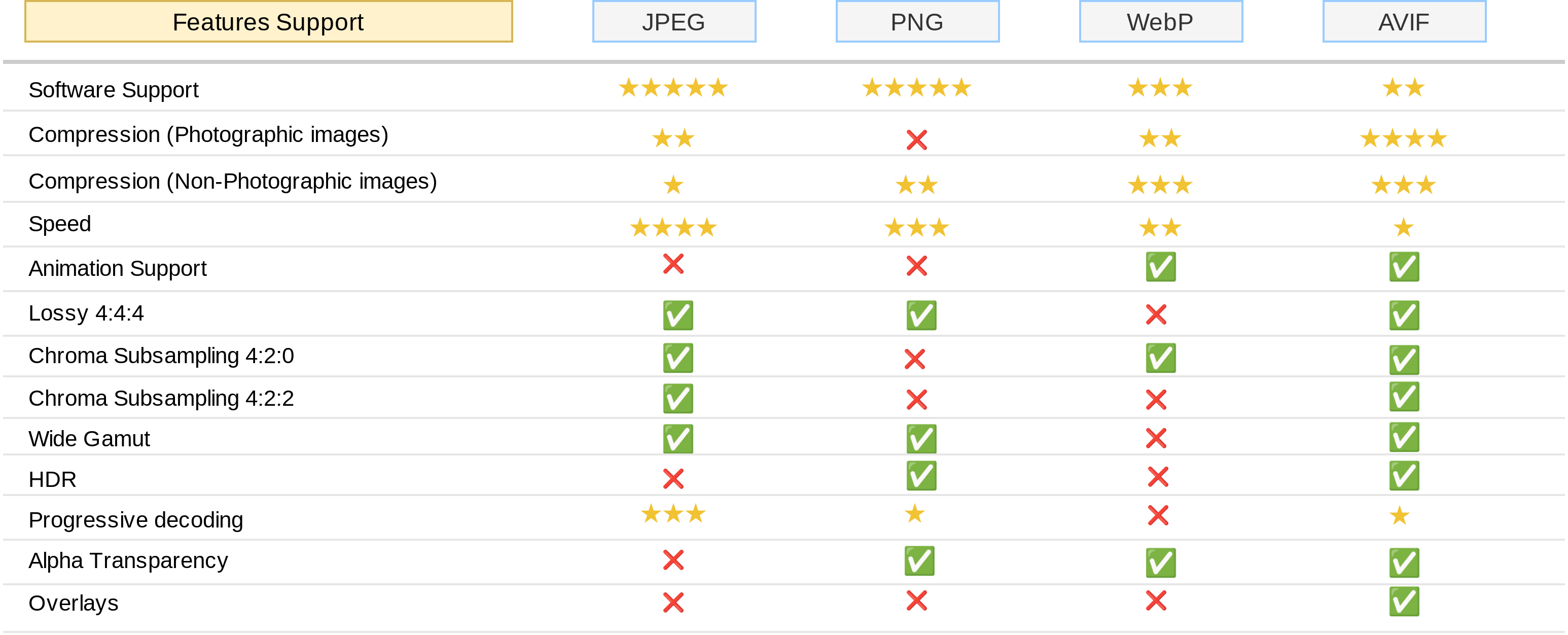
Image Format Comparison: Qualitative Overview (as of late 2023)
| Format | Compression Type | Typical File Size | Browser Support | Animation Support | Best Use Cases |
|---|---|---|---|---|---|
| JPEG | Lossy | Generally Small | Excellent | No | Photographs, complex images where some detail loss is acceptable |
| PNG | Lossless | Medium to Large | Excellent | Limited (APNG) | Graphics with sharp lines, text, logos, images requiring transparency |
| WebP | Lossy or Lossless | Small to Medium | Good | Yes | General purpose images, aiming for better compression than JPEG/PNG |
| AVIF | Lossy or Lossless | Smallest | Good, improving | Yes | High-quality images, seeking maximum compression efficiency |
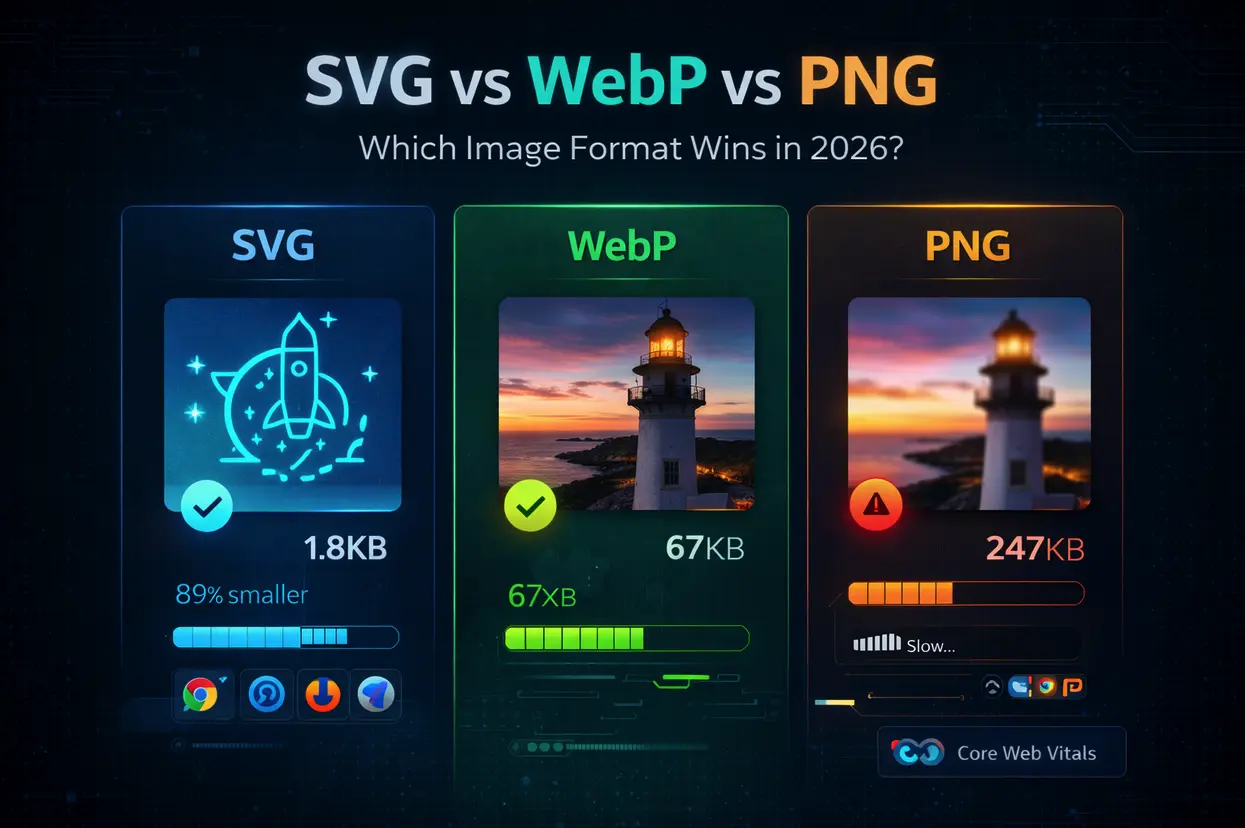
| SVG | Vector-based | Small for simple graphics, scales with complexity | Excellent | Yes (via animation/SMIL) | Logos, icons, illustrations, graphics that need to scale without loss of quality |
Qualitative comparison based on the article research brief. Confirm current product details in the official docs before making implementation choices.
What to expect in 2026
Predicting precise performance benchmarks for 2026 is difficult, as it depends on a multitude of factors. However, we can reasonably anticipate certain trends. Browser vendors are continually optimizing their image decoding engines, which will likely lead to further performance improvements for all three formats – SVG, WebP, and AVIF. The adoption of HTTP/3, with its improved connection management and reduced latency, will also play a significant role.
I expect AVIF to become the dominant raster format by 2026, assuming Safari fully embraces it. Its superior compression capabilities will be increasingly valuable as web pages become more image-heavy and users demand faster loading times. WebP will likely remain a viable alternative, particularly for scenarios where AVIF support is limited. The performance gap between WebP and AVIF will likely narrow as compression algorithms continue to evolve.
SVG’s performance will be less directly impacted by browser optimizations, but improvements in JavaScript engines and CSS rendering could still lead to faster rendering of complex SVG animations. The increasing availability of faster mobile networks (5G and beyond) and more powerful mobile devices will also benefit SVG, as it relies on client-side rendering. The complexity of the SVG itself will remain the biggest performance factor.
Network speed and device processing power will continue to be critical determinants of perceived performance. Users on fast connections with powerful devices will experience less of a difference between the formats. However, for users on slower connections or older devices, the benefits of optimized image formats like AVIF and SVG will be more pronounced. It’s important to remember that optimization isn't just about the format; it's about delivering the right image size and quality for each user's context.
Projected File Size Comparison: SVG, WebP, and AVIF (2024-2026) - Sample Photograph (1920x1080)
Data: AI-generated estimate for illustration
Use Cases: Where Each Format Shines
Choosing the right format depends heavily on the specific use case. SVG is the clear winner for logos, icons, illustrations, maps, and any graphic that needs to be scaled without loss of quality. Its interactivity and small file sizes make it ideal for these applications. Think of the icons on your favorite website or the logo in the corner of your screen – SVG is likely powering those visuals.
WebP and AVIF excel at handling photographs and complex images where file size is a critical concern. If you’re running a photo-sharing website or an e-commerce store with high-resolution product images, these formats can significantly improve loading times and reduce bandwidth costs. They are also well-suited for images where subtle color variations and textures are important.
There's overlap, of course. A simple illustration could be saved as a WebP or AVIF, but you'd lose the benefits of scalability and interactivity that SVG provides. Conversely, a photograph could be vectorized, but the file size would likely be enormous and the quality may suffer. It's about weighing the trade-offs.
Consider these scenarios: a website displaying a map of a city would benefit greatly from SVG’s scalability, allowing users to zoom in and out without losing detail. A news website featuring a high-resolution photograph of a breaking news event would likely prioritize WebP or AVIF to minimize loading times.
Featured Products
![Mac free software super best 2010 complete edition (INFOREST MOOK PC ¡¤ GIGA special intensive course 382) (2010) ISBN: 4861905478 [Japanese Import]](https://m.media-amazon.com/images/I/91JSus6hR7L._AC_UY654_QL65_.jpg)
Comprehensive guide to Mac software from 2010 · Focuses on complete edition features · Includes intensive course material
While dated, this resource provides historical context on software capabilities relevant to understanding the evolution of digital asset management.
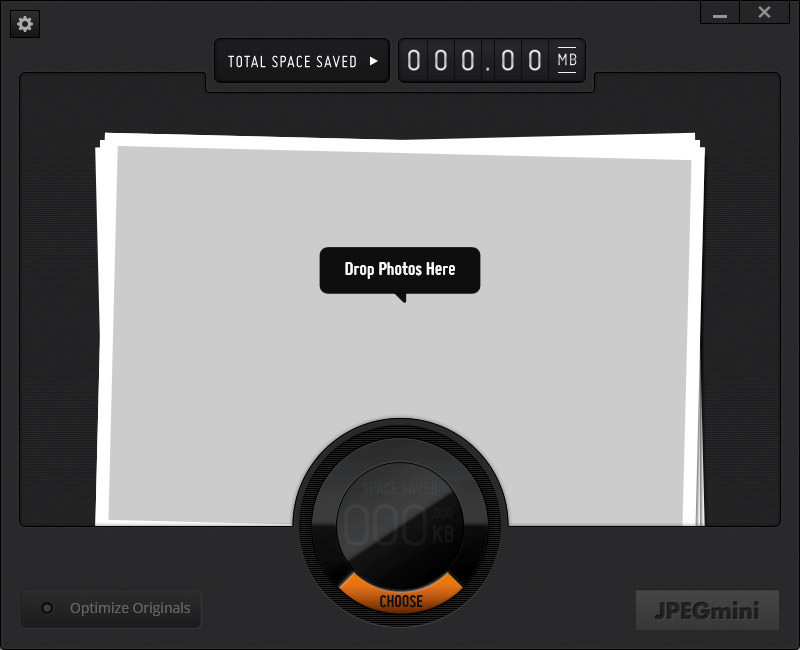
Lossy compression for JPEG images · Reduces file size without significant visual quality loss · Batch processing capabilities
JPEGmini Pro is a specialized tool for optimizing JPEG images, a foundational format that still requires efficient compression for web use.

Covers image editing tools and techniques · Focuses on workflow optimization · Suitable for novices and experts
Affinity Photo Editor 2025 Guidebook offers insights into advanced image editing workflows that can be applied to preparing assets for modern web formats.

Professional guide to Photoshop CS5 · Focuses on creative use for photographers · Covers Macintosh and PC platforms
Adobe Photoshop CS5 for Photographers, though an older version, details fundamental image manipulation techniques crucial for preparing images for web optimization.
As an Amazon Associate I earn from qualifying purchases. Prices may vary.
Optimization Techniques: Squeezing Every Byte
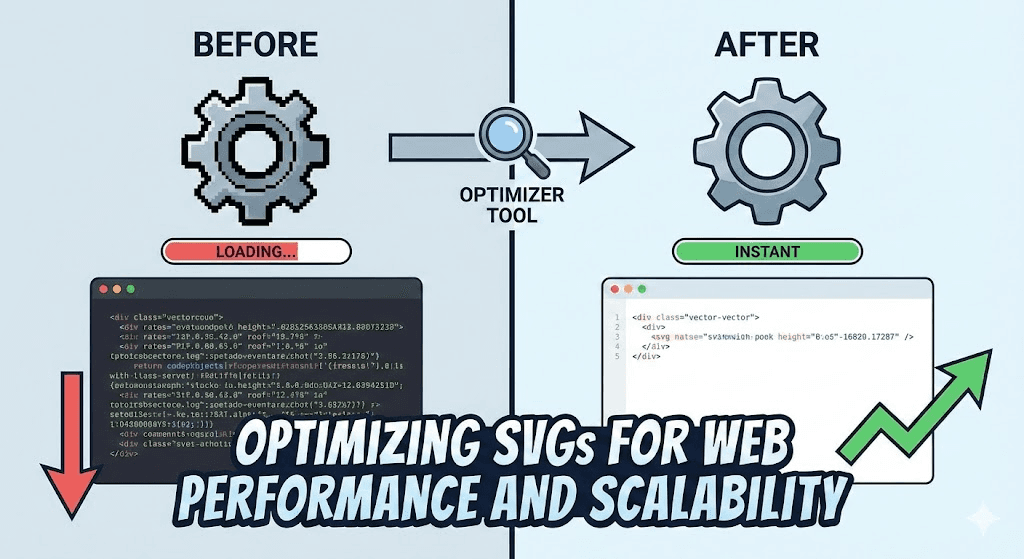
No matter which format you choose, optimization is key to maximizing performance. For SVG, minimizing the amount of path data is crucial. Complex shapes with many points and curves can significantly increase file size. Tools like SVGO (SVG Optimizer) can automatically remove unnecessary data and simplify paths without affecting the visual appearance.
Removing unnecessary metadata, such as comments and editor information, can also reduce file size. Using efficient color palettes and avoiding gradients where possible can further improve performance. Consider using CSS gradients instead of embedding them directly in the SVG. A well-optimized SVG can be surprisingly small, often smaller than its raster equivalent.
For WebP and AVIF, adjusting the compression level is the most important optimization technique. Higher compression levels result in smaller file sizes but may also introduce more compression artifacts. Finding the right balance between quality and file size requires experimentation. Lossy compression is generally preferred for photographs, while lossless compression is often used for graphics with sharp lines and text.
Several tools and libraries can automate these optimization processes. ImageOptim is a popular choice for macOS, while TinyPNG and TinyJPG offer online optimization services. NiceSVG provides resources and tools specifically designed for optimizing SVG files, helping you achieve the best possible performance. Remember to test your optimized images across different browsers and devices to ensure they look good and load quickly.
- Simplify complex shapes to cut down on path data.
- Remove metadata: Eliminate unnecessary information.
- Use efficient color palettes: Reduce the number of colors.
- Adjust compression levels: Balance quality and file size.

No comments yet. Be the first to share your thoughts!