
Why Convert PNG to SVG? The Benefits Explained
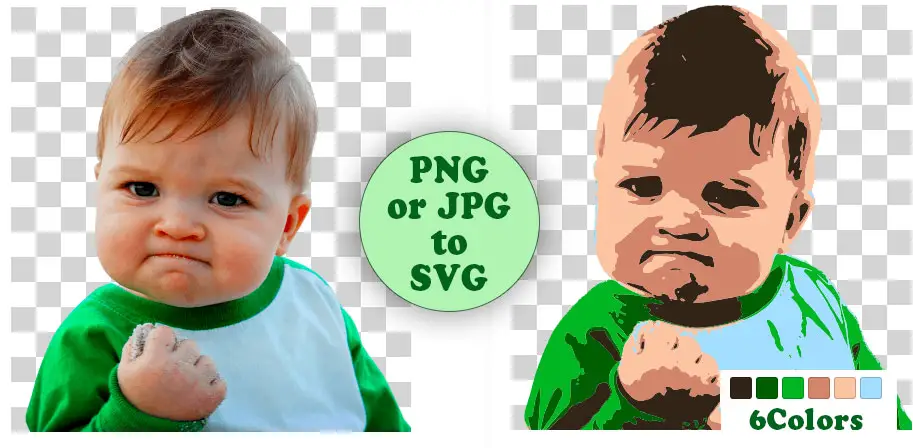
Let's talk about SVG, which stands for Scalable Vector Graphics. Unlike PNGs and JPEGs – which are raster images made of pixels – SVGs are built using mathematical equations to define shapes and lines. This is a pretty big deal. It means you can scale an SVG up or down to any size without losing clarity or becoming pixelated. Think of it like this: a raster image is like a mosaic, and an SVG is like a blueprint.
The advantages are numerous. Beyond scalability, SVGs often have smaller file sizes than their raster counterparts, especially for simple graphics. This can lead to faster loading times on websites. They’re also fully editable. You can open an SVG in a text editor and tweak the code, or use vector graphics software to modify individual elements with ease. It’s a level of control you simply don’t get with PNGs.
Where does this shine? Logos are a prime example. You want a logo to look sharp on a business card and on a billboard. Icons are another great use case, as are illustrations and web graphics where scalability is essential. However, it’s not always the right move. Photographs, for instance, are generally better suited to raster formats. Converting a complex photograph to SVG will result in a huge file size and likely a disappointing image.
The Limitations of Free Online PNG to SVG Conversion
Free online converters are incredibly convenient, and they can be perfectly adequate for simple conversions. But it’s important to understand what's happening under the hood. These tools rely on automatic tracing, a process where the software attempts to identify shapes within your PNG and recreate them as vector paths. It’s not a perfect science.
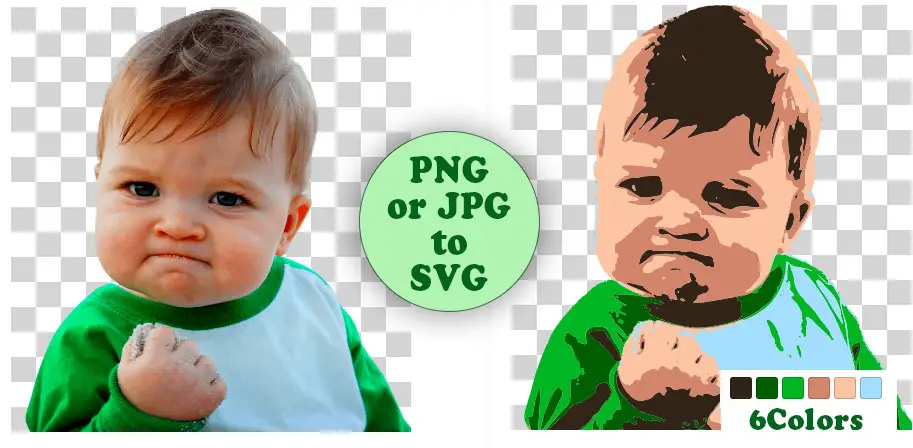
You’ll often find that free converters produce results that are a bit…choppy. Lines might appear jagged, curves may be approximated with a series of short segments, and colors can be inaccurate. This is especially true with complex images or those containing gradients. The software tries its best, but it's essentially guessing at the intended shapes.
Another issue is unnecessarily complex paths. The converter might create hundreds of tiny paths where a few smooth curves would suffice. This bloats the file size and can make editing the SVG difficult. The quality you get will vary significantly depending on the tool and the complexity of your original PNG. Don’t expect miracles, especially with detailed artwork.
Adobe Express: Quick and Easy Conversions
Adobe Express offers a straightforward PNG to SVG converter that’s surprisingly fast. The process is simple: upload your PNG, and the converter does its thing in seconds. The interface is clean and intuitive, making it accessible even for beginners. You can download the resulting SVG immediately.
There aren’t many settings to adjust, which is both a strength and a weakness. It’s easy to use because there’s not much to configure, but that also means you have limited control over the conversion process. I did encounter a 5MB file size limit during testing, which might be restrictive for some users. It also doesn't offer much in the way of customization, so you're largely taking what it gives you.
Adobe Express is best suited for very simple conversions – think basic shapes, icons, or logos with minimal detail. If you need a quick and dirty SVG from a simple PNG, it’s a good option. But for anything more complex, you’ll likely want to explore other tools that offer more control. It's a good starting point for someone unfamiliar with vector graphics.
FreeConvert.com: Adjusting Settings for Better Results
FreeConvert.com goes a step further than Adobe Express by offering a couple of adjustable settings. You can control the smoothness of the curves and the color count in the resulting SVG. These settings directly impact the quality and file size of the conversion.
Increasing the smoothness setting will create more curves and fewer sharp angles, resulting in a cleaner-looking SVG. However, this also increases the number of paths and the file size. Conversely, reducing the color count can simplify the image and reduce the file size, but it might also lead to a loss of detail. Finding the right balance is key.
I experimented with a moderately complex logo. At the default settings, the result was somewhat blocky. Increasing the smoothness to 75% significantly improved the appearance, but the file size jumped by 30%. Reducing the color count to 16 resulted in a smaller file, but some of the subtle gradients were lost. FreeConvert.com gives you a little more control, allowing you to tailor the conversion to your specific needs.
- Step 1: Upload your PNG file to FreeConvert.com.
- Step 2: Adjust the 'Smoothness' and 'Colors' settings to your liking.
- Step 3: Click the 'Convert' button.
- Step 4: Download your SVG file.
Super Vectorizer Pro: A Solid Free Option
Super Vectorizer Pro is another solid free option for converting PNG to SVG. One of its biggest strengths is that it consistently produces SVGs without watermarks, which is a common issue with some other free converters. The conversion process is fairly straightforward: upload your image, and the tool automatically vectorizes it.
It doesn’t offer as many adjustable settings as FreeConvert.com, but it does a surprisingly good job with its default settings. I found the results to be comparable to Adobe Express, leaning towards slightly cleaner lines in some cases. The interface is a bit dated, but it’s functional and easy to navigate.
Compared to Adobe Express, Super Vectorizer Pro feels a little more robust. It handled slightly more complex images with a bit more grace. Compared to FreeConvert.com, it lacks the fine-grained control over smoothness and color count. It's a good all-around choice if you want a reliable free converter without the hassle of watermarks.
Inkscape: The Power of Desktop Vector Editing
If you're serious about creating high-quality SVGs, I strongly recommend using a dedicated vector graphics editor like Inkscape. It's a free and open-source program that offers a level of control and precision that online converters simply can’t match. The learning curve is steeper, but the results are worth it.
To convert a PNG to SVG in Inkscape, you first import the PNG. Then, you use the 'Trace Bitmap' feature (Path > Trace Bitmap). This opens a dialog box where you can adjust various settings, including brightness cutoff, edge detection, and color quantization. Experiment with these settings to achieve the best results.
The real power of Inkscape lies in its ability to edit the resulting vector paths. After tracing, you can refine the shapes, smooth out curves, remove unnecessary nodes, and simplify the overall design. This allows you to create a clean, optimized SVG that looks exactly the way you want it. It takes time and practice, but it's the best way to ensure a high-quality result. I’ve found this to be especially useful for logos and illustrations.
- Download Inkscape: https://inkscape.org/
- Import PNG: File > Import
- Trace Bitmap: Path > Trace Bitmap
- Adjust Settings: Experiment with brightness cutoff, edge detection, and color quantization.
- Edit Paths: Use the node tool to refine shapes and simplify the design.
Inkscape Tutorial: Convert PNG to SVG Manually (Trace Bitmap & Cleanup)
Vector Art Academy
Watch on YouTube →Choosing the Right Converter: A Quick Comparison
So, which converter should you choose? Here’s a quick overview to help you decide. Each tool has its strengths and weaknesses, so the best option depends on your specific needs and technical skill level.
- Adobe Express: Ease of use: Excellent. Quality: Basic. Customization: Limited. File size limits: Yes (5MB). Watermarks: No.
- FreeConvert.com: Ease of use: Good. Quality: Moderate. Customization: Moderate (smoothness, colors). File size limits: None specified. Watermarks: No.
- Super Vectorizer Pro: Ease of use: Good. Quality: Moderate. Customization: Limited. File size limits: None specified. Watermarks: No.
- Inkscape: Ease of use: Challenging. Quality: Excellent. Customization: Extensive. File size limits: None. Watermarks: No.
How to Convert PNG to SVG for Free: 5 Best Online SVG Converters in 2024
| Converter Name | Ease of Use (1-5 stars) | Quality (1-5 stars) | Customization Options | File Size Limit | Watermark | Pros | Cons |
|---|---|---|---|---|---|---|---|
| Adobe Express | 4.5 | 3.5 | Low | 4MB | No | Fast conversion speed, very simple interface, no account required. | Limited control over vectorization settings, can sometimes produce overly simplified results. |
| FreeConvert.com | 4 | 4 | Medium | 1GB | No | Adjustable smoothness and color count, supports batch conversion, offers other file conversion tools. | Interface can feel cluttered, occasional slowdowns with large files. |
| Super Vectorizer Pro | 3.5 | 4.5 | Medium | 5MB | No | Excellent vectorization quality, especially for detailed images, no watermarks. | Limited free conversions per day, interface is less modern than others. |
| Online-Convert.com | 3 | 3.5 | Low | 100MB | No | Supports a wide range of input formats, offers basic customization options. | Can be slow, frequent ads, quality can vary significantly. |
| Zamzar | 3.5 | 3 | Low | 50MB | No | Simple drag-and-drop interface, supports many file types, email delivery option. | Limited free conversions, slower processing times, relies heavily on email for delivery. |
Data sourced from AI research — verify before making decisions
Beyond Conversion: Optimizing Your SVG Files
Converting to SVG is just the first step. You can further improve your workflow by optimizing your SVG files to reduce their size without sacrificing quality. Tools like SVGO (SVG Optimizer) can automatically remove unnecessary metadata, simplify paths, and compress the file. There are also several online SVG optimizers available.
Removing unnecessary metadata – things like creation dates and software information – can shave off a few kilobytes. Simplifying paths – reducing the number of nodes and curves – can significantly reduce the file size, especially for complex SVGs. It’s worth taking the time to optimize your SVGs, especially for web use.
Don't forget about accessibility. When creating SVGs, add descriptive titles and IDs to elements to make them more accessible to users with disabilities. This is a small step that can make a big difference. A well-optimized and accessible SVG is a valuable asset for any project.
No comments yet. Be the first to share your thoughts!