

why mobile svg editing is finally practical
Vector editing used to be a desktop-only chore. That changed as phones got faster and design work moved away from the office. I find myself needing to tweak logos or icons while waiting for coffee, and modern mobile hardware actually handles these math-heavy files without lagging.
SVG, or Scalable Vector Graphics, is a format that defines images using mathematical equations rather than pixels. This means SVGs can scale to any size without losing quality – a huge benefit for responsive design and devices with varying screen resolutions. If you’re new to SVGs, understanding this scalability is key. Think logos, icons, and illustrations that need to look crisp on everything from a smartwatch to a large monitor.
You won't ditch your desktop suite for a phone, but these tools are great for small fixes. If I'm traveling and need to nudge a path on a logo or fix a color for a Cricut project, I can do it in seconds. It's about convenience rather than raw power.
the best mobile svg editors for 2026
The mobile SVG editor space is surprisingly competitive, with options ranging from free and simple apps to full-featured professional tools. Finding the right one depends on your needs and budget. I’ve tested several apps and compiled a list of the best as of 2026, taking into account ease of use, feature set, and overall performance.
Vectornator is free and works on both iOS and Android. The interface is clean, making it easy to handle layers and boolean operations without a mouse. I like it for quick icon work, though you'll need to spend an afternoon with some tutorials to master the pen tool.
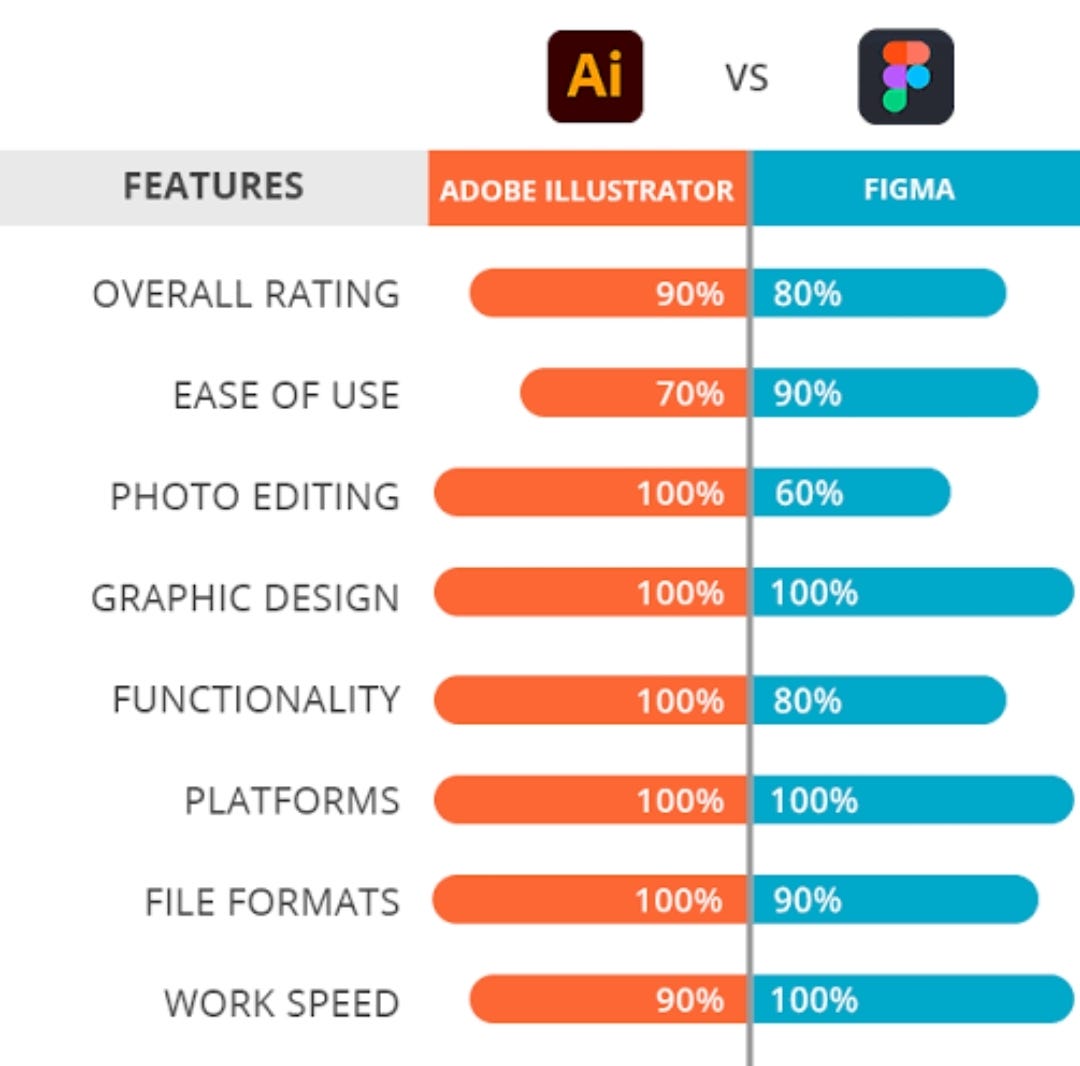
Adobe Illustrator for iPad (iOS, Subscription) remains a strong contender, though the subscription model is a barrier for some. It offers a more familiar experience for users already invested in the Adobe ecosystem. The iPad version has closed the gap with the desktop version significantly over the past few years, offering a robust set of tools for professional-level work. However, it still lacks some features found in the desktop version.
Inkscape (Android, Free) is a port of the popular open-source desktop editor. It’s powerful, but the interface feels less polished and more complex than Vectornator or Illustrator for iPad. It's best suited for users already familiar with Inkscape on desktop, or those comfortable with a less intuitive interface. It’s a great option if you want a completely free, open-source solution.
Affinity Designer for iPad (iOS, One-time Purchase) offers a compelling alternative to Adobe’s subscription model. It’s a professional-grade vector graphic editor with a comprehensive feature set. Many users praise its speed and responsiveness, even with complex illustrations. The one-time purchase price is attractive, but it's still a significant investment.
Boxy SVG (iOS/Android, Paid) is a streamlined editor focused on SVG editing. It's not as feature-rich as some of the other options, but it excels at precise path editing and manipulation. It’s a good choice if you primarily need to modify existing SVGs rather than create new ones from scratch. The interface is clean and straightforward.
Concepts (iOS/Android, Freemium) is a unique app that combines vector drawing with raster painting. It's not strictly an SVG editor, but it can import and export SVGs, and its vector capabilities are quite powerful. It’s a good option if you want a more freeform sketching and illustration experience.
Essential Mobile Accessories for Seamless SVG Editing

Pixel-perfect precision · Tilt sensitivity · Charges and pairs via USB-C
Offers pixel-perfect precision and tilt sensitivity for detailed SVG editing, charging conveniently via USB-C.

Precise writing and drawing · Magnetic charging · IP68 water and dust resistance
Provides precise control for drawing and navigating, with easy magnetic charging and an IP68 rating for durability.

Multi-device Bluetooth connectivity · Customizable shortcuts · Slim and portable design
Enhances efficiency with multi-device connectivity and customizable shortcuts in a slim, portable form factor.

Multi-angle viewing · Foldable and portable · Sturdy hands-free viewing
Provides sturdy, hands-free viewing at multiple angles, improving comfort during extended editing sessions.

Adjustable height and angle · Portable and foldable · Wide compatibility
Offers adjustable viewing angles and portability, ensuring a comfortable and stable setup for editing on various devices.
As an Amazon Associate I earn from qualifying purchases. Prices may vary.
editing in a mobile browser
Don't discount the power of browser-based SVG editors. Services like SVG Viewer (svgviewer.dev) and Canva (canva.com) offer surprisingly capable editing tools directly within your mobile browser. This eliminates the need to download and install an app, and it allows you to access your files from any device with an internet connection.
The biggest advantage of browser-based editors is accessibility. You can quickly edit an SVG on a shared tablet or a public computer without worrying about compatibility issues. Canva, in particular, offers a very user-friendly interface and a wide range of design templates. SVG Viewer is more focused on the technical aspects of SVG editing, allowing you to view, edit, and optimize SVG code directly.
However, browser-based editors have limitations. They rely on a stable internet connection, and they may not be as feature-rich as dedicated native apps. Complex SVGs can sometimes be slow to render in a browser. Offline capabilities are also limited or nonexistent. For quick edits and simple tasks, though, a browser-based editor is a perfectly viable option.
techniques for touchscreens
Editing SVGs on a mobile device requires a slightly different approach than working on a desktop. The smaller screen size and touch-based interface present unique challenges, but also open up new possibilities. Mastering a few key techniques can significantly improve your workflow.
Simplifying Paths is crucial for optimizing SVGs for mobile performance. Complex paths with many nodes can slow down rendering and increase file size. Most mobile SVG editors offer tools to simplify paths, reducing the number of nodes while preserving the overall shape. Vectornator and Illustrator for iPad both have excellent path simplification tools.
Color Manipulation is a common editing task. Mobile apps typically offer a color picker, gradient editor, and the ability to adjust opacity and blending modes. Experiment with different color palettes to achieve the desired look. Using hex codes directly can ensure color accuracy across devices.
Working with Layers is essential for organizing complex designs. Most mobile SVG editors support layers, allowing you to isolate and edit individual elements without affecting others. Learning to effectively manage layers can save you a lot of time and frustration.
Optimizing for Web Use is important if you plan to use your SVG on a website. Remove unnecessary metadata, simplify paths, and use efficient color palettes to reduce file size. Tools like SVGOMG (online) can help you optimize SVGs for web use, and you can then import the optimized file into your mobile editor for final adjustments.
moving files in and out
Getting SVGs onto your mobile device and exporting your edited files is generally straightforward, but it's important to understand the different options. Most mobile SVG editors support importing from cloud storage services like Google Drive, Dropbox, and iCloud. You can also often import directly from email attachments or other apps on your device.
Exporting options typically include SVG, PNG, and JPG. SVG is the preferred format for maintaining scalability and editability. PNG is a good choice for rasterizing your SVG with transparency. JPG is suitable for images with complex colors and gradients, but it's a lossy format, so it's not ideal for vector graphics.
Compatibility issues can sometimes arise between different apps and platforms. Some apps may not support all SVG features, or they may interpret SVG code differently. It’s always a good idea to test your exported SVG in multiple viewers to ensure it looks as expected. Large or complex SVG files may also cause performance issues on mobile devices.
making svgs faster
Optimizing SVGs is critical for a smooth user experience on mobile devices. Large SVG files can significantly slow down page load times and drain battery life. Fortunately, there are several techniques you can use to reduce file size without sacrificing quality.
Removing unnecessary metadata is a simple but effective optimization technique. Most SVG editors allow you to remove metadata like comments, creator information, and unused definitions. Simplifying paths, as mentioned earlier, also reduces file size. Using efficient color palettes – fewer colors mean smaller file sizes – is another worthwhile step.
I use tools like SVGOMG to strip out the junk code that Illustrator often leaves behind. It removes metadata and minifies the file, which is vital if you're putting these graphics on a website where load times matter.
No comments yet. Be the first to share your thoughts!