

SVG editing in 2026
SVG editing is no longer just about scaling web icons. It is the backbone of modern UI design and motion graphics. Most tools can open an SVG, but the real test is how they handle the underlying code without breaking the design.
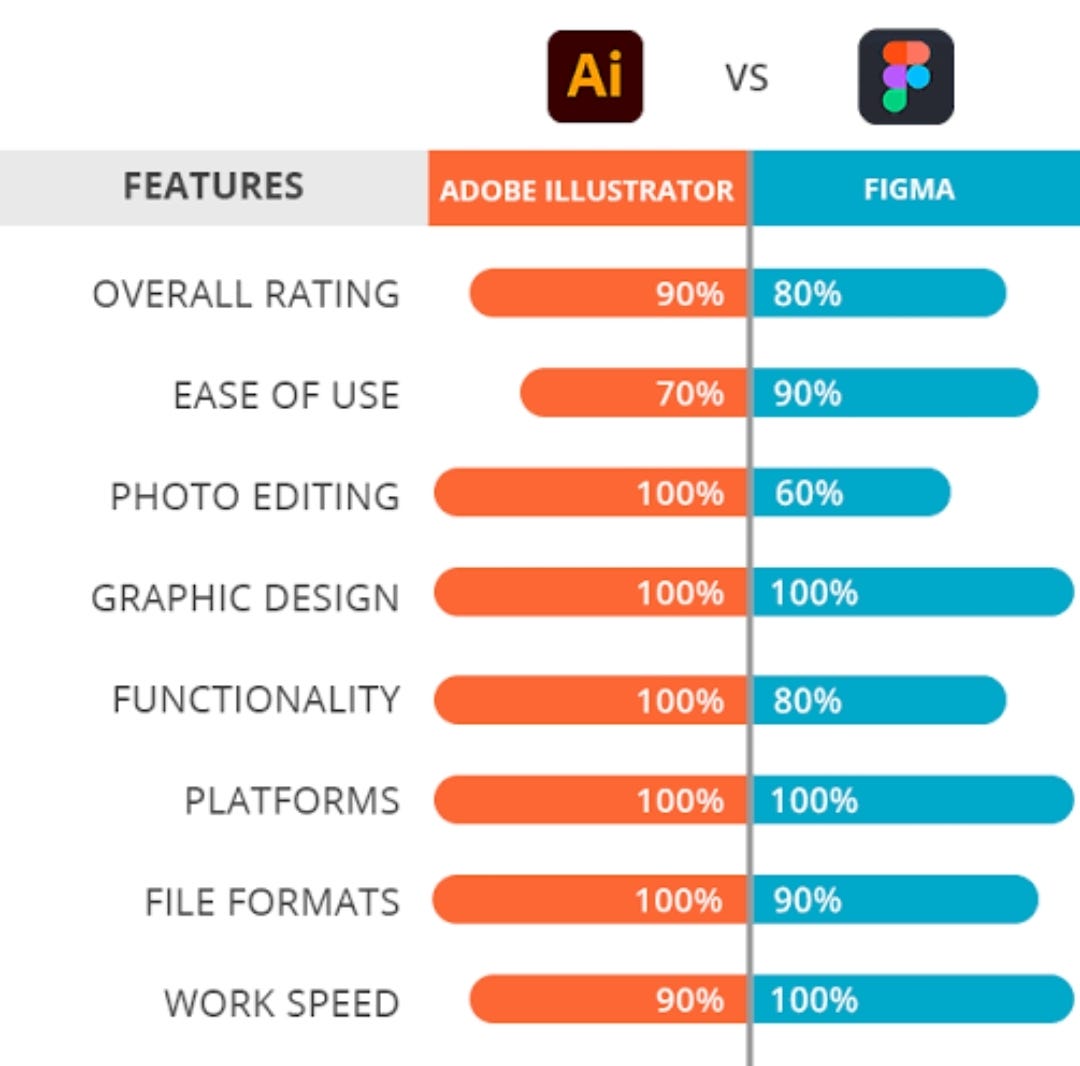
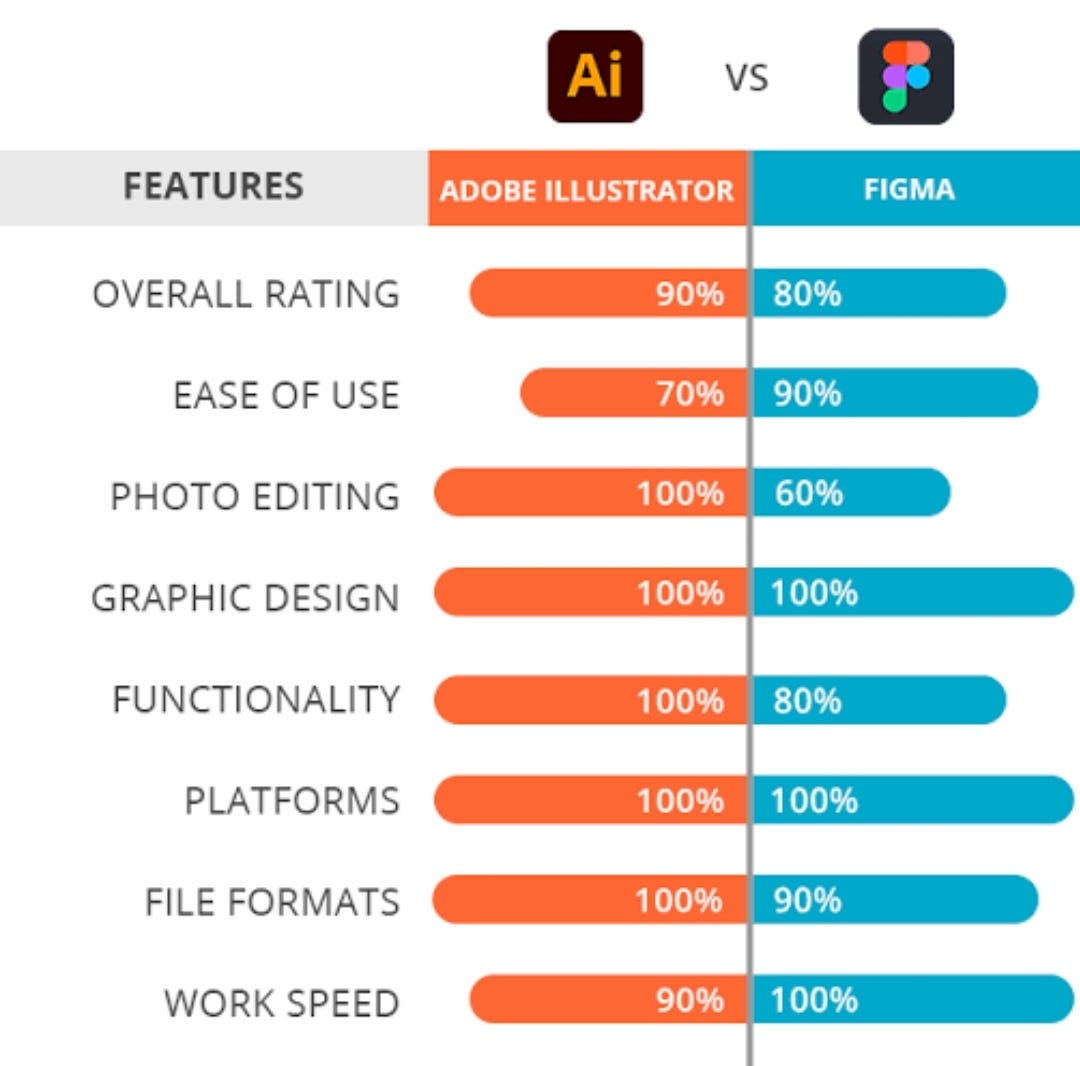
Both Figma and Adobe Illustrator have evolved significantly in their SVG capabilities over the past few years. Illustrator, the veteran, has a long history with vector graphics, while Figma, the newer contender, has rapidly added features to compete. The competition is good for designers, pushing both platforms to improve their SVG workflows. This means more options, and hopefully, better results.
Teams need tools that handle collaboration and file optimization without extra steps. Integrating vectors into a design system is often the deciding factor between these two apps.
Opening files and first impressions
Opening an SVG in either Figma or Illustrator is generally straightforward. Both applications support drag-and-drop, the "File > Open" command, and copy-pasting SVG code directly. However, the experience isn't always seamless. I’ve found that Illustrator can sometimes stumble when opening extremely complex SVGs with a huge number of paths and gradients, occasionally resulting in a lag or even a crash.
Figma handles complex files with more stability. It supports animations and filters natively, whereas Illustrator often forces you to rasterize those elements or use plugins to keep them intact.
One quirk I’ve encountered in Illustrator is its tendency to sometimes interpret SVG paths differently, leading to slight visual discrepancies. This is particularly noticeable with intricate illustrations. Figma generally maintains a more faithful rendering of the original SVG code. While both programs issue warnings on opening malformed SVGs, Figma’s error messages are typically more informative, helping you pinpoint the source of the issue.
Core vector editing
When it comes to core vector editing tools, both Figma and Illustrator are incredibly powerful. They both offer robust node editing capabilities, allowing you to manipulate individual points and segments with precision. Boolean operations (union, subtract, intersect, exclude) are also available in both, though Illustrator's implementation feels a bit more refined and offers more control over the operation order.
Illustrator has historically been the leader in path manipulation, offering features like "Pathfinder’ and advanced shape builders. While Figma has closed the gap, Illustrator still holds an edge for complex path editing tasks. The precision of the node editing tools in Illustrator is also notable – you have more granular control over curves and tangents. Figma"s tools are excellent, but sometimes feel a little less responsive when dealing with very intricate shapes.
Gradients and patterns are handled well in both applications, but there are subtle differences. Illustrator offers more advanced gradient controls, including the ability to create complex gradient meshes. Figma’s gradient tools are simpler, but still effective for most designs. A key difference is how each program handles pattern definitions; Illustrator’s pattern options are more extensive, allowing for more complex repeating designs. The ability to edit gradients non-destructively is a plus in both.
Figma’s auto layout feature is a huge benefit for designers who work with responsive SVGs. It allows you to create designs that adapt to different screen sizes and orientations without having to manually adjust individual elements. Illustrator lacks a direct equivalent, making it more challenging to create responsive SVG graphics.
How they handle text
SVG text can be a bit of a headache, and how Figma and Illustrator handle it differs quite a bit. In Illustrator, you can directly edit text objects within an SVG file, which is convenient. However, font rendering can sometimes be inconsistent, especially when using custom fonts. Illustrator's typography features are incredibly robust, giving you precise control over kerning, tracking, and leading.
Figma’s text handling has improved significantly, but it still lags behind Illustrator in terms of control. While you can edit text layers within an SVG, the options are more limited. Font rendering is generally good, but I’ve noticed occasional issues with complex text transformations. Figma’s reliance on web fonts can sometimes lead to rendering differences depending on the user’s system.
Text on paths and complex text transformations are easier to manage in Illustrator, thanks to its more mature typography tools. Figma's text on path feature is functional, but can be less intuitive. Font support is generally good in both programs, but Illustrator has a wider range of font compatibility, particularly with older or less common fonts. I’m still leaning toward Illustrator for any project with heavy typographic demands.
Components and reusability
This is where Figma truly excels. Its component libraries and design system features are unmatched. Creating reusable SVG components is incredibly easy, and the instance-based system allows for efficient overrides and updates across your entire project. Changes made to the master component automatically propagate to all instances, ensuring consistency.
Illustrator is catching up in this area with its "Symbols’ feature, but it’s still not as powerful or flexible as Figma’s components. Managing symbol libraries in Illustrator can be clunky, and overrides are less intuitive. However, Illustrator"s recent updates have added more functionality for creating and managing reusable assets.
Figma’s ability to share component libraries with other designers is a huge benefit for collaborative projects. You can easily distribute and maintain a consistent design language across your team. Illustrator lacks this level of collaborative component management. The impact of Figma’s design system features on SVG workflows is significant, streamlining the design process and reducing errors.
Here's how the component features compare:
* Figma: Instances, master components, variant properties, team libraries, easy collaboration.
* Illustrator: Symbols, limited overrides, basic library management, less collaborative.
- Figma uses instances, master components, and team libraries for live collaboration.
- Illustrator relies on symbols with limited overrides and basic library management.
- Figma excels at collaborative component management.
Featured Products

Pro Pen 3 with customizable tip options · Multi-touch gestures for intuitive navigation · Bluetooth connectivity for wireless use
This professional-grade tablet offers exceptional precision and a comfortable drawing experience, ideal for detailed SVG work.

Dual digital dials for customizable shortcuts · Battery-free stylus with 8192 levels of pressure sensitivity · Wireless Bluetooth connectivity
The dual dials provide efficient control over tools and brush sizes, streamlining the editing process for designers on a budget.

Roller dial and shortcut keys for efficient workflow · Tilt function supports natural drawing and shading · Battery-free stylus with 8192 pressure sensitivity levels
This tablet offers a large drawing area and tilt support, making it versatile for both precise vector adjustments and more artistic SVG manipulations.

Pixel-perfect precision for detailed work · Tilt and pressure sensitivity for natural drawing · Magnetic charging and pairing
For iPad users, the Apple Pencil Pro provides unparalleled accuracy and responsiveness, enhancing the tactile experience of editing SVGs.

Large 14.6-inch Dynamic AMOLED 2X display · Included S-Pen with low latency for precise input · Powerful performance for demanding applications
This premium tablet offers a vast screen and the included S-Pen, providing a powerful and portable solution for editing SVGs on the go.
As an Amazon Associate I earn from qualifying purchases. Prices may vary.
Plugins and integrations
The plugin ecosystems for both Figma and Illustrator are thriving, with a growing number of tools specifically designed for SVG editing and manipulation. Figma’s plugin community is particularly active, offering a wide range of plugins for tasks such as SVG optimization, animation, and data visualization.
Illustrator also has a robust plugin ecosystem, but it’s generally more focused on traditional graphic design tasks. There are several plugins available for SVG editing, but the selection is not as extensive as in Figma. Some popular Figma plugins for SVG include "SVGOMG’ for optimization and ‘Iconify" for accessing a vast library of icons.
Integrations with other tools are also improving. Figma integrates seamlessly with prototyping tools like InVision and Zeplin, while Illustrator integrates with other Adobe Creative Cloud applications. The ability to connect to code editors and animation software is also becoming increasingly important. Both platforms are actively expanding their integration capabilities.
Pricing and accessibility
As of late 2026, Figma offers a tiered pricing structure. A free plan provides limited functionality, while paid plans start around $12 per editor per month and offer more features and storage. Illustrator, on the other hand, is part of Adobe’s Creative Cloud subscription, which starts around $23 per month for a single app or $60 per month for the entire suite.
Accessibility features are improving in both programs. Figma offers keyboard navigation, screen reader support, and customizable color contrast. Illustrator also provides accessibility features, but they are not as comprehensive as in Figma. The learning curve for Figma is generally considered to be gentler than for Illustrator, making it more accessible to beginners. However, Illustrator’s extensive feature set can be overwhelming for new users.
Ultimately, the best choice depends on your specific needs and budget. If you prioritize collaboration, component libraries, and ease of use, Figma is an excellent option. If you need advanced vector editing tools, precise typography control, and integration with other Adobe applications, Illustrator remains a powerful choice.
Figma vs. Adobe Illustrator Plugins for SVG Workflows
| Plugin Category | Figma Availability | Illustrator Availability | Key Features |
|---|---|---|---|
| SVG Optimization | Several options available through community plugins | Robust built-in optimization tools and numerous plugins | Figma relies on third-party solutions; Illustrator offers more direct control and a wider range of optimization techniques. |
| Animation | Popular plugins like Anima and plugins enabling Lottie integration | Extensive animation capabilities with native tools and plugins like Bodymovin | Illustrator provides more sophisticated animation features, while Figma's animation is often focused on prototyping and simpler effects. |
| Data Visualization | Plugins like Chart and Table allow importing and linking data | Stronger integration with data sources and advanced charting capabilities | Illustrator excels at creating complex, data-driven graphics; Figma's data visualization options are generally more limited. |
| SVG Editing & Manipulation | Plugins like SVG Import and various vector editing tools | Comprehensive vector editing tools as core functionality | Illustrator is fundamentally built for vector editing, offering a deeper feature set; Figma's editing is focused on UI/UX design. |
| Pattern Creation | Limited native options, relies on plugins for complex patterns | Powerful pattern creation tools including seamless pattern options | Illustrator offers a more robust environment for designing intricate and repeating patterns. |
| Version Control | Integration with collaborative platforms like Abstract | Integration with Adobe Creative Cloud and versioning systems | Both platforms offer version control, but Illustrator's integration with the Adobe ecosystem can be advantageous for some workflows. |
| Accessibility Features | Growing number of plugins to address accessibility | Accessibility checks and features integrated into the core application | Illustrator provides more built-in accessibility features, while Figma relies on plugins for more comprehensive support. |
Qualitative comparison based on the article research brief. Confirm current product details in the official docs before making implementation choices.
No comments yet. Be the first to share your thoughts!