

Vision Pro and SVG
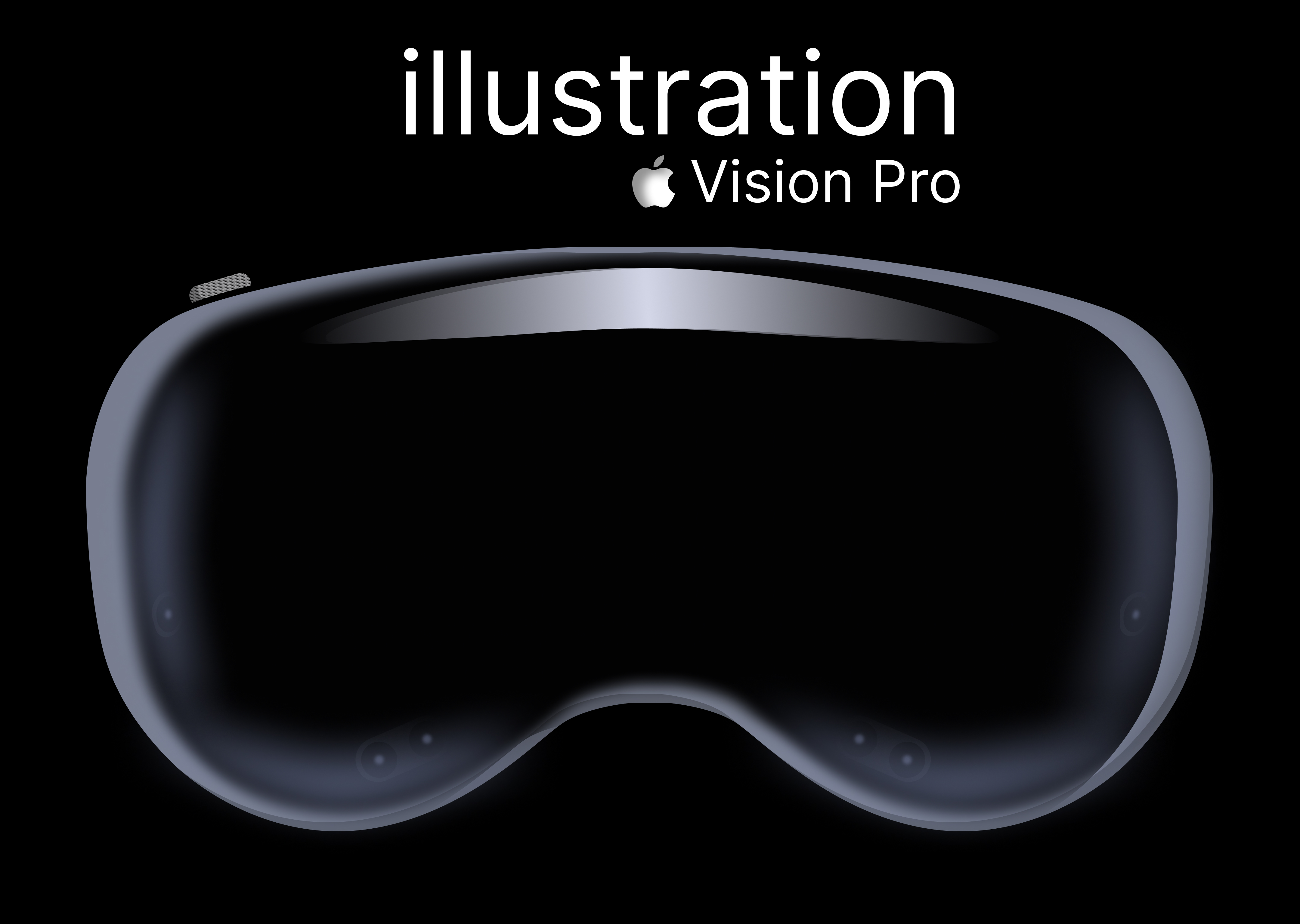
The arrival of Apple Vision Pro marks a significant shift in how we think about digital interfaces. We’re moving beyond the flat confines of 2D screens to a spatial computing environment where content exists around us. This transition demands a new approach to graphics, and vector graphics – particularly SVG – are uniquely positioned to thrive. Unlike raster images, SVG is resolution independent, meaning it scales beautifully without losing clarity, a necessity when dealing with the varying distances and perspectives inherent in spatial environments.
SVG’s inherent scalability is a huge advantage. An icon designed for a traditional screen can seamlessly expand to become a large, detailed element within a Vision Pro experience without becoming pixelated. More than that, the relatively small file sizes of optimized SVGs can help maintain performance, which is critical for a smooth, immersive experience. The ability to animate SVG elements using CSS or JavaScript also opens up exciting possibilities for dynamic and engaging spatial interfaces.
Apple hasn't released native SVG editing tools for visionOS yet. We can display and interact with these files, but creating or changing them still requires external software. We'll look at how to bridge that gap using current tools.
Right now, the landscape is open. Developers who become proficient in integrating SVG into Vision Pro apps will be well-positioned to create compelling and innovative experiences. The demand for skilled SVG developers will likely grow as the platform matures and the need for visually rich spatial content increases. This is a chance to build a foundation in a technology that is poised to become increasingly important.
Opening SVGs with WKWebView
Currently, the primary method for opening and displaying SVG files within a Vision Pro application involves leveraging Apple’s `WKWebView`. This is essentially a web browser engine embedded within a native app. Developers can load an SVG directly from a URL or from a local file stored within the application bundle. This allows you to render SVG content without needing to build a vector graphics renderer from scratch.
The process is relatively straightforward: you create a `WKWebView`, provide it with the URL or local file path to your SVG, and the web view handles the rendering. However, this approach isn’t without its considerations. `WKWebView` is designed for general web content, and rendering complex SVGs can sometimes impact performance, especially on lower-end devices. It is also crucial to be aware of the security implications of loading content from external URLs.
A significant limitation of using `WKWebView` is its handling of JavaScript. While SVGs can contain embedded JavaScript for interactivity, enabling JavaScript execution within the web view introduces potential security risks. Developers need to carefully evaluate the source of the SVG and the potential for malicious code. Interaction with the SVG from the native app can also be complex and requires bridging between the web view and the native environment.
Another workaround, though less desirable, is to convert the SVG into a 3D model format. This allows you to utilize Vision Pro’s native 3D rendering capabilities, but it comes with significant drawbacks. The conversion process inevitably results in a loss of vector fidelity, and the resulting 3D model is likely to be much larger in file size than the original SVG. This approach is best reserved for cases where complex SVG animations or interactions are not required and optimizing for file size is paramount.
The lack of native tools
The most glaring challenge for Vision Pro SVG development is the current absence of native SVG editing tools within the operating system. This means developers cannot directly create or modify SVG files on the device itself. The workflow currently involves editing SVGs on a separate platform – typically a macOS machine – and then importing them into the Vision Pro application.
This separation introduces friction into the development process. Iterating on SVG designs requires constant switching between devices and applications. It’s not ideal for rapid prototyping or quick adjustments. The ideal scenario, of course, would be a dedicated SVG editor integrated directly into the Vision Pro environment, allowing developers to visualize changes in real-time within the spatial context.
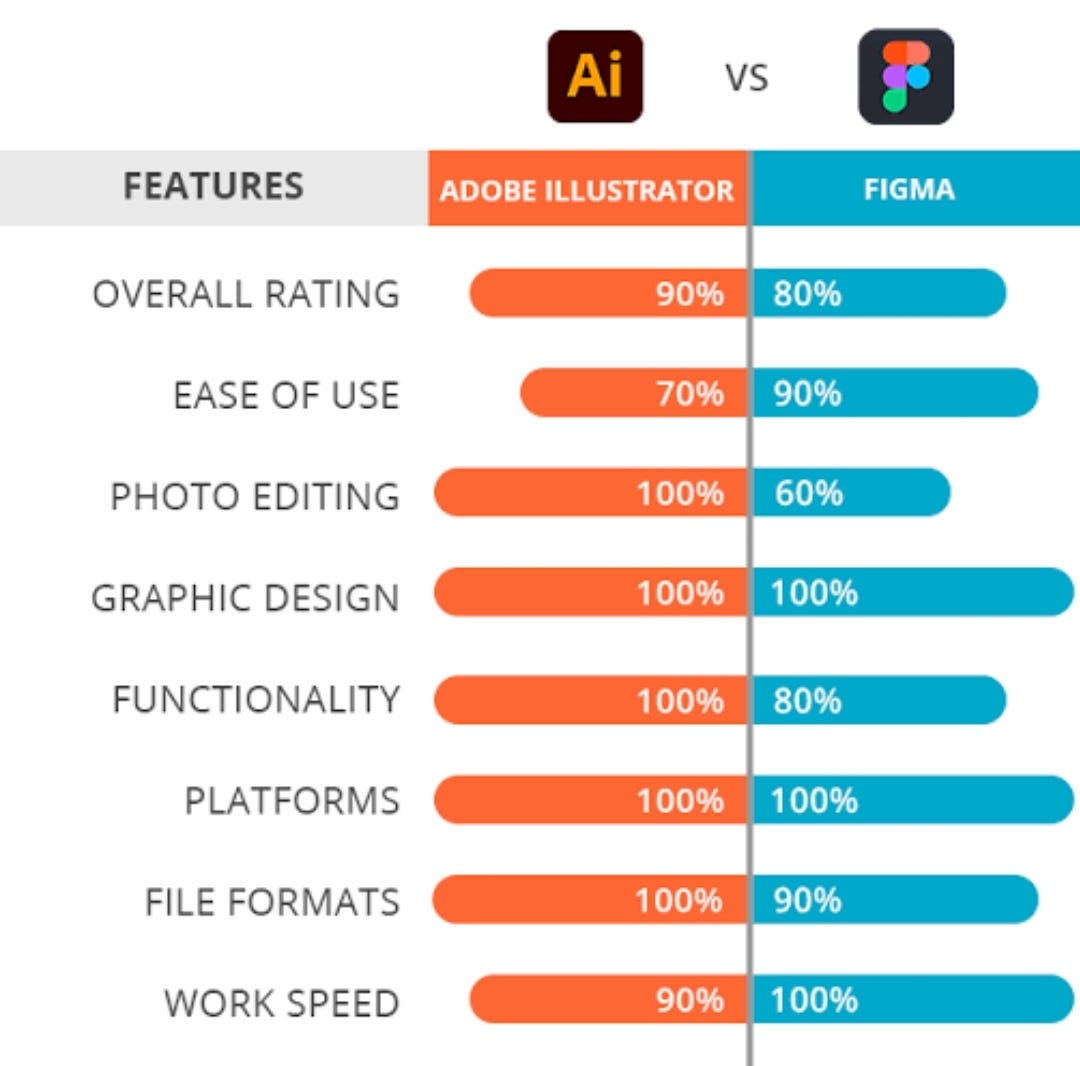
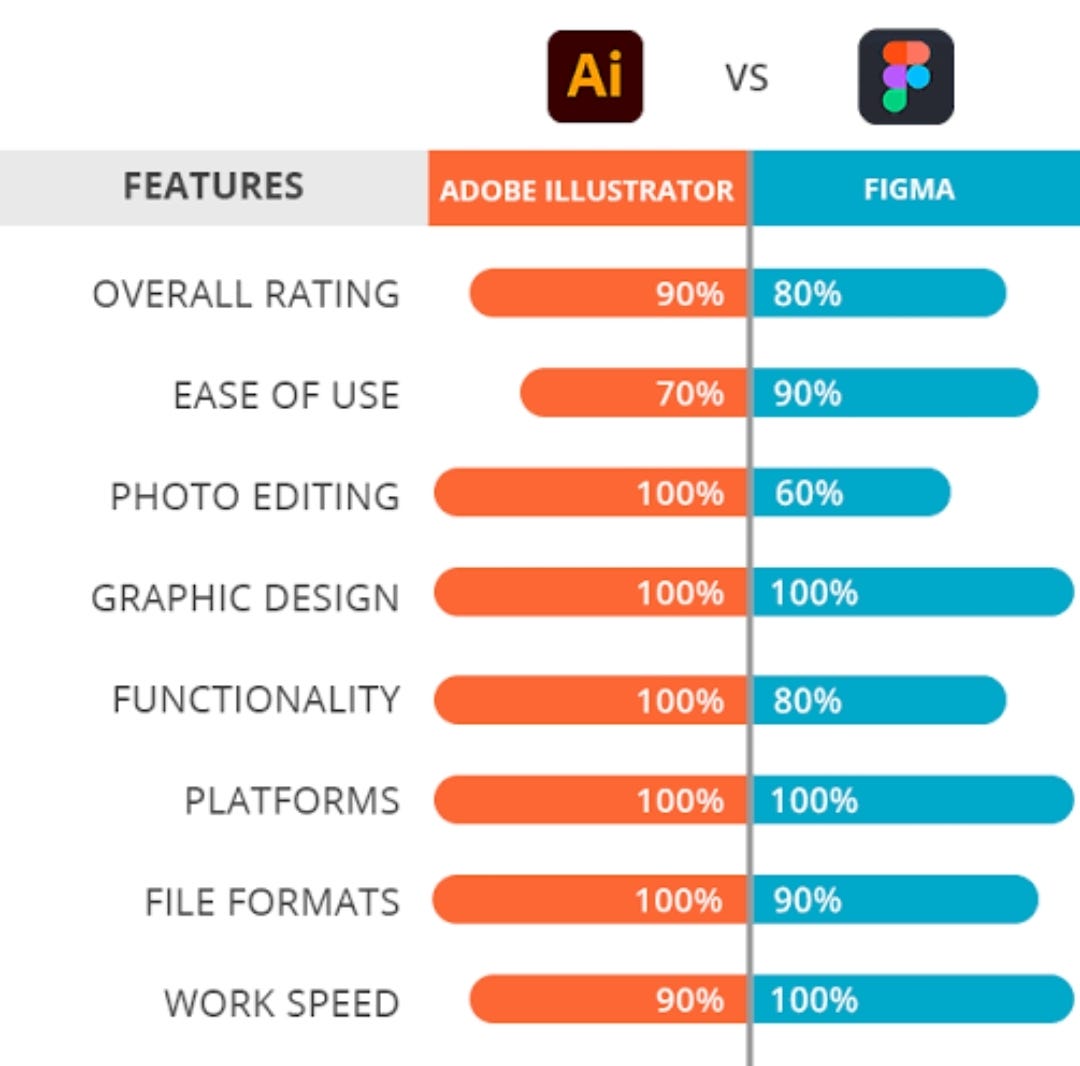
Fortunately, there’s a robust ecosystem of SVG editors available for macOS. Industry standards like Affinity Designer, Sketch, and Adobe Illustrator all offer comprehensive SVG editing capabilities. Each has its strengths and weaknesses, and the best choice depends on individual preferences and workflow requirements. These tools allow for precise control over vector paths, colors, and animations.
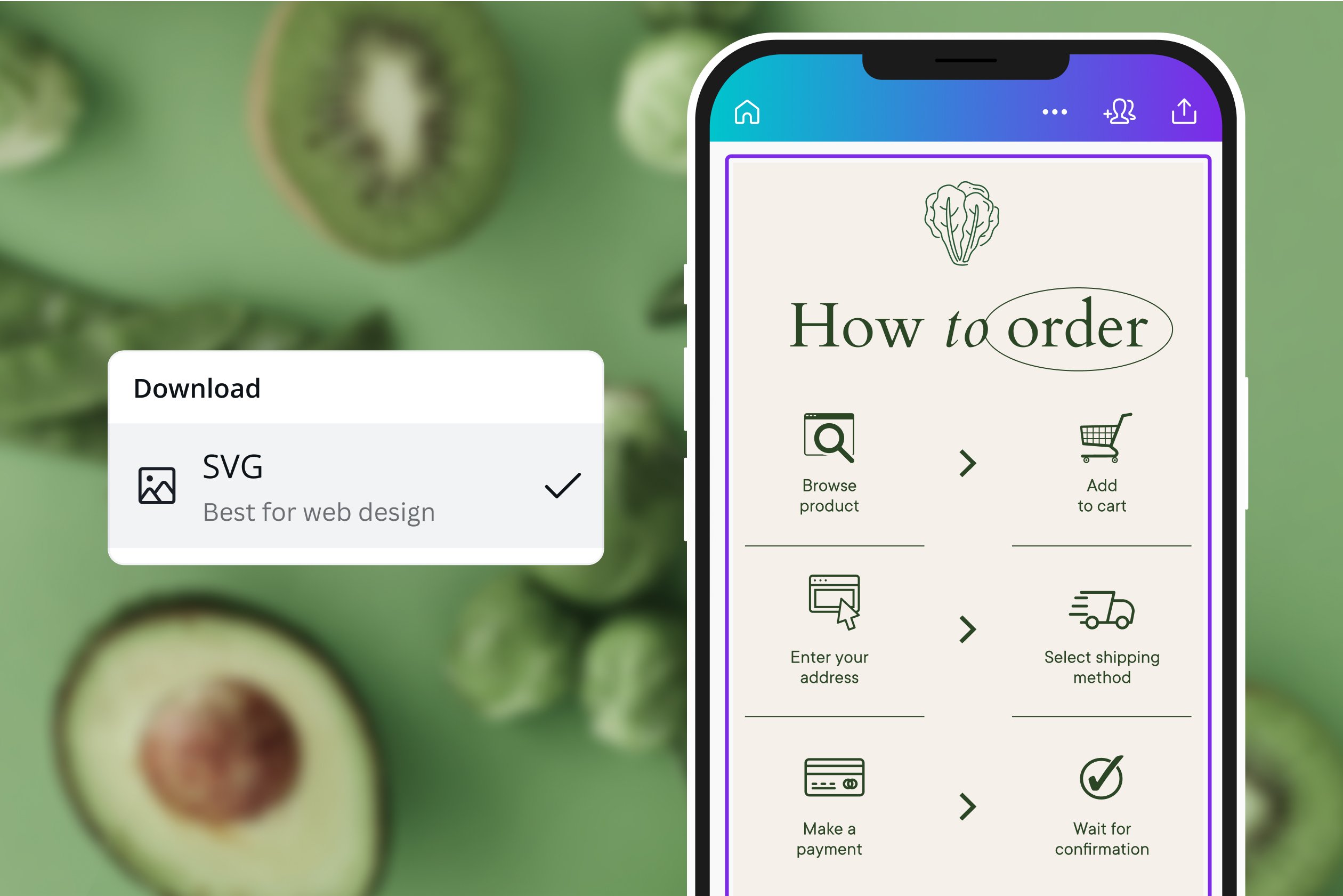
Online SVG editors, like Canva (canva.com), provide another option, though they are dependent on an internet connection. Canva is a user-friendly option for simpler SVG designs and quick edits. While these tools are useful, they add another step to the process and don't provide the integrated experience that a native Vision Pro editor would offer.
- Affinity Designer for professional vector work.
- Sketch: Popular among UI/UX designers, offering robust SVG editing features.
- Adobe Illustrator: The industry standard for vector graphics, with a comprehensive set of tools.
- Canva for quick, browser-based edits.
macOS SVG Editors
- Adobe Illustrator - Industry-standard vector graphics editor with robust SVG support. Excellent for complex illustrations and typography, but can be resource intensive. Requires a subscription.
- Affinity Designer - A professional vector graphics editor often considered a more affordable alternative to Illustrator. Offers comprehensive SVG editing capabilities and a one-time purchase price.
- Sketch - Popular among UI/UX designers, Sketch handles SVG files well, particularly for icon design and interface elements. Focused on digital design workflows. Subscription based.
- Inkscape - A free and open-source vector graphics editor. While the interface can be less polished than commercial options, it provides a powerful set of SVG editing tools. A good option for budget-conscious developers.
- Vectornator - A free vector graphics software available on Mac, iPad, and iPhone. It’s designed for both simple and complex vector designs, and offers good SVG import and export functionality.
- Boxy SVG - A dedicated SVG editor with a clean and intuitive interface. It focuses specifically on SVG editing and offers features like code editing and object styling. Available as a one-time purchase.
- Xcode - Apple’s integrated development environment. While primarily for coding, Xcode can open and display SVG files as images, and allows for some basic manipulation within the interface builder. Free with macOS.
SVGViewer.dev: A Remote Editing Option
While a native editor is missing, svgviewer.dev provides a clever workaround for quick SVG edits within the Vision Pro workflow. This web-based tool allows you to view, edit, optimize, and prettify SVG code directly in your browser. By loading svgviewer.dev within a `WKWebView` in your Vision Pro app, you effectively gain access to a remote SVG editor.
The site’s features are surprisingly comprehensive. You can rotate and flip the SVG, change its dimensions, and even optimize the code to reduce file size. The “prettify” function is particularly useful for cleaning up messy SVG code and making it more readable. This can be helpful for debugging or understanding complex SVG structures.
However, relying on a web-based editor comes with limitations. A stable internet connection is essential, and the performance of the editor will depend on the speed of the connection. Security is also a concern, as you’re essentially running code from a third-party website within your application. Developers should carefully consider these risks before incorporating svgviewer.dev into their workflow.
Despite these drawbacks, svgviewer.dev represents a practical solution for minor SVG adjustments and code inspection. It’s a useful tool to have in your arsenal, especially during the early stages of development when rapid iteration is crucial. It’s not a replacement for a dedicated editor, but it can streamline certain tasks.
- Load svgviewer.dev within a `WKWebView` in your Vision Pro app.
- Open or paste your SVG code into the editor.
- Make your desired edits using the available tools.
- Download the optimized SVG code for use in your application.
Working with SVG Code Directly
For developers comfortable with XML, working with SVG code directly offers the greatest level of control and flexibility. SVG files are essentially text files containing XML markup that defines the vector graphics. Understanding this structure allows you to programmatically manipulate the SVG content within your Vision Pro application.
The basic structure of an SVG file begins with the `` element, which defines the canvas for the graphics. Within this element, you’ll find various shape elements such as `` for rectangles, `` for circles, and `` for more complex shapes. Each element has attributes that control its appearance, such as `width`, `height`, `fill`, `stroke`, and `x`, `y` coordinates.
To modify an SVG programmatically, you’ll need to parse the SVG string and access the individual elements and attributes. Libraries for XML parsing are readily available in Swift and other programming languages. Once parsed, you can modify the attributes to change the appearance of the SVG or even add or remove elements. This allows you to create dynamic SVG content that responds to user interaction or data changes.
For example, you could create an SVG chart that updates in real-time based on incoming data. Or you could allow users to customize the color and shape of SVG elements through a user interface. The possibilities are endless. However, working directly with SVG code requires a solid understanding of XML and SVG syntax, as well as careful attention to detail.
Parsing SVG Dimensions with Swift String Operations
When working with SVG files in Vision Pro applications, you may need to extract basic properties like width and height from the SVG markup. This is particularly useful for layout calculations and ensuring proper scaling within your app's interface.
import Foundation

func extractSVGDimensions(from svgString: String) -> (width: String?, height: String?) {
    var width: String?
    var height: String?

    // Find the opening <svg> tag
    guard let svgRange = svgString.range(of: "<svg") else {
        return (nil, nil)
    }

    // Extract the SVG tag content up to the first >
    let startIndex = svgRange.lowerBound
    guard let endRange = svgString[startIndex...].range(of: ">") else {
        return (nil, nil)
    }

    let svgTag = String(svgString[startIndex..<endRange.upperBound])

    // Extract width attribute
    if let widthRange = svgTag.range(of: "width=\"") {
        let widthStart = widthRange.upperBound
        if let widthEnd = svgTag[widthStart...].range(of: "\"")?.lowerBound {
            width = String(svgTag[widthStart..<widthEnd])
        }
    }

    // Extract height attribute
    if let heightRange = svgTag.range(of: "height=\"") {
        let heightStart = heightRange.upperBound
        if let heightEnd = svgTag[heightStart...].range(of: "\"")?.lowerBound {
            height = String(svgTag[heightStart..<heightEnd])
        }
    }

    return (width, height)
}

// Example usage
let svgContent = """
<svg width="100" height="200" xmlns="http://www.w3.org/2000/svg">
  <rect x="10" y="10" width="80" height="80" fill="blue"/>
</svg>
"""

let dimensions = extractSVGDimensions(from: svgContent)
print("Width: \(dimensions.width ?? "not found")")
print("Height: \(dimensions.height ?? "not found")")
This basic string parsing approach extracts the width and height attributes from the root SVG element. The function returns optional strings since these attributes may not always be present in SVG files. For more complex SVG parsing requirements, consider using dedicated XML parsing libraries that can handle the full SVG specification, including nested elements and complex attribute structures.
Optimizing for spatial performance
Optimization is crucial when working with SVGs in a spatial computing environment like Vision Pro. Complex SVGs with a large number of elements and intricate paths can significantly impact performance, leading to lag and a diminished user experience. The more polygons that need to be rendered, the more strain is placed on the device’s graphics processing unit.
Several techniques can be used to reduce SVG file size and improve performance. Removing unnecessary elements is a good starting point. Often, SVGs contain hidden or unused elements that can be safely removed without affecting the visual appearance. Simplifying paths is another effective strategy. Complex curves can be approximated with simpler line segments, reducing the number of polygons that need to be rendered.
Tools like SVGO (SVG Optimizer) can automate many of these optimization tasks. SVGO analyzes the SVG code and identifies opportunities to reduce file size without significantly altering the visual quality. It can remove unnecessary metadata, simplify paths, and optimize color palettes. Using efficient coding practices, such as minimizing the number of points in paths and avoiding redundant attributes, can also help.
The key is to strike a balance between file size and visual fidelity. Aggressive optimization can sometimes result in a noticeable loss of quality. It's important to carefully evaluate the trade-offs and choose optimization settings that provide the best balance for your specific application. Consider the target device and the complexity of the surrounding spatial environment.
SVG Optimization Techniques for Apple Vision Pro Applications (Qualitative Assessment)
| Optimization Technique | Impact on File Size | Impact on Visual Quality | Impact on Processing Time (Rendering) | Complexity of Implementation |
|---|---|---|---|---|
| Path Simplification | Generally reduces file size, particularly for complex shapes. | Potential for minor visual differences if simplification is aggressive. Careful tuning is needed to balance size and fidelity. | Can improve rendering speed, as fewer path segments need to be processed. | Moderate. Requires algorithms to reduce node count while preserving shape. |
| Metadata Removal | Can significantly reduce file size by removing comments, editor information, and unused definitions. | No impact on visual quality as metadata is not rendered. | Minimal impact on processing time. | Low. Straightforward removal of non-essential tags. |
| Short Tag Names | Offers a small reduction in file size. | No impact on visual quality. | Minimal impact on processing time. | Low. Simple substitution of longer tag names with shorter equivalents. |
| Removing Unused Definitions | Reduces file size by eliminating defined elements (e.g., symbols, gradients) that aren't used in the final SVG. | No impact on visual quality. | May slightly improve rendering speed by reducing the number of objects the parser needs to process. | Moderate. Requires analysis of the SVG to identify unused elements. |
| Using Primitive Shapes Where Possible | Can reduce file size compared to complex paths representing simple shapes (rectangles, circles, etc.). | No impact on visual quality; shapes are visually equivalent. | May improve rendering speed as primitive shapes are often optimized by rendering engines. | Low to Moderate. Requires restructuring of SVG elements. |
| Lossy Compression (e.g., SVGO with aggressive settings) | Offers the most significant reduction in file size. | Potential for noticeable visual degradation if compression is too high. Requires careful evaluation. | Generally improves rendering speed due to smaller file size, but overly aggressive compression can increase processing time to decompress. | High. Requires advanced optimization tools and parameter tuning. |
Illustrative comparison based on the article research brief. Verify current pricing, limits, and product details in the official docs before relying on it.
Community Discussion & Resources
The Vision Pro development community is still relatively young, but it’s growing rapidly. Several online resources are emerging to support developers working with SVG and spatial computing. Apple’s developer documentation is the first place to start, providing comprehensive information on the Vision Pro platform and its APIs.
The official SVG specification (W3C) is another valuable resource, offering detailed information on the SVG syntax and features. Various online forums and communities are also dedicated to Vision Pro development, where developers can share their experiences, ask questions, and collaborate on projects.
Keep an eye on platforms like Stack Overflow and Reddit for discussions related to SVG and Vision Pro. It’s also worth exploring GitHub for open-source projects and libraries that might be helpful. As the platform matures, we can expect to see even more resources become available.
We encourage you to share your own experiences and contribute to the community. Your insights and contributions will help to shape the future of SVG development on Vision Pro. Let's build a vibrant and collaborative ecosystem that empowers developers to create amazing spatial experiences.
- Apple Developer Documentation:
- SVG Specification (W3C):
- Stack Overflow: Search for “visionpro svg”
- Reddit: r/visionpro

No comments yet. Be the first to share your thoughts!