

SVG Editors: A 2026 Snapshot
Scalable Vector Graphics, or SVG, has become utterly fundamental to modern design. It's not just about crisp logos that look great on any screen anymore. We're seeing SVG files used extensively in user interface design, interactive web elements, and even increasingly in physical production like laser cutting and vinyl graphics. The demand for skilled SVG editing is growing alongside this expansion.
The tools available to designers have changed dramatically too. What was once a domain dominated by complex desktop software now includes a wide range of options – from streamlined browser-based editors to sophisticated, AI-powered platforms. This evolution means there's an SVG editor out there for almost every skill level and budget.
While AI-driven tools are attracting attention with promises of automated design and simplified workflows, the need for precise control and artistic nuance remains. Designers still require the ability to meticulously craft and refine vector graphics. The best approach in 2026 is often a blend of both – leveraging AI for efficiency while retaining the power of traditional editing techniques. It’s a fascinating time to be working with SVG.
The Top 10 SVG Editors of 2026
Choosing the right SVG editor can feel overwhelming given the sheer number of options. Here’s a breakdown of ten leading tools, encompassing a range of price points and feature sets. This isn’t a rigid ranking, but rather a guide to help you find the best fit for your specific needs.
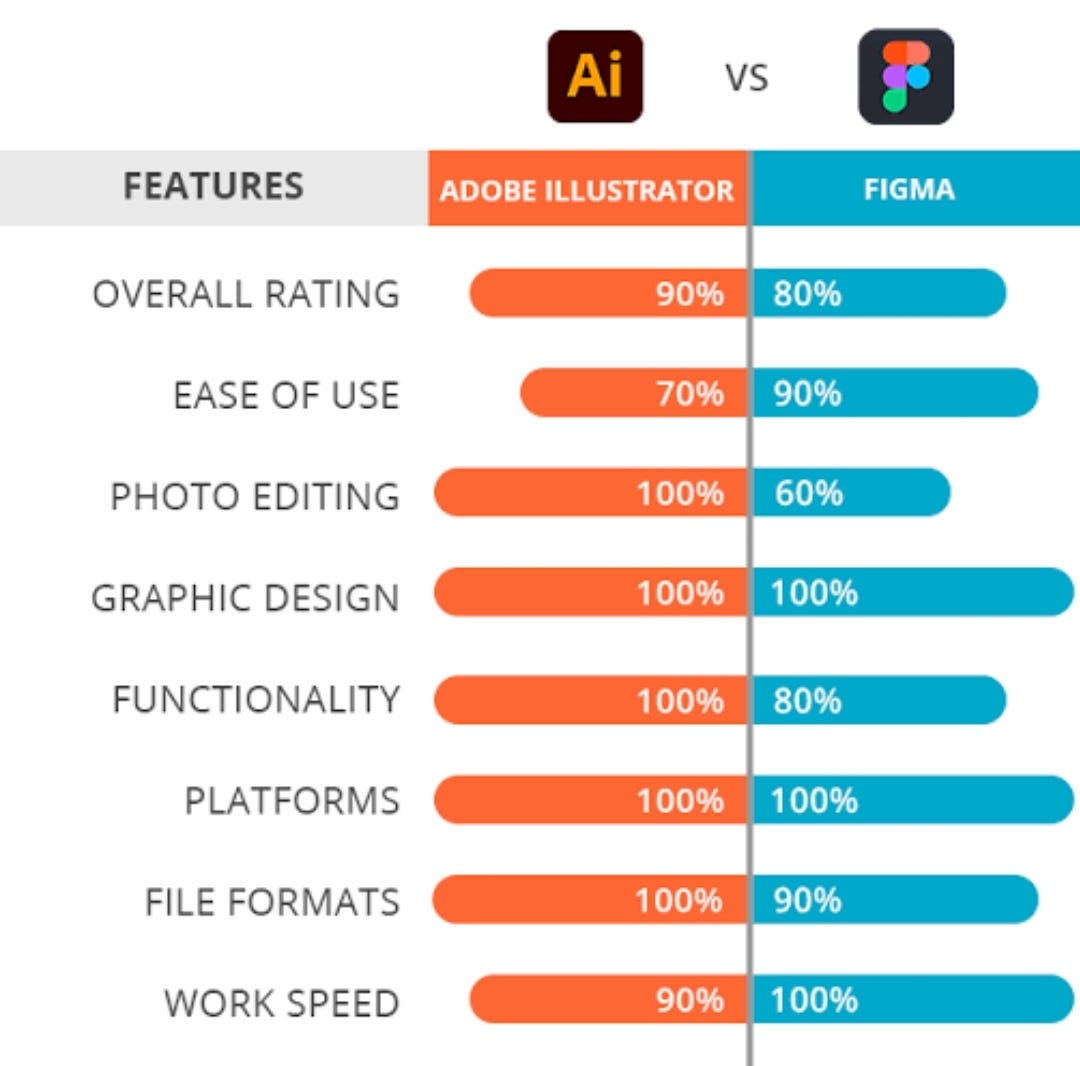
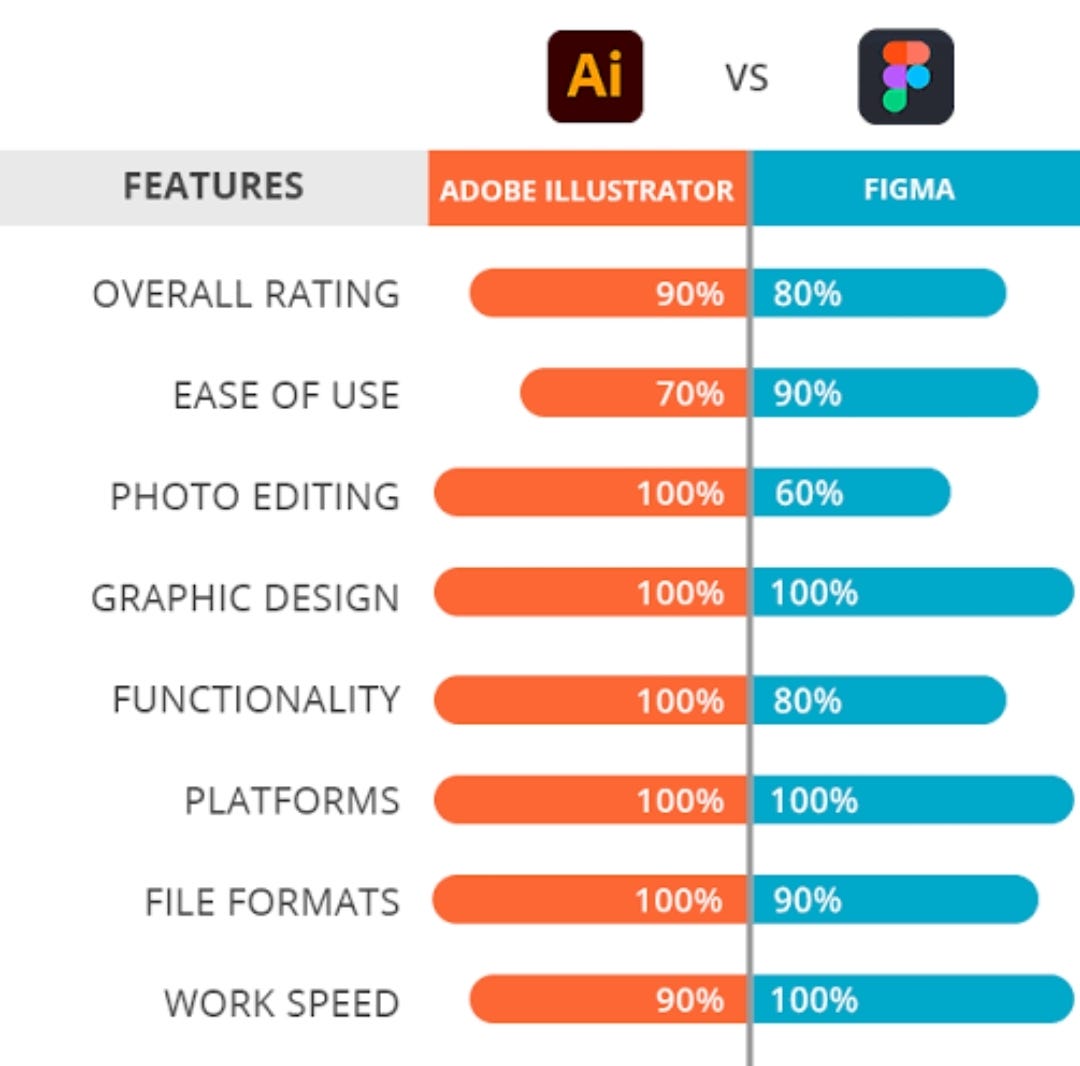
Adobe Illustrator (Professional paid) remains the industry standard. It's a comprehensive vector graphics editor with extensive SVG support. You can expect precise control, advanced typography features, and seamless integration with other Adobe Creative Cloud applications. However, the subscription model can be expensive, and it’s overkill for simple SVG tasks. Pricing starts around $22.99/month.
Inkscape (Free open-source) is a powerful alternative to Illustrator, and it’s completely free. It supports a vast array of SVG features and is constantly being updated by a dedicated community. The interface can feel a bit clunky compared to Illustrator, and it can be resource-intensive, but its capabilities are impressive. It's a solid choice for those on a budget or who prefer open-source software.
Figma (Free/paid web-based) has become incredibly popular for UI/UX design, and its SVG editing capabilities are robust. Its collaborative features are a major draw, allowing multiple designers to work on the same file simultaneously. The free plan is generous, but professional teams will likely need to upgrade to a paid plan starting around $12/editor/month. Figma’s browser-based nature means access from anywhere.
Sketch (Mac-only paid) is another vector-based design tool favored by UI/UX designers. It’s known for its clean interface and focus on vector editing. While it’s a strong contender, its Mac-only availability limits its reach. A perpetual license costs around $99.
Affinity Designer (One-time purchase) offers a compelling alternative to Adobe Illustrator with a one-time purchase price of $69.99. It boasts a similar feature set, including non-destructive editing and precise control over vector graphics. It’s a good option for those who want a professional-grade editor without a subscription.
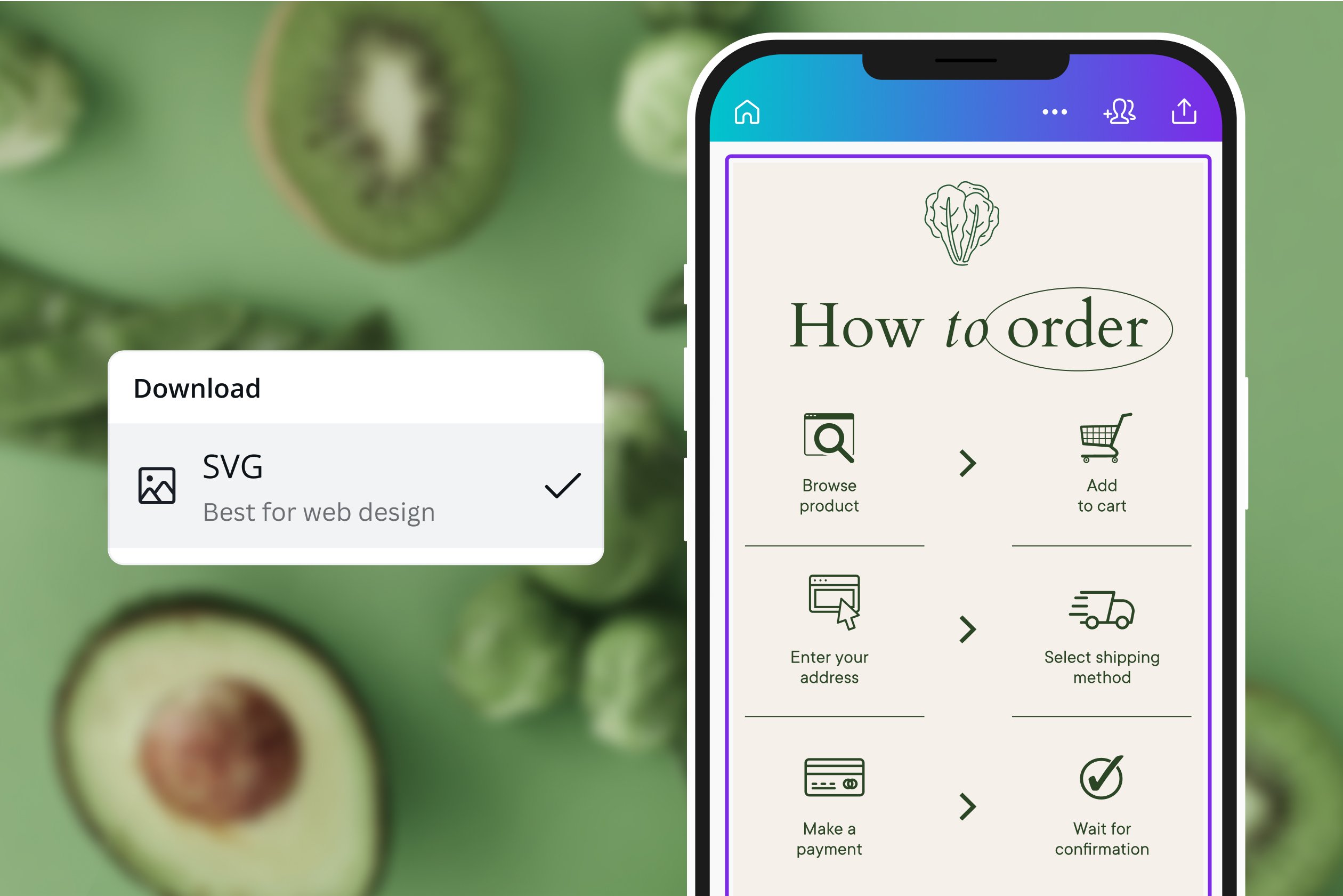
Canva (Free/paid with SVG export) is primarily a graphic design platform, but it does offer SVG export capabilities. It’s extremely user-friendly, making it ideal for beginners or those who need to create simple SVG graphics quickly. However, its SVG editing features are limited compared to dedicated vector editors. Paid plans start around $12.99/month.
Boxy SVG (Chrome extension/desktop app) is a minimalist SVG editor that's available as both a Chrome extension and a desktop application. It’s a good option for quick edits and simple SVG creation. The desktop app costs $49.99. It’s known for its clean interface and focus on core SVG editing functionality.
Vectr (Free cross-platform) is a free, cross-platform SVG editor that’s easy to learn and use. It’s a good choice for beginners or those who need a simple tool for creating basic SVG graphics. It’s not as feature-rich as some of the other options, but it’s a solid starting point. It's available for Windows, Mac, and Linux.
SVG-Edit (Free browser-based) is a lightweight, browser-based SVG editor that's perfect for quick edits on the go. It's open-source and doesn't require any installation. However, its feature set is limited, and it’s not suitable for complex SVG designs. It’s a good option for simple tasks like modifying existing SVGs.
CorelDRAW (Professional suite) is a long-standing professional design suite with strong SVG support. It's a powerful tool for illustration, layout, and photo editing. However, it’s a complex application with a steep learning curve and a significant price tag. Subscription options start around $269/year.
- Adobe Illustrator: Ideal for professional designers and illustrators who need a comprehensive vector graphics editor.
- Inkscape: Best for budget-conscious users who need a powerful, free, and open-source SVG editor.
- Figma: Perfect for collaborative UI/UX design and web graphics.
- Sketch: A strong contender for Mac users focused on UI design.
- Affinity Designer: A cost-effective alternative to Illustrator with a one-time purchase.
- Canva: Great for beginners and quick SVG creation.
- Boxy SVG: A minimalist editor for simple SVG tasks.
- Vectr: A user-friendly option for beginners.
- SVG-Edit: A lightweight editor for quick edits on the go.
- CorelDRAW: A professional suite for complex design projects.
Top 10 SVG Editors and Tools - 2026 Comparison
| Price | Ease of Use | Feature Set | Platform | Best For |
|---|---|---|---|---|
| Professional Paid | Intermediate/Expert | Comprehensive | Desktop | Complex Illustrations & Branding |
| Free Open-Source | Intermediate | Advanced | Desktop | Vector Graphics & Customizable Designs |
| Free/Paid Web-Based | Beginner/Intermediate | Advanced | Web | UI Design & Collaborative Projects |
| Mac-Only Paid | Intermediate | Comprehensive | Desktop | Screen Design & Prototyping |
| One-Time Purchase | Intermediate | Advanced | Desktop | Detailed Illustrations & Graphic Design |
| Free/Paid with SVG Export | Beginner | Basic/Intermediate | Web | Social Media Graphics & Simple Designs |
| Chrome Extension/Desktop App | Beginner/Intermediate | Intermediate | Web/Desktop | Quick SVG Edits & Web Integration |
| Free Cross-Platform | Beginner | Basic | Web/Desktop | Simple Vector Editing & Learning |
| Free Browser-Based | Beginner | Basic | Web | Simple SVG Creation & Editing |
| Professional Suite | Expert | Comprehensive | Desktop | Illustration, Layout, & Complex Graphics |
Qualitative comparison based on the article research brief. Confirm current product details in the official docs before making implementation choices.
AI-Powered SVG Editing: A New Wave
AI-driven SVG editors, like those highlighted by SVGMaker, are beginning to reshape the landscape of vector graphics creation. These tools often leverage machine learning to automate tasks such as tracing images, generating patterns, and simplifying complex paths. They aim to reduce the time and effort required to create SVG graphics, particularly for repetitive or tedious tasks.
The key difference is the level of automation. Traditional editors require manual control over every aspect of the design, while AI-powered tools can handle certain aspects automatically. For example, some tools can convert raster images into vector graphics with minimal user input. Others can suggest design variations or optimize SVG code for file size.
However, it’s important to be realistic about the current state of AI in SVG editing. While these tools are impressive, they’re not yet a replacement for skilled designers. They can struggle with complex designs or nuanced artistic styles. Human oversight is still crucial to ensure the quality and accuracy of the final product. The best use case right now is augmenting a designer's workflow, not replacing it.
Limitations include a potential lack of control over the AI’s decisions and the possibility of generating generic or uninspired designs. The technology is still evolving, and we can expect to see significant improvements in the coming years, but for now, it’s best viewed as a powerful assistant rather than a complete solution.
Free vs. Paid: What Do You Really Get?
The choice between free and paid SVG editors often comes down to your needs and budget. Free tools like Inkscape and Vectr are excellent starting points, providing a surprising amount of functionality without any cost. They’re ideal for hobbyists, students, or anyone who only needs to create simple SVG graphics.
However, free editors often have limitations. They may lack advanced features like live tracing, perspective grids, or advanced color management. They may also have slower performance or less frequent updates. Support is typically limited to online forums and community resources.
Paid editors, on the other hand, offer a more comprehensive set of features, faster performance, and dedicated support. They’re a better choice for professional designers or anyone who needs to create complex SVG graphics on a regular basis. The subscription model of Adobe Illustrator, while costly, provides access to the latest features and updates.
Features often locked behind a paywall include advanced path editing tools, collaborative features, integration with other design software, and priority support. Consider your workflow and the complexity of your projects when making your decision. If you find yourself constantly hitting the limitations of a free editor, it might be time to invest in a paid option.
- Free Editors: Limited features, slower performance, community support.
- Paid Editors: Comprehensive features, faster performance, dedicated support.
Desktop vs. Browser-Based: The Workflow Impact
The debate between desktop applications and browser-based editors centers around accessibility, power, and workflow integration. Desktop apps like Illustrator, Inkscape, and Affinity Designer offer the most robust features and precise control over vector graphics. They’re ideal for complex projects that require significant processing power.
However, desktop apps require installation, updates, and are typically tied to a specific operating system. They can also be more expensive. Browser-based editors like Figma and SVG-Edit offer the convenience of accessibility from any device with an internet connection. They eliminate the need for installation and updates.
The trade-off is often a reduction in features and performance. Browser-based editors may have limited offline capabilities or struggle with large, complex files. They also rely on a stable internet connection. Consider how you prefer to work and the types of projects you typically handle. A desktop app might be better for intensive tasks, while a browser-based editor could be more suitable for collaborative projects or quick edits.
SVG Editors for Specific Tasks
Certain SVG editors excel at specific tasks. For icon design, both Illustrator and Affinity Designer provide precise control over paths and shapes, making them ideal for creating scalable icons. Inkscape is also a strong contender, especially for those on a budget.
When it comes to complex illustrations, Illustrator and CorelDRAW are the go-to choices, offering a vast array of tools and features for creating detailed artwork. Affinity Designer is a viable alternative, providing a similar level of functionality at a lower cost.
For web animation, Figma’s prototyping features and integration with web development tools make it a popular choice. Adobe Animate is another option, specifically designed for creating interactive animations. Vectr can also be used for simpler animations.
If you're focused on UI/UX design, Figma and Sketch are the industry standards, offering collaborative features and tools specifically tailored for interface design. Illustrator can also be used for UI design, but it's less focused on this specific workflow. The choice often comes down to team preferences and existing workflows.
Editors Worth a Closer Look
While the previous list covers the major players, a few editors deserve extra attention. Boxy SVG is a surprisingly powerful editor packed into a minimalist interface. Its focus on core SVG functionality makes it a joy to use for quick edits and simple designs. It's also available as a Chrome extension, making it even more accessible.
SVGMaker Editor stands out for its integration of AI-powered features. It’s particularly useful for those looking to automate repetitive tasks or generate SVG graphics from raster images. While still evolving, it represents a promising direction for SVG editing. The platform also offers a gallery of pre-made SVG elements and an API for developers.
Finally, Vectr is a fantastic option for beginners. Its intuitive interface and cross-platform compatibility make it easy to learn and use. It’s a great way to get started with SVG editing without a steep learning curve.
Essential Hardware and Software Bundles for SVG Design in 2026

Large drawing area for expansive creative freedom · Pro Pen 3 with customizable settings for personalized workflow · Bluetooth connectivity for wireless convenience
This professional-grade drawing tablet offers a large, precise surface and an advanced stylus, ideal for detailed vector work and digital illustration.

21.5-inch IPS display with 122% sRGB color accuracy · 8192 levels of pressure sensitivity for nuanced strokes · Integrated adjustable stand for ergonomic use
This pen display provides a large, color-accurate screen and a highly sensitive stylus, making it excellent for detailed vector art and design projects.
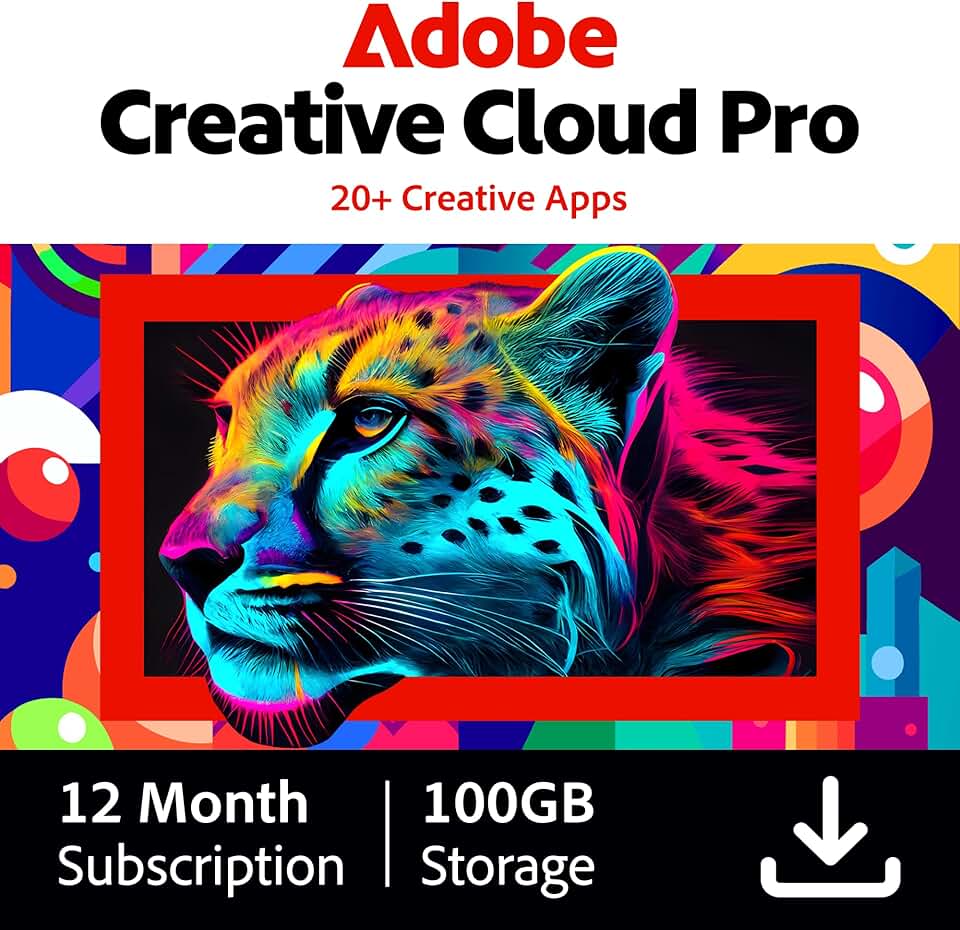
Access to over 20 industry-standard creative applications · 100GB of cloud storage for seamless file management · Includes Adobe Illustrator, Photoshop, and more
Adobe Creative Cloud offers a comprehensive suite of professional design tools, including Illustrator, essential for advanced SVG creation and manipulation.

Step-by-step guidance for beginners · Covers the features and functionalities of Affinity Publisher V2 · Focuses on practical application and workflow
This manual provides a structured approach to learning Affinity Publisher, a powerful and cost-effective alternative for graphic design and layout work, including SVG integration.
As an Amazon Associate I earn from qualifying purchases. Prices may vary.
Future Trends in SVG Editing
The future of SVG editing is likely to be shaped by several key trends. AI integration will continue to grow, with AI-powered tools automating more and more tasks. We can expect to see improvements in areas like image tracing, path simplification, and design generation.
WebAssembly (WASM) is another technology to watch. WASM allows for near-native performance in web browsers, which could lead to more powerful and responsive browser-based SVG editors. This could blur the lines between desktop and web-based applications.
The role of SVG in web development will also continue to evolve. As web standards become more sophisticated, SVG will likely play an increasingly important role in creating interactive and dynamic web experiences. Expect to see more tools and frameworks that make it easier to integrate SVG into web projects.
Ultimately, the goal is to make SVG editing more accessible, efficient, and creative. The tools of the future will likely combine the power of traditional vector graphics editors with the intelligence of AI and the convenience of web-based platforms.
No comments yet. Be the first to share your thoughts!