What makes NiceSVG files useful
NiceSVG files are vector graphics defined by mathematical equations rather than fixed pixels. This structure allows the design to scale to any size without losing clarity, making them ideal for responsive web layouts, high-resolution print materials, and scalable icons. Unlike raster images such as JPEGs or PNGs, which become blurry when enlarged, NiceSVG files maintain crisp edges at every zoom level.
The primary advantage lies in editability. Because the elements are code-based, you can modify individual shapes, colors, and paths without re-exporting the entire file. This flexibility streamlines the design workflow, allowing for rapid iteration and customization. You can also reduce file sizes significantly, as vector data often weighs less than high-resolution raster equivalents, leading to faster page load times.
NiceSVG files are also highly customizable for web integration. You can copy and paste the code directly into projects, adjusting styles on the fly. Resources like SVG Backgrounds offer thousands of customizable, tiny-in-size graphics licensed for multi-use, demonstrating how these files integrate seamlessly into modern digital workflows.
By choosing NiceSVG, you prioritize longevity and adaptability. The files remain sharp across all devices and resolutions, ensuring your visual assets look professional whether viewed on a mobile screen or a large billboard.
Open NiceSVG in your browser or editor
You do not need to install heavy design software just to see what a NiceSVG file looks like. Because the format is built on plain text, it opens instantly in any modern web browser. This makes it easy to preview files you download from sites like SVGRepo or check the structure of your own projects without friction.
Preview in Chrome or Firefox
This is the fastest way to view a NiceSVG file. Your browser renders the vector graphics natively, so you can zoom in without losing quality or see how colors and paths interact.

Find the .svg file on your computer. Double-click it. Your default web browser should open immediately, displaying the graphic.
If double-clicking does not work, open a new tab in Chrome or Firefox. Drag the file from your folder and drop it directly into the browser window.
To see the underlying code, right-click anywhere on the image in the browser and select "View Page Source" or press Ctrl+U. This shows the raw XML tags that make up the NiceSVG.
Edit in a basic text editor
Since a NiceSVG file is just text, you can open it in any plain text editor to view or tweak the code. This is useful for adjusting coordinates, colors, or removing unnecessary metadata without launching a full design suite.
Edit NiceSVG with free design tools
Editing a NiceSVG file doesn’t require expensive software. You can modify vector paths, adjust colors, and update text using accessible tools like Inkscape or online editors. These programs treat the SVG as a collection of editable shapes rather than a flat image, giving you full control over the design.
Open Inkscape and go to File > Import. Select your NiceSVG file. If the file appears as a single block, right-click and select "Ungroup" to separate the individual elements. This step is essential for accessing specific parts of the design for editing.
Use the Node Tool (F2) to select specific anchor points on your paths. Dragging these points reshapes the vector without losing quality. You can add new nodes by clicking on a path segment or delete existing ones to simplify complex designs. This precision allows you to tweak the geometry of your NiceSVG exactly how you need it.
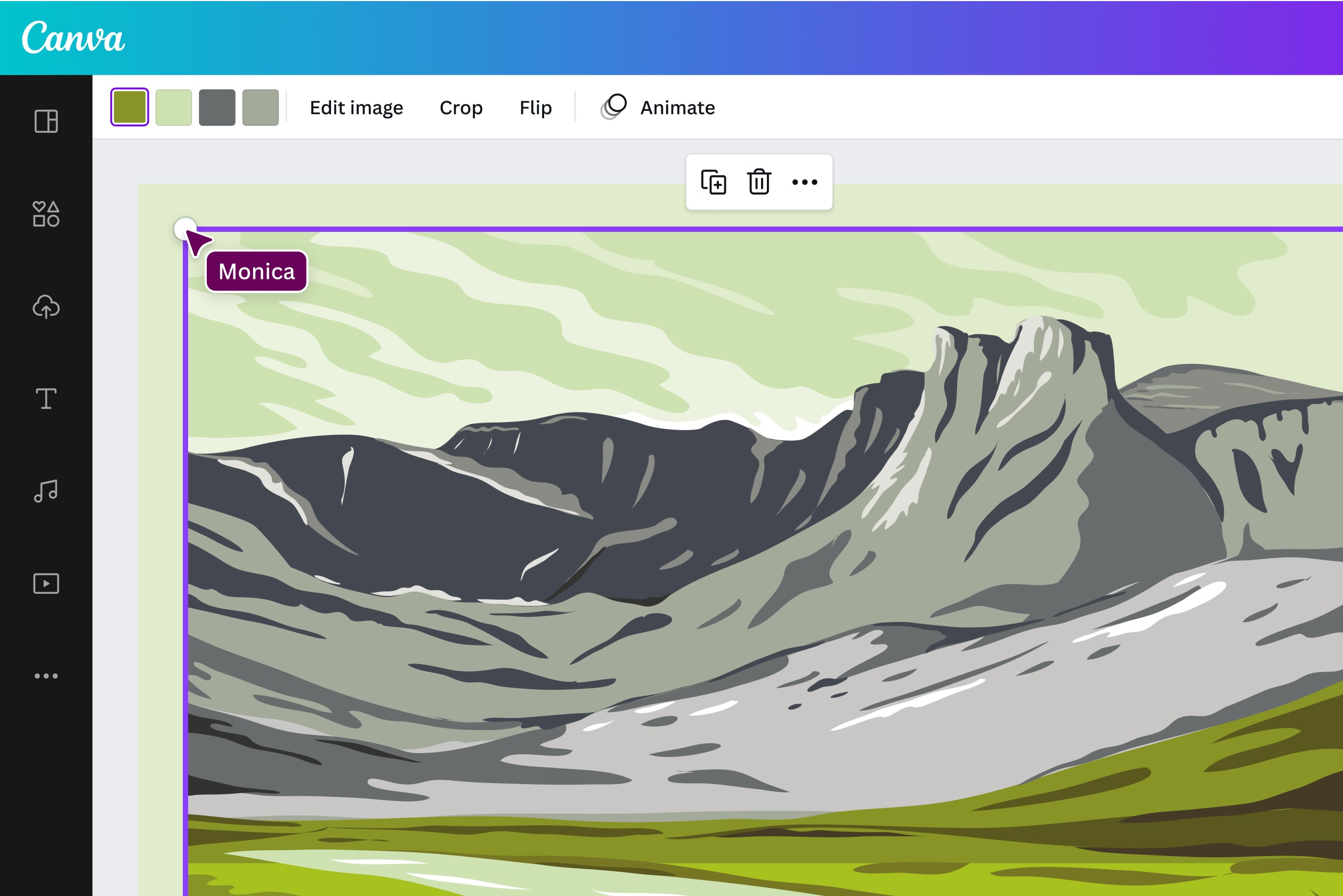
Select any text element to change the font, size, or content directly. To change colors, click on a shape or text and use the Fill and Stroke panel. You can input specific hex codes to match your brand or project requirements. This makes it easy to adapt a NiceSVG for different contexts without redrawing.
Once your edits are complete, go to File > Export PNG Image if you need a raster version, or File > Save As to keep it as an SVG. For web use, ensure you are saving as "Optimized SVG" to reduce file size. Always open the exported file in a browser to verify that all paths and text render correctly.
Where to find free NiceSVG vectors
Finding the right source for your NiceSVG files depends on whether you need simple icons, complex illustrations, or cut-file silhouettes. Most of these repositories export standard SVG code that NiceSVG can open without modification. The main difference lies in licensing, file organization, and whether the vectors are optimized for print or screen.
SVG Repo
SVG Repo hosts over 500,000 free vectors and icons. It is one of the largest databases available, making it easy to find specific shapes or icons for commercial use. The site allows you to filter by mono or multi-color, and the download process is straightforward. Because the files are standard SVGs, they import cleanly into NiceSVG for further editing.
FreeSVG
FreeSVG focuses on public domain clip art and silhouettes, which makes it a strong choice for crafters using Cricut or Silhouette machines. The library is organized by category, so you can quickly find holiday designs, borders, or simple icons. Since the content is public domain, you do not need to worry about attribution or commercial use restrictions when working with these files in NiceSVG.
Flaticon
Flaticon offers a massive library of vector icons and stickers. While it is best known for PNGs, it provides SVG downloads for most icons. The interface is user-friendly, and you can search by keyword to find exactly what you need. Note that free accounts require attribution for most icons, so check the license details before using them in a final project.
Flowbite
Flowbite provides a curated collection of open-source SVG icons designed for web development. These icons are compatible with Tailwind CSS and React, but they are also standard SVGs that work in NiceSVG. The collection is smaller than SVG Repo or Flaticon, but the files are clean, consistent, and well-organized for developers who need simple, functional graphics.
Comparison of sources
| Source | Best For | License Type | File Count |
|---|---|---|---|
| SVG Repo | General vectors and icons | Mostly CC0 / Commercial | 500,000+ |
| FreeSVG | Craft silhouettes and clip art | Public Domain | Varies |
| Flaticon | Icon sets and stickers | Attribution Required | 4M+ |
| Flowbite | Web development icons | MIT License | 750+ |
Fix common NiceSVG errors
Even clean code can break when moved between editors or deployed to a live site. Below are the three most frequent issues that derail NiceSVG workflows, along with the exact steps to resolve them.
Broken external links
NiceSVG files often reference external resources like images, stylesheets, or fonts. If these paths are relative rather than absolute, or if the linked assets have moved, your graphic will appear incomplete or blank.
Check the <image> and <link> tags in your source code. Ensure all href or xlink:href attributes point to valid, accessible URLs. If you are using local assets, embed them directly as base64 data URIs to remove dependency on external file paths. This is especially important if you plan to share the NiceSVG file across different domains or email clients.
Missing or substituted fonts
Text elements in NiceSVG rely on specific font families. If the viewer’s system does not have the exact font installed, the browser will substitute a default font, often ruining the design’s alignment and aesthetic.
To fix this, either embed the font data directly into the SVG using <style> blocks with @font-face, or simplify your text to standard web-safe fonts like Arial, Helvetica, or system sans-serifs. For complex typography, consider converting text to paths, though this increases file size and makes editing harder later.
Bloated file size
A bloated NiceSVG file loads slowly and may fail in environments with strict size limits. This usually happens when editors leave behind hidden metadata, unused layers, or high-resolution raster images embedded within the vector code.
Run your file through an optimizer like SVGO or the built-in optimization tools in your editor. These tools strip unnecessary comments, merge redundant paths, and compress coordinates. Aim for a file size under 50KB for icons and under 200KB for complex illustrations. A smaller file ensures faster rendering and better compatibility across all NiceSVG viewers.
Where to buy premium NiceSVG assets
Finding high-quality, licensed NiceSVG files usually means looking at dedicated digital marketplaces rather than general image hosts. These platforms offer curated bundles and individual designs that are ready for commercial projects, saving you time on licensing checks and file formatting.
Popular marketplaces like Etsy and Creative Market feature thousands of NiceSVG creators. You can find everything from holiday-themed bundles to professional icon sets. These sites often provide previews, ensuring the vector quality matches your project needs before purchase.
For specific, unique designs, check out niche stores like Whimsical Inklings. They offer specialized sets, such as the "Always Be Nice" collection, which provides ready-to-use vectors for crafting and print-on-demand businesses. Buying directly from these sources supports independent designers and ensures you get clean, scalable files.


As an Amazon Associate, we may earn from qualifying purchases.
Where to get the best SVG files
Finding high-quality NiceSVG files doesn’t require a subscription. You can start with SVGRepo, a massive library of over 500,000 vectors that are free for commercial use. Its categorization makes it easy to filter by style or color, and the interface is straightforward enough to avoid format confusion. Visit SVGRepo to browse the collection.
For specific design assets, consider IconFinder or Flaticon. These platforms offer curated icon sets that are often more consistent in style than general vector repositories. While many icons are free, some require attribution or a paid license for extensive use. Always check the license file included in your download folder to ensure compliance.
No comments yet. Be the first to share your thoughts!