
What is SVG and why use it
SVG stands for Scalable Vector Graphics. Unlike raster formats like PNG or JPG, which store images as a fixed grid of pixels, SVG defines graphics using XML text. This means an SVG file is essentially a set of instructions for drawing shapes, lines, and curves on a canvas.
Because the image is constructed from mathematical paths rather than pixels, it scales infinitely without losing quality. You can zoom in to the edge of a screen or shrink it to fit a mobile icon, and the edges remain sharp. This makes SVG the ideal format for logos, icons, and diagrams that need to adapt to different viewports.
There are three main technical advantages to using SVG over raster images:
- Small file size: Simple vector paths often result in significantly smaller file sizes compared to high-resolution raster images, leading to faster page loads.
- CSS and JS accessibility: Since SVGs are code, you can style them with CSS (changing colors, strokes, and opacity) and manipulate them with JavaScript for animations and interactivity.
- SEO and accessibility: Text inside an SVG can be selected and read by screen readers, unlike text baked into a PNG.
This code-based nature is what makes SVGs so versatile for developers. You can edit them in any text editor, minify them for production, and integrate them directly into your component library without worrying about image asset pipelines.
Open SVG files in your browser
SVG works best as a clear sequence: define the constraint, compare the realistic options, test the tradeoff, and choose the path with the fewest hidden costs. That order keeps the advice usable instead of decorative. After each step, pause long enough to check whether the recommendation still fits the reader's actual situation. If it depends on perfect timing, unusual access, or a best-case budget, include a simpler fallback.

Edit SVG code directly in text
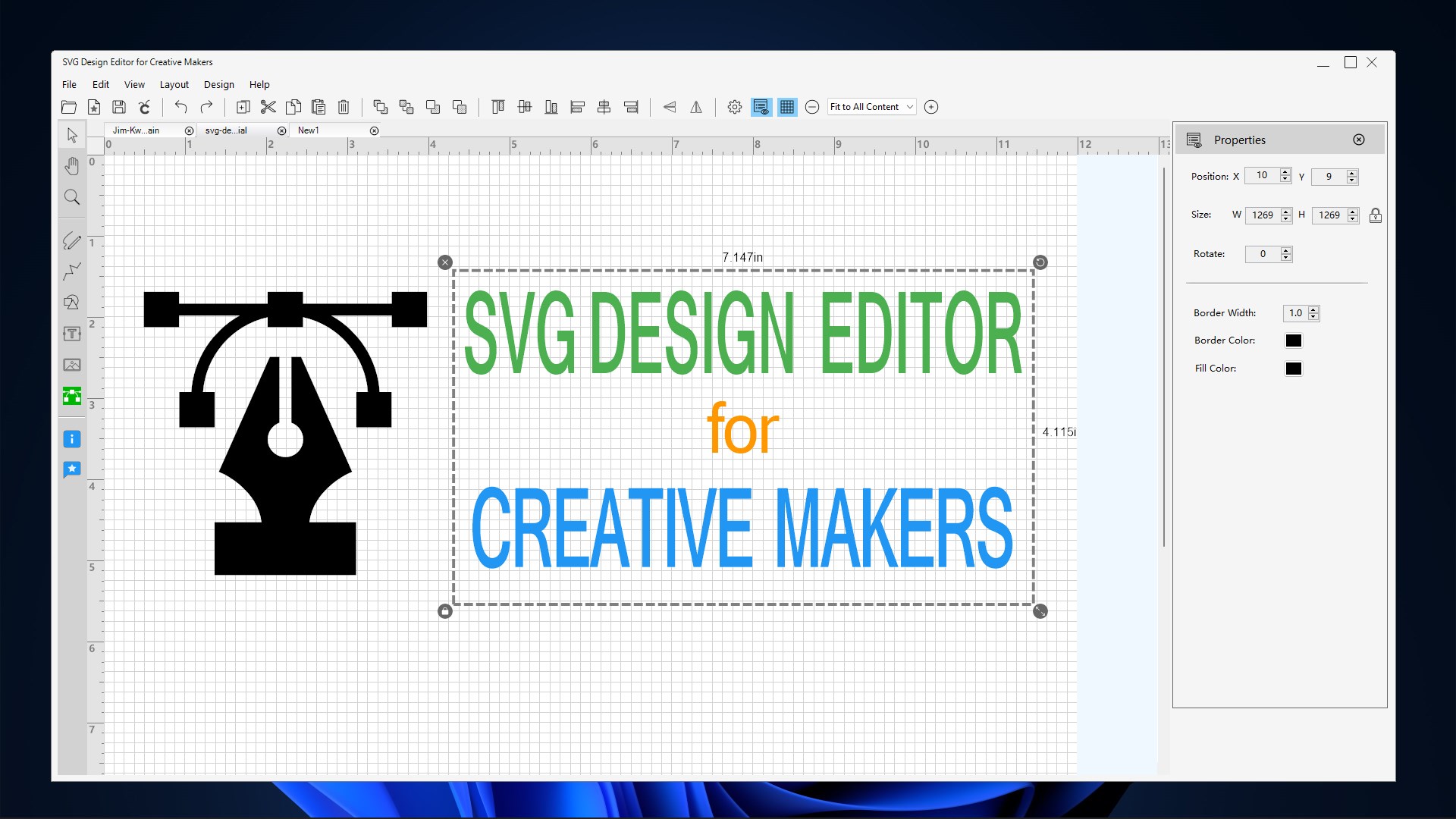
You do not need Adobe Illustrator or Figma to tweak an SVG. Because the format is just XML, you can open any SVG file in a plain text editor like VS Code, Sublime Text, or even Notepad. This approach is faster for simple changes and gives you full control over the underlying geometry.
Think of an SVG file like a recipe card. The ingredients are the tags (<circle>, <rect>, <path>), and the measurements are the attributes (fill, stroke, cx, cy). If you want to change the color of a circle, you only need to edit the fill attribute value. You don't need to understand the entire cooking process to swap salt for sugar.
Common attributes to edit
The most frequent edits involve appearance and positioning. Here are the standard attributes you will encounter:
fill: Controls the interior color. Accepts hex codes (#ff0000), named colors (red), ornone.stroke: Controls the outline color. Usenoneto remove borders entirely.stroke-width: Adjusts the thickness of the outline in pixels.widthandheight: Sets the display dimensions. Changing these scales the vector without losing quality.transform: Moves, rotates, or scales elements using values liketranslate(10, 20)orrotate(45).
Before and after: changing a color
Below is a comparison showing how to change a shape's fill color. The left side shows the original code; the right side shows the edit.
In this example, the fill attribute changes from a blue hex code to a red one. The shape remains identical in structure, but the visual output updates immediately. You can test these changes live in a code sandbox like CodePen or JSFiddle by pasting the SVG code directly into the HTML panel.
When to avoid text editing
While direct editing is powerful, it has limits. If you need to redraw a complex logo, adjust bezier curves, or manage layers, a visual editor is more efficient. Text editing is best for: changing colors, resizing dimensions, swapping icons, or fixing minor syntax errors. For structural changes, stick to vector software.

Use free SVG files in web projects
Integrating SVGs into your HTML is straightforward, but the method you choose affects how you style, animate, and maintain the graphic. There are three primary ways to include an SVG in a web page: inline code, the <img> tag, and CSS background images. Each approach has distinct trade-offs regarding accessibility, CSS control, and caching.
Inline SVG
Inline SVG involves pasting the raw XML code directly into your HTML document. This method gives you the highest level of control because the SVG becomes part of the DOM. You can target specific paths with CSS, apply animations, and even change colors dynamically using currentColor or specific class selectors.
The downside is that it increases the HTML file size and prevents the browser from caching the SVG separately. It is best used for small, critical icons or graphics that need to be styled heavily. It also allows for the best accessibility if you include <title> and <desc> tags within the SVG code itself.
The <img> Tag
Using the <img> tag is the simplest and most familiar approach for most developers. You reference the SVG file just like a PNG or JPEG. This method is excellent for static graphics, illustrations, or complex diagrams where you do not need to manipulate individual elements with CSS.
Because the SVG is a separate file, the browser can cache it, which improves load times on subsequent visits. However, you lose the ability to style internal elements with CSS or JavaScript. Accessibility is also more limited; while you can use the alt attribute on the <img> tag, you cannot easily add ARIA roles to the SVG structure itself.
CSS Background Image
Placing an SVG as a background-image in CSS is useful for decorative elements, patterns, or icons that do not require text alternatives. This keeps your HTML clean and separates presentation from structure. It is particularly effective for background textures or decorative dividers.
The main limitation is that these SVGs are generally not accessible to screen readers. They are considered "decorative" by default, so you must ensure they do not convey important information. Additionally, styling internal elements is impossible since the SVG is treated as an opaque image layer.
Comparison of Methods
The table below summarizes the key differences between these three approaches to help you decide which fits your project needs.
| Method | CSS Control | Accessibility | Caching | Best For |
|---|---|---|---|---|
| Inline | Full | High | No | Icons, animations, dynamic styling |
| <img> tag | None | Medium | Yes | Static illustrations, complex graphics |
| CSS Background | None | Low | Yes | Decorative elements, patterns |

Common SVG mistakes to avoid
Even simple SVG files can cause performance issues or accessibility failures if exported carelessly. Design tools often prioritize visual fidelity over code cleanliness, leaving behind bloated markup that slows down page loads.
Absolute paths and missing alt text
Exporters frequently convert relative coordinate paths into absolute ones, inflating file size unnecessarily. Additionally, omitting the alt attribute renders the image invisible to screen readers. Always include descriptive alt text and use path simplification tools to trim coordinate data.
Unnecessary metadata and groups
Many editors embed proprietary metadata, hidden layers, or deeply nested <g> groups that add weight without visual benefit. These artifacts bloat the DOM and can confuse older browsers. Strip unnecessary tags before deployment to keep your SVG lightweight and clean.
SVG Implementation Checklist
Before deploying your SVG, run through this final review to ensure the file is clean, accessible, and performant. Think of this as the pre-flight check for your graphics.

No comments yet. Be the first to share your thoughts!