
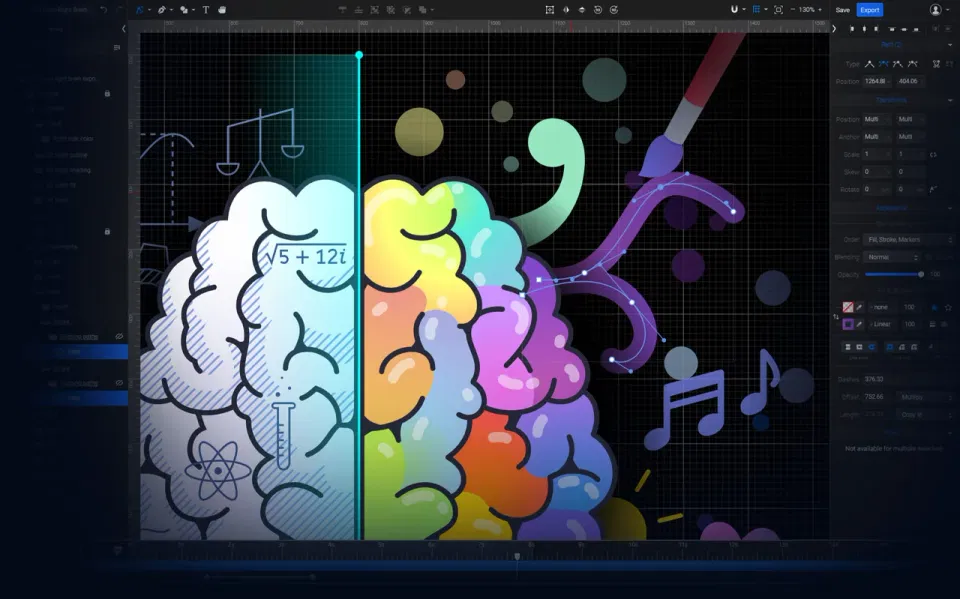

Demystifying SVG: Understanding the Basics of SVG File Format
Welcome to the fascinating world of SVG files! If you've ever wondered about the intricacies of Understanding SVG File Format, you're in the right place. This comprehensive tutorial will guide you through the basics, illuminating the path to mastery.
So, what exactly is SVG? SVG, or Scalable Vector Graphics, is a versatile file format that allows for crisp, high-quality graphics at any scale. Unlike raster images that can become pixelated when enlarged, SVGs maintain their clarity, making them a preferred choice for designers and developers alike. But how do they achieve this? The secret lies in their structure. SVGs are XML-based, meaning they're composed of mathematical formulas that dictate their shapes and colors. This unique characteristic allows them to be infinitely scalable without losing quality.
Imagine you're a painter. A raster image is like a canvas with a set size. Once you've painted your image, you can't make it larger without it becoming blurry. But an SVG file? It's like having a magic canvas that you can stretch or shrink without any distortion. Sounds amazing, right?
But that's just the tip of the iceberg. Understanding SVG files opens up a world of possibilities. You can edit them, save them, and use them in various applications. And the best part? You don't need to be a tech wizard to do it. With our step-by-step guides, you'll be navigating the SVG landscape like a pro in no time.
Ready to embark on this exciting journey? Let's dive in and start demystifying SVG!

Opening the Door to SVG: How to Open SVG Files
Now that we've demystified the basics of Understanding SVG File Format, let's unlock the next door on our journey: How to Open SVG Files. This step is crucial in your SVG file tutorial, and you'll be glad to know it's as easy as pie!
Imagine you've just downloaded an SVG file. It's sitting there in your downloads folder, full of potential. But how do you bring it to life? The answer is simpler than you might think. All you need is the right software. SVG files can be opened with a variety of applications, including web browsers like Chrome, Firefox, and Safari, as well as graphic design software like Adobe Illustrator and Inkscape.
Let's say you want to open your SVG file in a web browser. Simply right-click on the file, select 'Open with', and choose your preferred browser. Voila! Your SVG file springs to life, displaying its crisp, scalable beauty right before your eyes. 
But what if you want to edit your SVG file? That's where graphic design software comes into play. Both Adobe Illustrator and Inkscape are excellent choices for this task. Just like opening the file in a browser, you simply right-click, select 'Open with', and choose your software. Now, you're not just viewing your SVG file; you're interacting with it, ready to mold it to your creative vision. 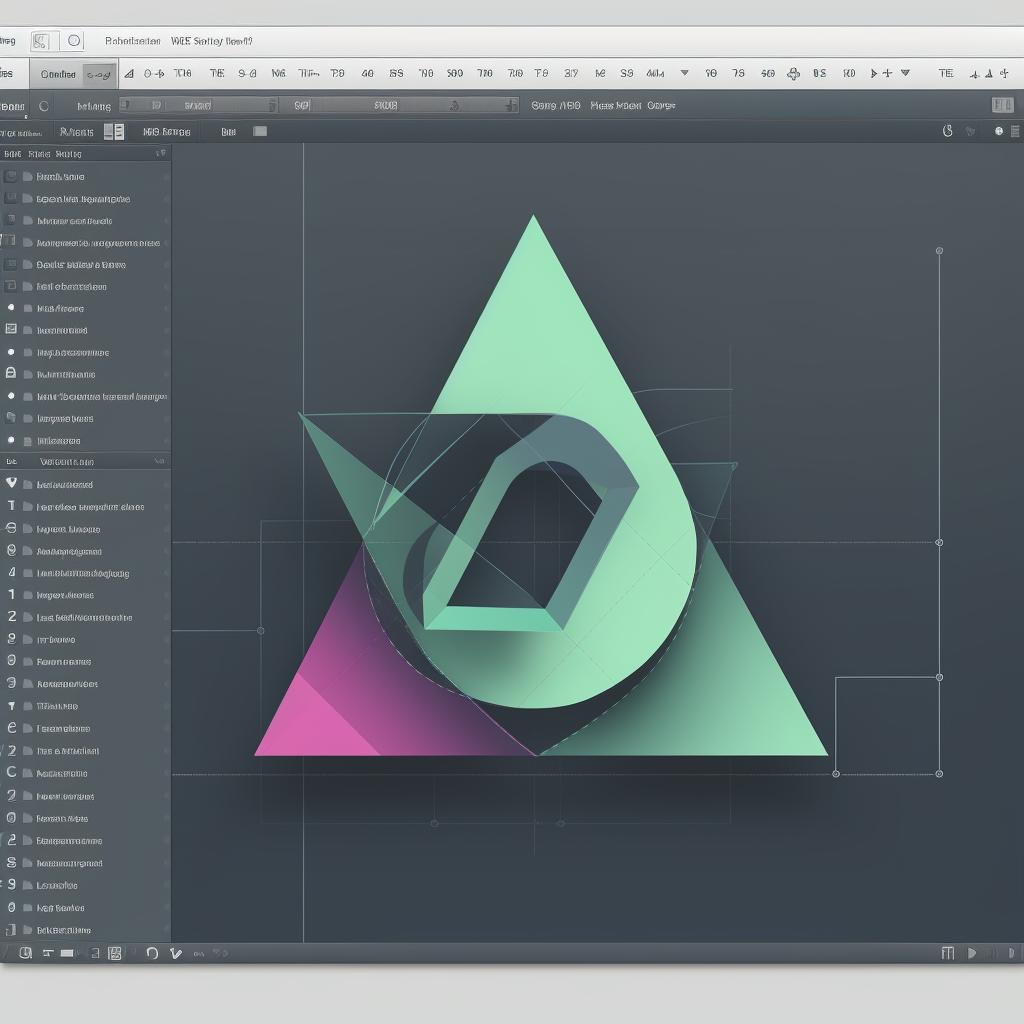
Opening SVG files is your first step into a larger world. It's the beginning of your journey towards understanding SVG files, learning how to edit SVG, save SVG files, and using SVG in applications. So, are you ready to take that step?
Stay tuned for the next section of our comprehensive tutorial, where we'll delve into the art of editing SVG files. The adventure is just beginning!
Mastering the Art of SVG: A Comprehensive Tutorial on Editing SVG Files
Having unlocked the mystery of opening SVG files, we now venture deeper into our SVG file tutorial. Brace yourself for an exciting exploration into the art of editing SVG files. This is where your creativity truly comes into play, where you take control and shape the SVG to your vision. Are you ready to master this art?
Editing SVG files might seem daunting at first, but with the right tools and a bit of practice, you'll be manipulating these files like a pro. Remember the graphic design software we mentioned earlier? Adobe Illustrator and Inkscape? They are about to become your best friends in this journey. Let's dive in!
Open your SVG file in your chosen software. You'll notice that the SVG file is made up of various elements. These could be shapes, lines, or text - each with their own properties that you can modify. Want to change the color of a shape? Easy! Just select the shape and choose a new color from the palette. Need to resize a line without losing its sharpness? No problem! Simply drag the handles at the corners. 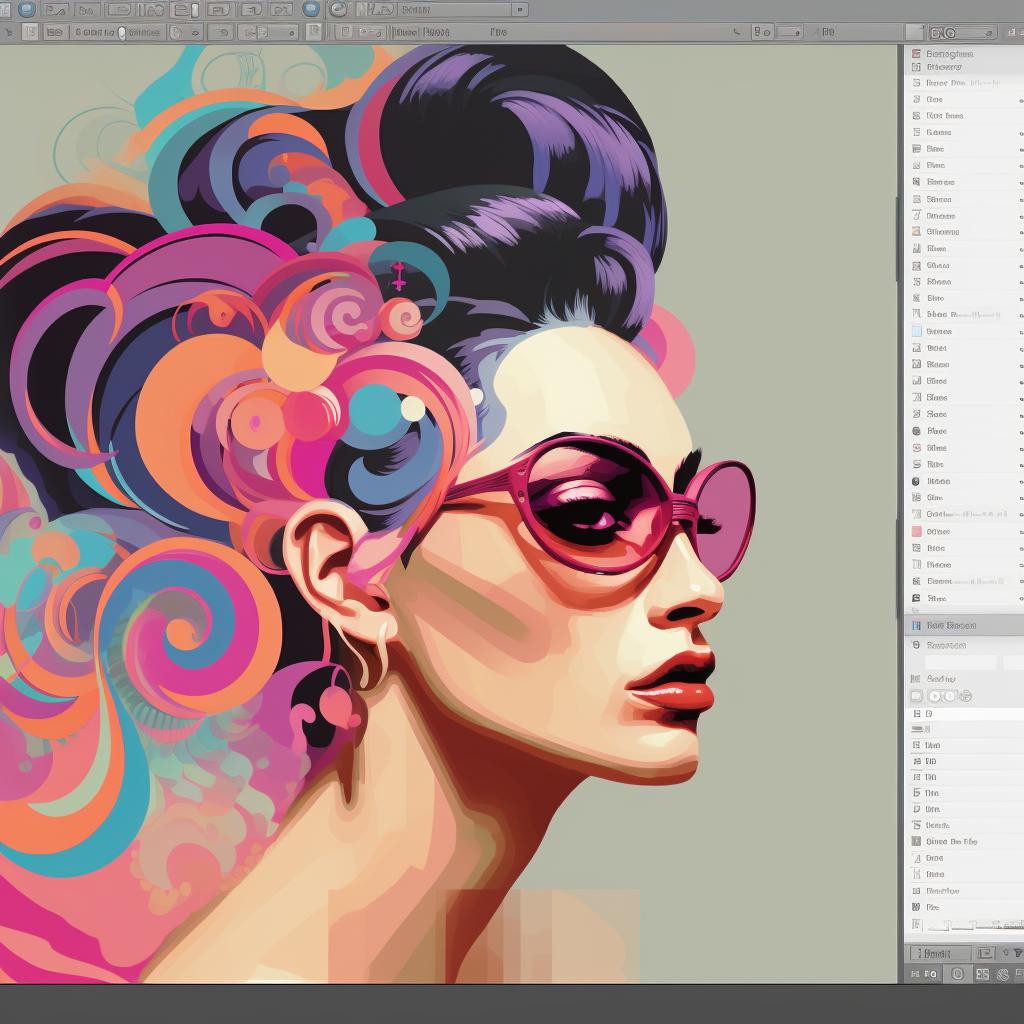
But what if you want to create something entirely new? That's the beauty of SVG files. You can add new elements, delete the ones you don't need, and even rearrange the existing ones. The possibilities are endless, limited only by your imagination.
As you experiment and play around with the SVG file, you'll gain a deeper understanding of SVG file format. You'll start to see the potential hidden within these files and how they can bring your creative ideas to life.
Editing SVG files is not just about changing colors or resizing elements. It's about transforming a static image into a dynamic masterpiece. It's about making the SVG file your own. So, go ahead, open that SVG file and start experimenting. Who knows what amazing creations you'll come up with?
Stay tuned for the next part of our comprehensive tutorial, where we'll guide you on how to save your SVG files correctly. The journey continues!
Preserving Your Work: How to Save SVG Files Correctly
As we continue our journey in understanding SVG file format, you've now reached a pivotal point in our comprehensive tutorial. You've opened your SVG file, you've edited it to your heart's content, but what's next? How do you ensure that your hard work and creativity doesn't vanish into thin air? The answer lies in correctly saving your SVG files. Let's delve into this crucial step.
Imagine this: you've spent hours perfecting your SVG file, tweaking every element until it's just right. The last thing you want is to lose all that effort due to a simple oversight. That's why understanding how to save SVG files correctly is as important as knowing how to edit them.
When you're ready to save your work, go to the 'File' menu in your graphic design software and select 'Save As'. Here's where you need to be careful. Make sure to choose 'SVG' as the file format. This ensures that your file retains its scalability and flexibility, key attributes of SVG files. 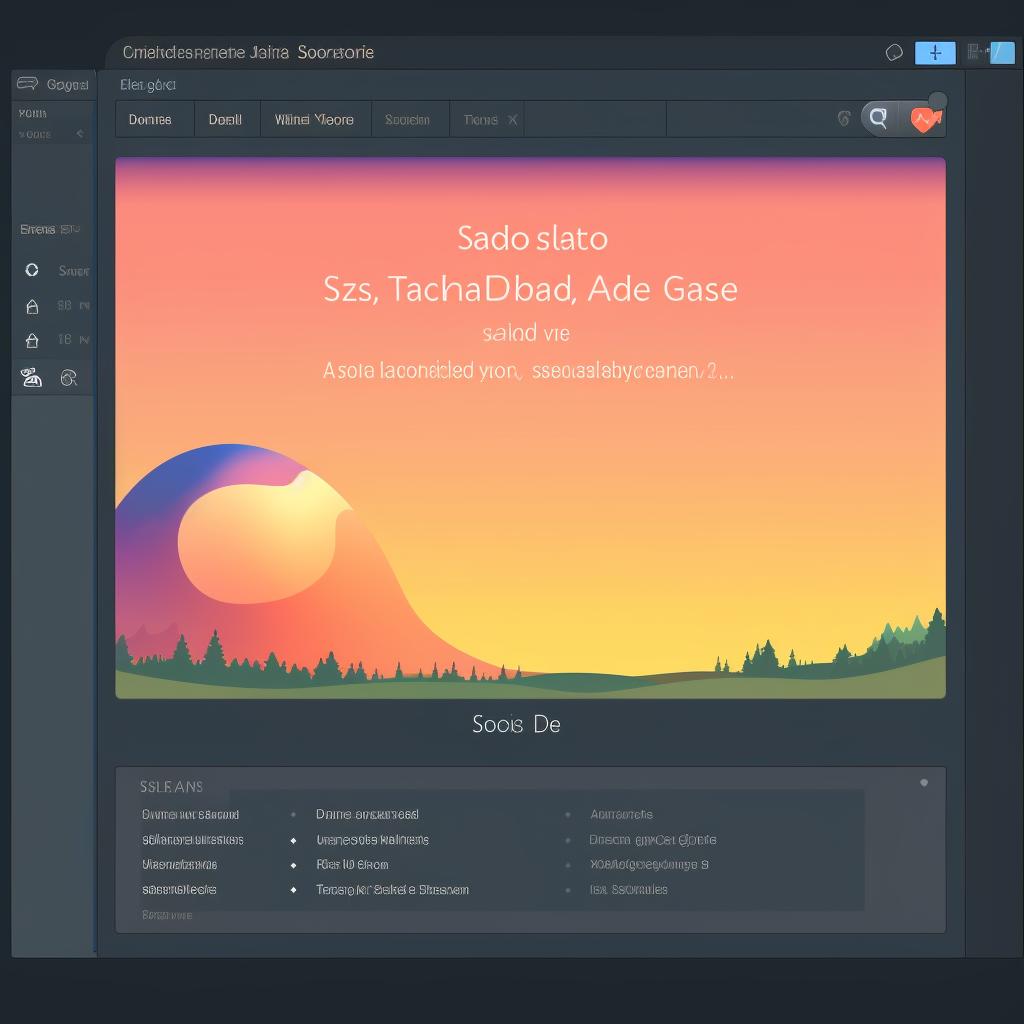
But wait, there's more! Did you know that SVG files can be optimized for web use? This process reduces the file size without compromising the quality, making your SVG files load faster on websites. When saving your file, look for an option like 'Optimized SVG' or 'SVG for Web'. This is especially useful when using SVG in applications that are web-based.
Remember, preserving your work is not just about hitting the 'Save' button. It's about understanding the nuances of the SVG file format and using them to your advantage. So, the next time you're immersed in editing an SVG file, remember to save it correctly. Your future self will thank you!
Stay with us as we venture further into the world of SVG, exploring how to use SVG files in various applications. The adventure continues!
SVG Beyond the Basics: Using SVG Files in Various Applications
Excited about what you've learned so far? Well, hold on to your hats because we're about to take a thrilling leap into the world of SVG beyond the basics. Now that you've mastered opening, editing, and saving SVG files, it's time to discover the versatility of SVG files in various applications. This is where the real magic happens!
Imagine being able to create a logo that scales perfectly on any device, from a tiny smartphone screen to a massive billboard, without losing an ounce of quality. That's the power of SVG! 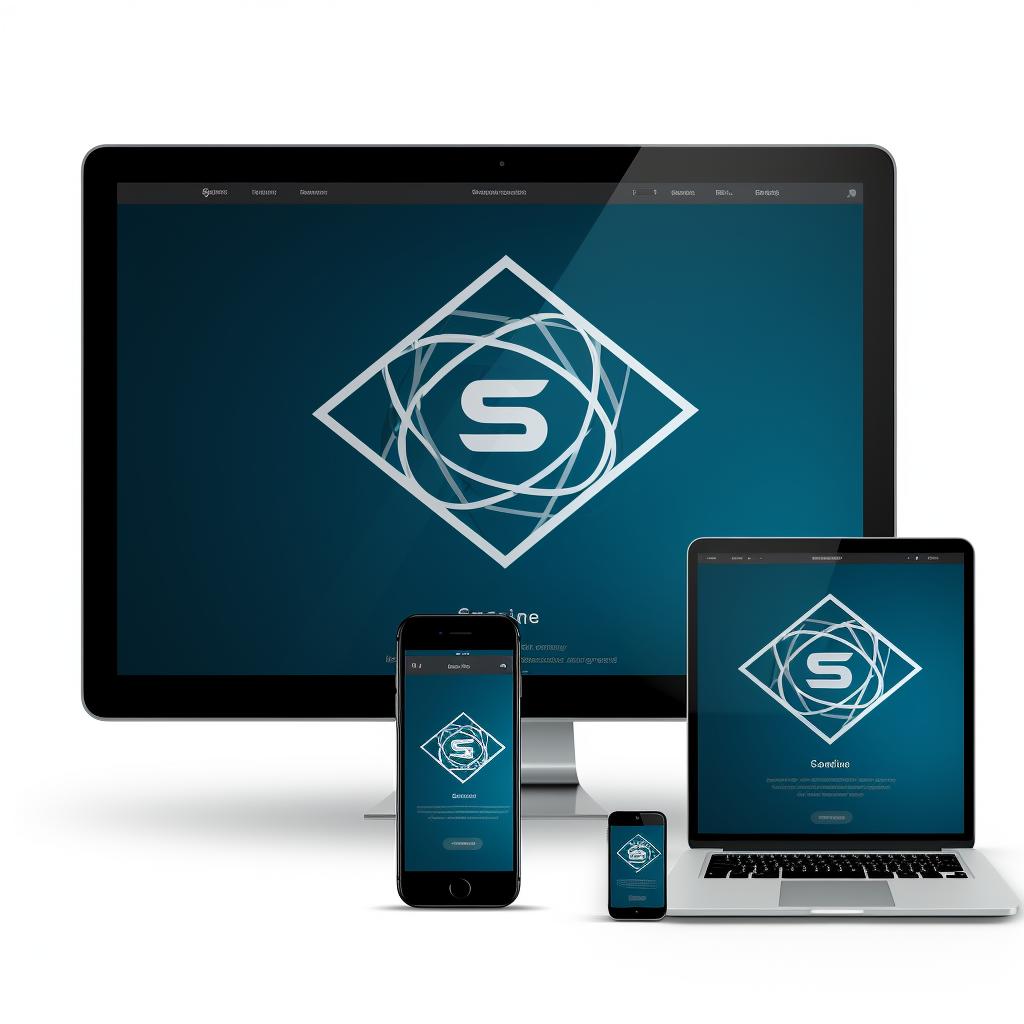 . But how do you make this happen? It's simpler than you might think.
Most graphic design software, such as Adobe Illustrator and Inkscape, support SVG files. To use your SVG file in these applications, simply open the file as you would any other. Remember to save your work as an SVG file to maintain its scalability and flexibility.
But what about web-based applications? As we mentioned earlier, SVG files can be optimized for web use. This means you can use SVG files to design websites, create interactive graphics, and even animate elements. The possibilities are truly endless!
For instance, if you're a web developer, you can directly embed SVG code into your HTML. This allows you to manipulate the SVG elements using CSS or JavaScript, opening up a whole new world of interactive and dynamic web design.  .
.
But that's not all. SVG files can also be used in presentation software like PowerPoint or Google Slides. Want to impress your audience with crisp, scalable graphics? Simply import your SVG file into your presentation.
As you can see, understanding SVG file format and knowing how to use SVG files in various applications can significantly enhance your digital experience. Whether you're a graphic designer, a web developer, or just someone who appreciates high-quality visuals, SVG files are your secret weapon. So, what are you waiting for? Dive in and start exploring the world of SVG today!
Stay tuned as we unlock the potential of SVG, exploring NiceSVG's free SVG files and converters in our next section. The journey continues!
Unlocking the Potential of SVG: Exploring NiceSVG's Free SVG Files and Converters
Ready to unlock the potential of SVG files? Let's dive into the treasure trove that is NiceSVG's extensive library of free SVG files and converters. This is where your understanding of SVG file format truly comes to life!
Imagine having access to a vast collection of SVG files, all at your fingertips. From intricate designs to simple icons, NiceSVG offers a wide array of SVG files that cater to every need and aesthetic. Whether you're designing a website, creating a presentation, or crafting a logo, you'll find an SVG file that fits perfectly. And the best part? They're all free!
But what if you have a specific design in mind, and you can't find an SVG file that matches it? Fear not, because NiceSVG also provides a suite of powerful SVG converters. These handy tools allow you to convert various file formats, such as JPEG and PNG, into SVG files. This means you can turn any image into a scalable, high-quality SVG file. How exciting is that?
Using NiceSVG's SVG converters is a breeze. Simply upload your image, select the desired settings, and voila! Your SVG file is ready to be downloaded and used in any application. Remember, SVG files maintain their quality regardless of scale, making them ideal for a wide range of uses.
So, why not give it a try? Explore NiceSVG's library of free SVG files and converters today. Whether you're a seasoned designer or a beginner dipping your toes into the world of digital design, NiceSVG has something for you. It's time to unleash your creativity and elevate your designs with the power of SVG!
Stay with us as we wrap up our comprehensive SVG file tutorial in the next section. The journey into understanding SVG files is far from over!
Demystifying SVG: What Exactly is an SVG File Format?
Welcome to the fascinating world of SVG files! If you've ever wondered, "What exactly is an SVG file format?" you're in the right place. This comprehensive tutorial is designed to demystify SVG, breaking down the basics in an approachable, friendly manner.
SVG, or Scalable Vector Graphics, is a unique file format that allows for two-dimensional graphics to be displayed on the web. Unlike other image formats, SVG files are not pixel-based. Instead, they are composed of vectors. This means that no matter how much you zoom in or resize an SVG image, it will never lose its quality. Sounds amazing, right?
But that's not all! SVG files are also editable. You can open SVG files in various applications and modify them to suit your needs. Whether you want to change colors, shapes, or even animate your graphics, SVG files offer a world of possibilities. 
From opening SVG files to editing and saving them, this tutorial will guide you through each step of the process. We'll also explore how to use SVG files in different applications, making this a truly comprehensive guide to understanding SVG files.
Ready to dive in? Let's embark on this exciting journey together, unlocking the full potential of SVG files and discovering how they can enhance your digital projects. Welcome to the ultimate SVG file tutorial!
Understanding SVG Files: Breaking Down the Basics
Now that we've demystified what an SVG file format is, let's delve deeper into understanding SVG files. Breaking down the basics is a crucial step in this comprehensive SVG file tutorial. Ready to unravel the mysteries of SVG files? Let's get started!
At its core, an SVG file is a simple text file that describes images with vector graphics. Unlike raster graphics, which are grid-based and lose quality when scaled up, SVG files maintain their quality regardless of size. This is because SVG files are based on mathematical expressions that define the path, shape, and fill of the image elements. This makes SVG files incredibly versatile and perfect for responsive web design. Isn't that fascinating?
But how does one go about editing an SVG file? Well, the beauty of SVG files lies in their flexibility. You can open SVG files in a text editor and directly manipulate the code, or you can use a graphics editor like Adobe Illustrator or Inkscape. This allows you to change colors, shapes, and even animate your graphics! The possibilities are truly endless with SVG files.
And what about saving your work? When you save SVG files, they retain all the edits and changes you've made. This means you can always pick up where you left off, making SVG files not just flexible, but also incredibly convenient. Plus, you can use SVG files in various applications, from web design to animation and beyond. This makes understanding SVG files an invaluable skill in the digital world.
So, are you ready to open the door to SVG and start using this powerful file format in your projects? With this comprehensive tutorial, you'll be mastering the art of SVG in no time. Let's continue our journey into the world of SVG files, exploring the vast resources available at NiceSVG, your ultimate guide to SVG files and converters.

Mastering the Art of SVG: Comprehensive Tutorial on Editing SVG Files
With the mystery of opening SVG files now behind us, let's embark on the next exciting stage of our journey: Mastering the Art of SVG. This comprehensive tutorial on editing SVG files will empower you to unleash your creativity and transform those static SVG files into dynamic works of art.
Picture this: you've opened your SVG file in Adobe Illustrator or Inkscape, and it's just sitting there, waiting for your touch. What's next? How do you start editing? Well, the process is quite straightforward, and with a little practice, you'll be editing SVG files like a pro!
First, you need to understand that an SVG file is composed of elements, each representing a part of the image. These elements can be selected and manipulated individually. For instance, if you have an SVG of a flower, you can select the petals, the stem, or the leaves, and modify them independently. To select an element, simply click on it. Once selected, you can change its color, size, shape, and position. You can even delete it if you wish!
But what if you want to add new elements to your SVG file? That's also possible! Both Adobe Illustrator and Inkscape offer a variety of tools for creating shapes, lines, and text. You can use these tools to add new elements to your SVG file, creating a unique design that reflects your personal style.
Editing SVG files is like playing with digital clay. You can mold and shape your SVG file until it perfectly matches your creative vision. And the best part? Your edits are scalable, just like the original SVG file. This means that no matter how much you zoom in or out, your edits will always look crisp and clear.
So, are you ready to dive into the world of SVG editing? With this comprehensive tutorial, you're well on your way to mastering the art of SVG. And remember, practice makes perfect. So don't be afraid to experiment and make mistakes. That's how you learn and grow as a designer.
Stay tuned for the next section of our tutorial, where we'll explore the right way to save SVG files. The adventure continues!
Preserving Your Work: The Right Way to Save SVG Files
As we continue our journey through the world of SVG files, we've now reached an important milestone: Preserving Your Work: The Right Way to Save SVG Files. You've opened your SVG file, you've made your edits, and now you're ready to save your masterpiece. But how do you ensure that your work is saved correctly, preserving all the changes you've made? Let's dive in and find out!
Firstly, it's crucial to remember that when you're working with SVG files, you're dealing with a scalable vector format. This means that your edits are not just modifications to a static image, but dynamic changes to a scalable design. So, when you save your SVG file, you need to ensure that you're saving it in a way that preserves this scalability.
Most graphic design applications, like Adobe Illustrator and Inkscape, make this process simple. Once you're done with your edits, you can simply go to the 'File' menu and select 'Save' or 'Save As'. Then, choose SVG as the file format. This will save your work as an SVG file, preserving all your edits and the scalability of your design.
But what if you want to use your SVG file in a different application? That's where the power of SVG really shines! Because SVG is a universal format, you can save your file and use it in a wide variety of applications. Whether you're designing a website, creating a logo, or crafting a digital illustration, your SVG file will always look crisp and clear, no matter how much you zoom in or out.
So, there you have it: the right way to save SVG files. It's a simple process, but it's a crucial step in your SVG journey. By saving your SVG files correctly, you're not just preserving your work, you're also unlocking the full potential of SVG. So go ahead, save your SVG file, and see where your creativity takes you next!
Stay tuned for the next section of our comprehensive tutorial, where we'll delve into the exciting world of using SVG files in various applications. The adventure is just getting started!
SVG and Applications: How to Use SVG Files in Various Applications
As we venture further into the fascinating realm of SVG files, we now arrive at a crucial juncture: SVG and Applications: How to Use SVG Files in Various Applications. You've mastered the art of opening, editing, and saving SVG files. But how do you apply this knowledge to different applications? Let's unravel this mystery together!
One of the most compelling aspects of SVG files is their universal compatibility. Whether you're a web designer, a digital artist, or a logo creator, SVG files can be your trusted ally. They retain their high quality regardless of how much you zoom in or out, making them perfect for a wide range of applications.
Let's say you're designing a website. You can easily embed your SVG files directly into your HTML, ensuring crisp, scalable graphics that load quickly and look fantastic on any device. . Or perhaps you're working on a logo design. With SVG, you can resize your logo to fit any format without losing any detail or clarity.
.
But what about digital illustrations? SVG files are a dream come true for digital artists. You can create complex, detailed illustrations that remain sharp and clear at any size. Plus, you can easily edit your SVG illustrations in graphic design applications like Adobe Illustrator or Inkscape, giving you complete control over your artwork. .
So, are you ready to take your SVG skills to the next level? By understanding how to use SVG files in various applications, you're not just expanding your toolkit – you're also unlocking new realms of creativity. So go ahead, dive into the world of SVG, and let your imagination run wild! Remember, the adventure is just getting started!
Stay tuned for the next section of our comprehensive SVG file tutorial, where we'll explore NiceSVG: Your Ultimate Resource for SVG Files and Converters. The journey continues!
Exploring NiceSVG: Your Ultimate Resource for SVG Files and Converters
As we embark on the final leg of our SVG journey, let's take a moment to appreciate the power and versatility of SVG files. We've unlocked the secrets of opening, editing, and saving SVG files, and discovered how to use them in various applications. Now, it's time to introduce you to NiceSVG: your ultimate resource for SVG files and converters.
Imagine having a vast library of free SVG files at your fingertips, ready to be used in your next project. Picture a platform that offers a comprehensive tutorial on understanding SVG file format, guiding you every step of the way. That's what NiceSVG is all about. It's a treasure trove of resources designed to help you master the art of SVG.
But that's not all. NiceSVG also provides a range of SVG converters, making it easier than ever to transform your SVG files into other formats and vice versa. Whether you need to convert an SVG file to PNG for a web project, or from JPEG to SVG for a logo design, NiceSVG has got you covered.
So, why wait? Dive into the world of NiceSVG and start exploring. Whether you're a seasoned SVG veteran or a beginner just starting out, NiceSVG is here to guide you. Remember, understanding SVG files is not just about acquiring a new skill – it's about unleashing your creativity and bringing your ideas to life.
As we conclude this comprehensive SVG file tutorial, let's reflect on our journey. We've demystified the SVG file format, learned how to open, edit, and save SVG files, and discovered how to use them in a myriad of applications. And with NiceSVG, we've found a valuable resource that will continue to support our SVG adventures.
So, are you ready to take the plunge and start your SVG journey with NiceSVG? Let's do it together! 
Remember, the world of SVG is vast and full of potential. So, keep exploring, keep learning, and most importantly, keep creating. The adventure is just getting started!



No comments yet. Be the first to share your thoughts!