Get nicesvg right
Before you open an SVG in your code editor or design tool, run a quick sanity check. SVG files are XML-based text, which means they can carry hidden baggage that slows down your website or breaks your layout. A clean SVG loads instantly; a bloated one acts like a heavy image waiting to render.
Start by verifying the file integrity. Open the .svg file in a plain text editor like VS Code or Sublime Text. Look for the opening <svg> tag. If the file starts with binary garbage, non-XML characters, or a PNG header, it is not a valid SVG. It is likely a mislabeled image file, and your browser will refuse to display it correctly.
Next, inspect the code for unnecessary bloat. Large SVGs often contain metadata from their creation software—Adobe Illustrator, Figma, or Sketch. Look for long strings of <metadata>, <defs>, or embedded pixel data that you did not intend to include. These elements increase file size without adding visual value. Remove them to keep your SVG lightweight and fast.
Finally, check the viewBox and dimensions. Ensure the viewBox attribute matches the aspect ratio of your design. If the width and height attributes are missing, the SVG will default to 100% of its container, which may cause unexpected scaling issues. For web use, always define explicit dimensions or rely on CSS to control size, ensuring consistency across devices.
Work through the steps
The to SVG Files works best as a clear sequence: define the constraint, compare the realistic options, test the tradeoff, and choose the path with the fewest hidden costs. That order keeps the advice usable instead of decorative. After each step, pause long enough to check whether the recommendation still fits the reader's actual situation. If it depends on perfect timing, unusual access, or a best-case budget, include a simpler fallback.

Fix common SVG mistakes
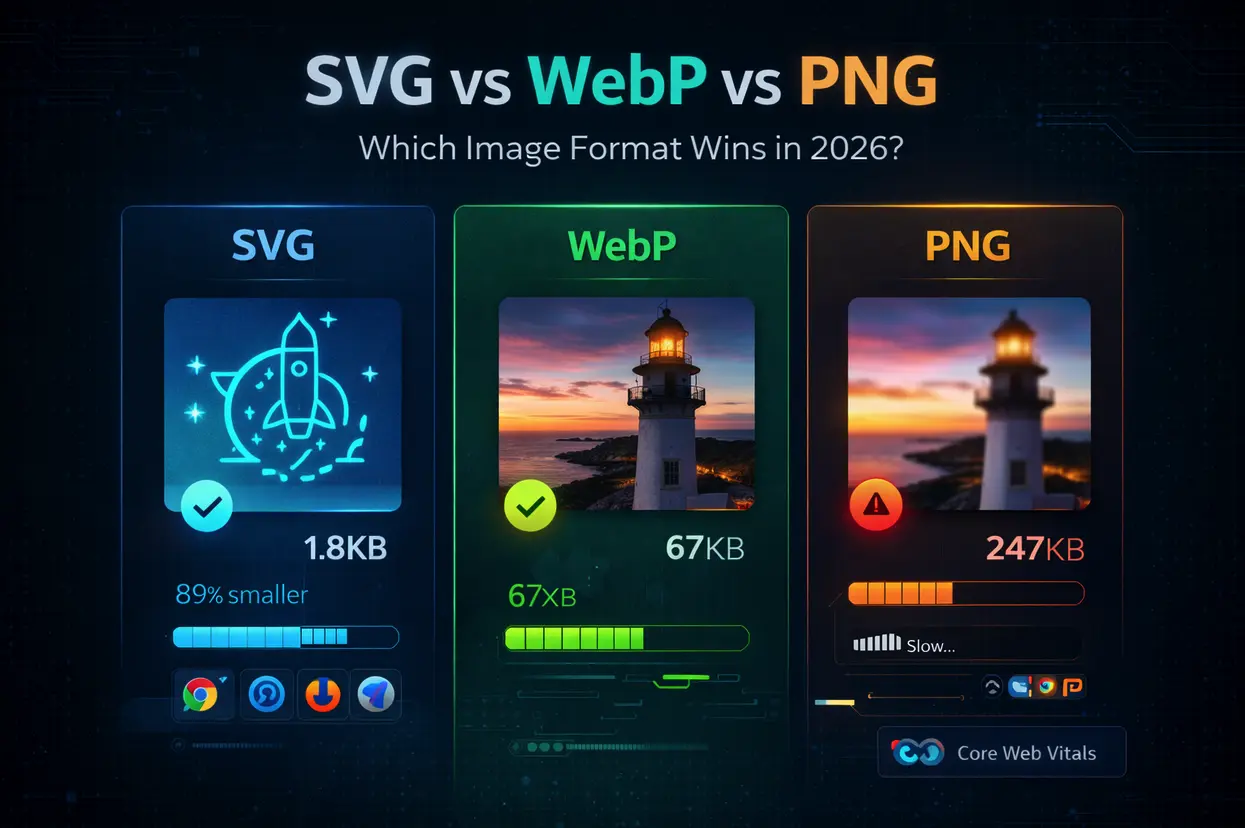
Even a small error in an SVG file can break your layout or slow down your site. These files are code, not just pictures, so treating them like standard JPEGs often leads to issues. You need to check the structure before you upload anything.
Hidden text and broken paths
Many designers export SVGs from graphic tools without cleaning the code. This leaves behind hidden text layers, stray points, or unnecessary groups that bloat the file. These artifacts don't show up in the preview, but they cause rendering glitches in browsers. Always inspect the raw code or use a tool like SVGOMG to strip out the junk before saving.
Missing viewBox attributes
The viewBox attribute is the most critical part of an SVG. It tells the browser how to scale the image without losing quality. If it is missing, the image might appear tiny or distorted when you change its width and height in CSS. Check the opening <svg> tag to ensure it has a viewBox that matches your design dimensions.
Incorrect color formats
SVGs support both hex codes and named colors, but consistency matters. Mixing formats like #FF0000 and red in the same file makes the code harder to maintain. It also increases the file size slightly. Stick to one format, preferably hex or RGB, for all your elements to keep the code clean and predictable.
Nicesvg: what to check next
Before you commit to a workflow or tool, it helps to clear up the common confusion around file types and sources. Here are the practical answers to the questions readers ask most often.
No comments yet. Be the first to share your thoughts!