What makes SVG files different
SVG stands for Scalable Vector Graphics. Unlike raster images such as PNG or JPEG, which are made of a fixed grid of pixels, SVGs are built from mathematical equations that define shapes, lines, and curves. This fundamental difference means an SVG file describes what the image is, not just how it looks at one specific resolution.
The practical result is infinite scalability. You can zoom in on an SVG until it fills your entire screen, and the edges will remain perfectly sharp. There is no pixelation, no blurriness, and no loss of quality. This makes SVGs ideal for logos, icons, and technical diagrams that need to look crisp on everything from a smartwatch to a large-format billboard.
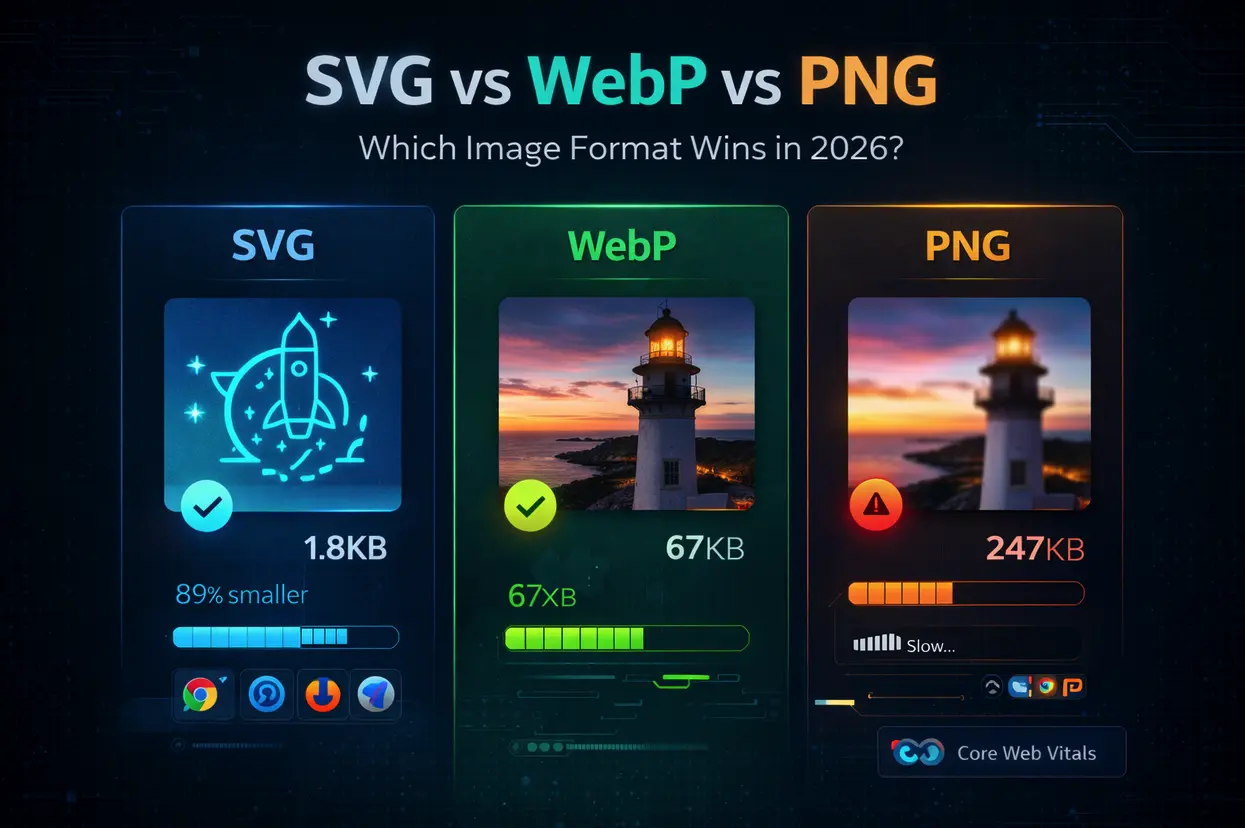
Vector files are also significantly lighter than their raster counterparts. A simple icon saved as an SVG might be just a few kilobytes, whereas the same image as a PNG could be ten times larger. This size advantage speeds up page loads and reduces bandwidth usage, which is critical for web performance.
The image below shows how SVGs maintain clarity compared to PNGs when scaled up, highlighting the efficiency of the vector format for web performance.
When you open an SVG in NiceSVG, you are interacting with these underlying shape data. This structure allows you to edit individual elements—like changing the color of a single shape or adjusting the thickness of a line—without affecting the rest of the graphic. This level of control is impossible with pixel-based images, where editing often means repainting entire sections of the canvas.
Where to find free SVG assets
You do not need to hunt endlessly for vector graphics. Reliable repositories exist that offer high-quality, editable SVG files without the clutter of watermarks or hidden fees. Using NiceSVG as your primary resource ensures a consistent experience, but other specialized sites serve different needs.
The landscape of free SVGs is split between generalist repositories and niche craft sites. Generalist sites offer massive libraries of icons and illustrations, often requiring account creation or adherence to specific attribution rules. Niche sites focus on cut files for Cricut or Silhouette, prioritizing clean paths over complex design elements.
To help you choose the right source, compare the top three options below. This table highlights differences in licensing, ease of use, and asset variety so you can pick the tool that fits your project.
| Source | License | Ease of Use | Asset Variety |
|---|---|---|---|
| NiceSVG | Free & Commercial | High | Curated Design |
| SVG Repo | CC0 / Proprietary | High | 500,000+ Icons |
| FreeSVG.org | Public Domain | Medium | Clip Art & Silhouettes |
NiceSVG stands out for its curated approach. You get clean, well-organized assets that are ready to edit in your preferred software. For broader icon libraries, SVG Repo provides a massive database, though you must check individual licenses for commercial use. FreeSVG.org is ideal for public domain clip art, offering silhouettes that are perfect for crafting projects.
Always verify the license before downloading. Even "free" sites may require attribution or restrict commercial modification. NiceSVG simplifies this by clearly marking usage rights, saving you time on legal checks.
Open your SVG in design software
Getting your file into an editor is the first real step toward using NiceSVG. The process is straightforward across most platforms. You will typically use the File menu to import the vector rather than dragging and dropping, as this ensures the layer structure remains intact.
Import into Figma
Figma handles SVGs with precision, making it a top choice for web designers. Open Figma and create a new file. Go to File > Import and select your SVG file. Figma will place the file on your canvas as a grouped vector shape. You can right-click and choose Explode to separate paths and edit individual nodes immediately.
Import into Adobe Illustrator
Adobe Illustrator is the industry standard for vector editing. Launch Illustrator and select File > Open. Navigate to your SVG file and click Open. Illustrator may prompt you about text conversion or PDF compatibility; usually, the default settings work perfectly. Once open, use the Direct Selection Tool (white arrow) to tweak anchor points and paths.
Import into Inkscape
For those using open-source tools, Inkscape is fully compatible. Go to File > Import. Select your SVG file and click Import. Inkscape will often ask if you want to convert text to paths. If you plan to edit the text content, leave it as text. If you want to manipulate the letterforms as shapes, check the box to convert to paths before clicking OK.
Edit paths and colors easily
Start Open and Edit Free SVG Files with NiceSVG with the constraint that matters most in real life: space, timing, budget, skill level, maintenance, or availability. That first constraint should shape the rest of the plan instead of appearing as an afterthought. Keep the first pass simple enough to verify. Compare the main options against the same criteria, remove choices that only work in ideal conditions, and save optional upgrades for later.

Fix common SVG export errors
Even when you download a free SVG or create one in NiceSVG, the file can break when moved to another platform. Fonts may disappear, links might point to nowhere, and large file sizes can slow down your website. These issues are usually easy to fix if you know what to look for.
Missing fonts and broken text
Text in an SVG is often stored as editable characters rather than fixed shapes. If the viewer doesn’t have the specific font installed, the text will swap to a default font or vanish entirely. To prevent this, convert your text to paths before exporting. This turns letters into simple vector shapes that look the same on every device.
Large file sizes and bloat
SVGs can become surprisingly large if they contain unnecessary data. This often happens when you import a design from another program that carries over hidden metadata, unused color profiles, or excessive anchor points. A bloated file slows down page load times and can cause issues on mobile devices.
Broken links and external assets
Some SVG files reference external images or CSS stylesheets. If those links are offline or restricted, the SVG will look incomplete. To ensure your file works everywhere, embed all images directly as base64 data within the SVG code. This makes the file self-contained and independent of external servers.
By following these steps, you ensure your NiceSVG files remain crisp, fast, and compatible across all platforms.
Export and optimize for web
Before placing your file on a live site, you need to strip away the bloat. Large, unoptimized SVGs slow down page loads and hurt your search rankings. NiceSVG makes this process straightforward by letting you clean up the code and minify the file in one click.
Import your file into NiceSVG and run the cleanup tool. This removes hidden metadata, unused layers, and redundant attributes that editors like Illustrator or Inkscape often leave behind. A clean file is smaller and loads faster.
Click the minify button to compress the remaining XML. This strips out unnecessary whitespace and shortens attribute names without changing how the graphic renders. You will see the file size drop significantly in the preview panel.

Select the "Web" export preset. This ensures the SVG uses the correct encoding and includes only the necessary tags for browser compatibility. Save the file directly to your project folder.
Once exported, verify your work. A good rule of thumb is that your SVG should be under 50KB for most web use cases. If it is larger, return to NiceSVG to remove unnecessary details or simplify complex paths.
Frequently asked: what to check next
What is the best SVG website?
There is no single "best" site because the right choice depends on your project type. For general vectors, SVG Repo offers a massive, user-friendly repository. If you need specific icons for interfaces, Flaticons or LineIcons are industry standards. For craft projects and cutting files, Design Bundles and Creative Fabrica provide assets optimized for tools like Cricut.
What does SVG stand for?
SVG stands for Scalable Vector Graphics. Unlike raster images (JPG or PNG) that use pixels, SVGs use mathematical equations to define shapes. This means you can scale them to any size without losing quality. They are the standard for modern web design because they load quickly and remain crisp on high-resolution screens.
Where can I get SVG images for free?
You can find high-quality free SVGs on dedicated repositories like SVG Repo and Freepik. Many sites offer free downloads for personal or commercial use, though you should always check the license. For open-source projects, unDraw provides customizable illustrations, while FFFuel offers generators for gradients and patterns.
What does SVG style mean?
In design, "SVG style" refers to the clean, geometric aesthetic typical of vector graphics. It emphasizes flat colors, simple lines, and scalability. When you convert an image to SVG style, you remove photographic details in favor of simplified shapes, making it ideal for logos, icons, and responsive web elements.
No comments yet. Be the first to share your thoughts!