

What makes SVG files different
Scalable Vector Graphics (SVG) files are built on code, not pixels. While JPEG and PNG images are raster formats made of a fixed grid of colored dots, SVG files are XML documents that define shapes, lines, and curves using mathematical equations. This fundamental difference is why SVG is the standard for web graphics and precise design work.
Think of an SVG file like a set of architectural blueprints rather than a photograph. If you take a JPEG and zoom in, the image becomes blocky and blurry because you are stretching those finite pixels. With an SVG, the software simply recalculates the math to redraw the lines at the new size. The result is a crisp, clean image at any resolution, from a tiny favicon to a massive billboard, without any loss of quality.

Because SVGs are text-based, they are also lightweight and editable. You can open them in a plain text editor to see the underlying code, or use design software like Inkscape to modify individual elements without degrading the file. This makes them highly versatile for both digital display and physical cutting projects, where precision is paramount.
Open SVG files in your browser
You can preview an SVG file without installing specialized software by using any modern web browser. Because SVG is an XML-based vector format, browsers like Chrome, Firefox, and Edge render these graphics natively. This method is ideal for quick checks to ensure the file opens correctly and displays as expected before you move to an editor.

Find the SVG file on your computer. It typically has a .svg extension and may appear with a generic document icon or a browser-specific thumbnail depending on your operating system.
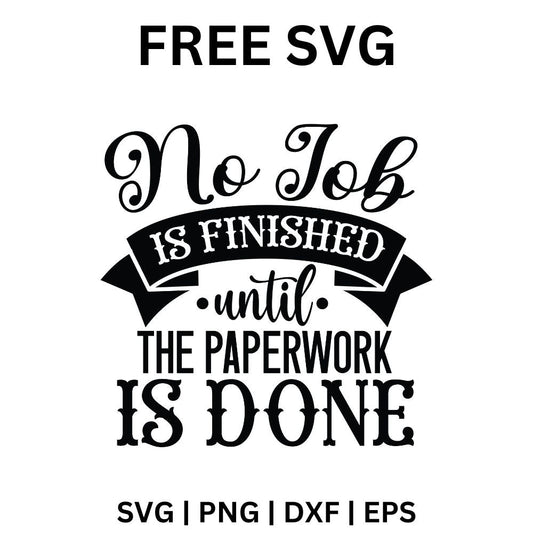
Open a new tab in Chrome, Firefox, or Edge. Click and drag the SVG file from your file explorer directly into the blank browser window. Release the mouse button to load the graphic.
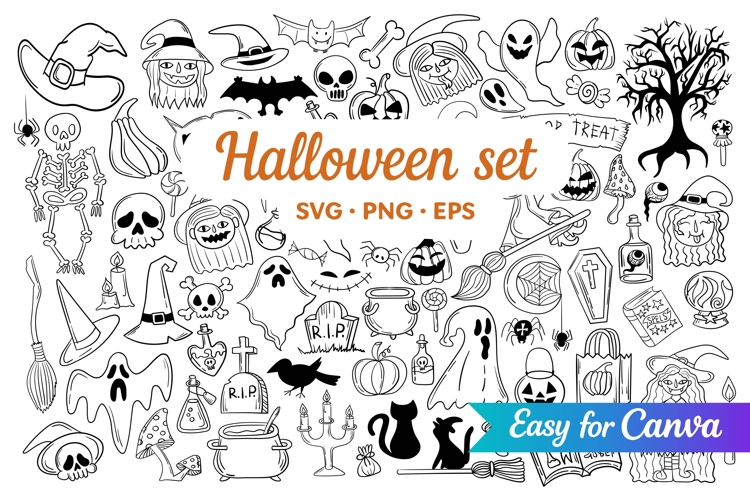
The browser should display the vector graphic clearly. Zoom in using Ctrl + (or Cmd +) to check for crisp edges. If the browser asks to download the file instead of displaying it, the file may be corrupted or saved with the wrong extension.
This native rendering confirms that the SVG structure is valid. If the image does not appear, the file might be a raster image saved with an .svg extension, or it could contain unsupported external resources. For more complex interactions or animations, dedicated vector editors are still required, but the browser is the fastest tool for a basic sanity check.
Edit SVG files with design tools
Open your SVG file in a vector editor like Figma, Adobe Illustrator, or Inkscape. These tools read the mathematical instructions inside the file, allowing you to manipulate individual shapes, colors, and text elements independently. Unlike raster editors, you are not locked into a single flattened image; every line and curve remains editable.
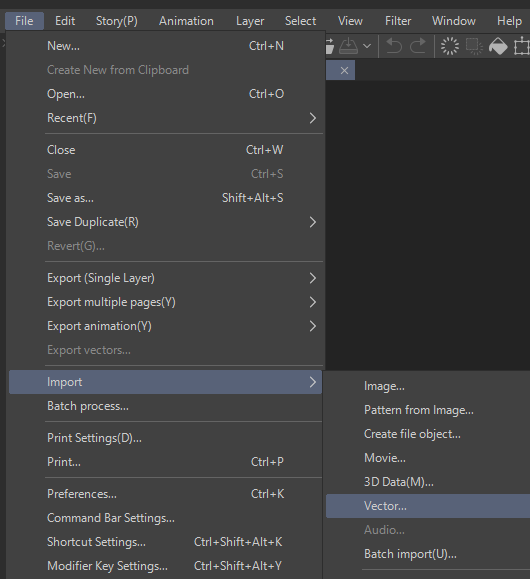
Drag and drop your SVG file into the editor’s workspace. If the file contains multiple layers or grouped objects, the software will typically separate them into distinct elements on the canvas. This is your starting point for any modifications.
Use the selection tool to click on specific paths or shapes. You can resize, rotate, or move these elements freely. To change the geometry, switch to the node or anchor point tool to drag individual points, adjusting curves and angles with precision.
Select an object to reveal its fill and stroke properties in the side panel. You can replace existing colors with new hex codes, gradients, or solid fills. This is often the quickest way to customize an SVG for your specific brand or project needs.
Click on any text layers to change the wording, font family, or size. If the original font is not installed on your system, the editor may substitute it. Ensure you convert text to paths if you need to preserve the exact visual appearance across different devices.

Once edits are complete, export the file as an SVG. Most editors offer an "Optimize SVG" option that removes unnecessary metadata and code bloat, resulting in a smaller, faster-loading file for web use or further editing.
Editing SVG files with design tools gives you full control over the graphic’s structure. By working with individual vectors rather than pixels, you ensure the image remains crisp at any scale. This flexibility makes vector editors the standard choice for professional graphic design and web development workflows.
Find free SVG files for projects
Sourcing high-quality assets doesn’t require a subscription. Several repositories host thousands of vector graphics that are safe for web design and craft projects. These platforms organize files by category, making it easy to find icons, illustrations, or cut files without wading through clutter.
Recommended free SVG repositories
-
SVG Repo
A massive database of over 500,000 vectors. It supports filtering by color and style, and most files are free for commercial use with clear licensing tags. -
Free SVG
Focuses on public domain and Creative Commons licensed assets. This site is ideal for designers who need to ensure legal safety for commercial projects without complex attribution requirements. -
Design Bundles
A curated marketplace for crafters. While it sells premium files, it offers a dedicated section of free SVGs compatible with Cricut and Silhouette cutting machines.

Always check the license before downloading. Most free SVG files are labeled as "Public Domain" or "CC0," meaning you can use them freely. Others may require attribution or restrict commercial use. Verifying these details upfront prevents legal issues later.
Common mistakes when using SVG
Even though SVG files are lightweight and scalable, they are not a universal solution for every image need. The most frequent error is treating SVG like a raster format such as JPEG or PNG. Because SVGs rely on mathematical paths rather than pixels, they struggle with complex, photorealistic images. Trying to force a high-detail photograph into an SVG file often results in massive file sizes that load slowly and render poorly. For photos, stick to optimized JPEGs or WebP formats instead.
Another critical pitfall is ignoring file size optimization. An unoptimized SVG can contain redundant code, unnecessary metadata, or excessive points that bloat the file. Always clean your SVGs using tools like SVGO or online optimizers before publishing. This ensures the code is minimal and the file loads instantly, preserving the performance benefits that make SVGs valuable in the first place.
Frequently asked questions about SVG
SVG stands for Scalable Vector Graphics, an XML-based format for two-dimensional graphics. Unlike raster formats like JPEG or PNG, SVG files use mathematical equations to define shapes, lines, and curves. This means the image remains crisp and clear at any resolution or size, without pixelation. You can also animate SVGs and apply transparency effects that raster formats struggle to handle efficiently.
Is SVG the same as JPEG?
No. JPEG is a raster format made of pixels, while SVG is vector-based. If you zoom in on a JPEG, it becomes blurry or blocky. An SVG scales infinitely because it redraws the shapes mathematically. Use JPEG for photographs with complex color gradients. Use SVG for logos, icons, charts, and illustrations where sharp edges and scalability matter.
Can I open an SVG file in a web browser?
Yes. All modern browsers, including Chrome, Firefox, Safari, and Edge, support SVG natively. You can drag an SVG file into a browser window to view it instantly. This makes SVG ideal for web design, as it loads quickly and can be styled with CSS or manipulated with JavaScript for interactivity.
How do I edit an SVG file?
You can edit SVG files in any text editor since they are essentially code. However, for visual adjustments, use vector graphics software like Adobe Illustrator, Inkscape (free), or Figma. These tools allow you to modify paths, colors, and shapes without losing quality. Avoid raster editors like Photoshop, as they treat the file as an image rather than editable vectors.
Your SVG workflow checklist
Open, Edit, and Use Free SVG Files works best as a clear sequence: define the constraint, compare the realistic options, test the tradeoff, and choose the path with the fewest hidden costs. That order keeps the advice usable instead of decorative. After each step, pause long enough to check whether the recommendation still fits the reader's actual situation. If it depends on perfect timing, unusual access, or a best-case budget, include a simpler fallback.
The simplest way to use this section is to write down the real constraint first, compare each option against it, and choose the path that still works outside ideal conditions.
No comments yet. Be the first to share your thoughts!